














 Email
Email SMS
SMS Whatsapp
 Web Push
 App Push
 Audience Sync for Ads
 Popups
 Channel A/B Testing
  Control groups Analysis
 Frequency Capping
 Funnel Analysis
 Cohort Analysis
 RFM Analysis
 Signup Forms
 Surveys
 NPS
NPS Landing pages personalization
  Website A/B Testing
  PWA/TWA
 Heatmaps
 Session Recording
 Wix
Wix Shopify
 Magento
 Woocommerce
 eCommerce D2C
  Mutual Funds
 Insurance
 Lending
  Recipes
  Knowledgebase
 Developer Docs
 Product Updates
 App Marketplace
 Academy
 Ebooks
 Case Studies
 Blog
Blog Templates
 Shivani Goyal
In today’s fast-paced digital world, mastering email efficiency is essential for staying organized and productive. In [2026], email tagging has emerged as a powerful tool for streamlining your inbox and optimizing your workflow.
By strategically categorizing and labeling your emails, you can quickly locate important messages, prioritize tasks, and reduce the time spent on searching for specific information.
In this article, we will explore the ins and outs of email tagging and how it can revolutionize your email management. We’ll delve into the benefits of implementing a robust tagging system, including improved search capabilities, enhanced collaboration, and better task management.
Whether you’re a busy professional, a small business owner, or a remote worker, understanding email tagging techniques will help you regain control of your inbox and make the most out of your communication.
Stay tuned as we provide expert tips, best practices, and real-world examples to empower you on your journey towards email efficiency. Let’s embrace the power of email tagging and unlock a new level of productivity in 2023 and beyond.
⚡ Quick Definition: What is Email Tagging?
Email tagging is the practice of attaching descriptive labels (tags) to individual contacts or messages so you can group, filter, and automate communications based on behaviour, demographics, lifecycle stage, or interest.
Unlike folders (which let an email live in only one place) or segments (which are dynamic filters), tags are static labels that stick to a contact and stack — one person can carry 5+ tags at once. That’s what makes tagging the backbone of modern email marketing automation in tools like Mailchimp, Klaviyo, HubSpot, and ActiveCampaign.
Introduction to Email Tagging

Email communication has become an integral part of our personal and professional lives. With the ever-increasing volume of emails we receive on a daily basis, it can be challenging to keep our inboxes organized and stay on top of important messages.This is where email tagging comes into play.
Email tagging plays a significant role in email organization by allowing you to categorize and label your emails based on their content, priority, or purpose. With a well-organized inbox, you can easily find specific emails, filter out irrelevant messages, and focus on what matters most. An email finder further supports effective email management by enabling the rapid retrieval of accurate contact information, which helps maintain clear and targeted communication.
A messy inbox doesn’t just waste time — it leads to mistakes. You miss context, reply to the wrong thread, or forget something important was buried three pages deep. When everything is organized and easy to find, you actually read emails properly before responding instead of skimming and guessing. That alone cuts down on back-and-forth and awkward “sorry I missed this” moments. The same principle applies to the emails you send out too starting with clean, well-structured welcome email templates sets the tone so replies stay organized from day one.
In summary, email organization is essential for maintaining productivity, reducing stress, and ensuring effective communication. By incorporating email tagging into your email management strategy, you can take control of your inbox and optimize your workflow.
What is Email Tagging?
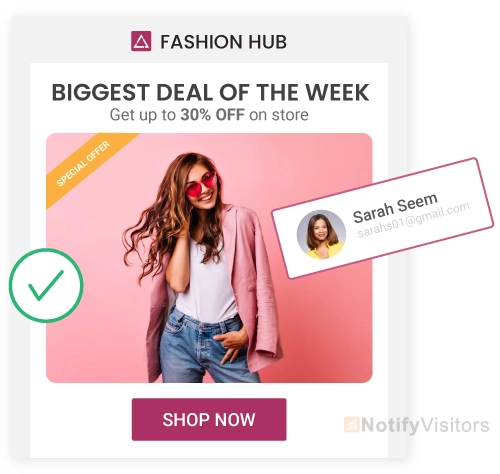
Email tagging is a method of categorizing and labeling emails using tags or labels. These tags act as virtual markers that help you identify and sort emails based on specific criteria. By assigning tags to your emails, you can quickly locate them, filter them, or perform specific actions based on their tags.
Tags can be customized to suit your preferences and needs. You can create tags based on the sender, subject, urgency, project, or any other relevant criteria. For example, you may create tags such as “Urgent,” “Important,” “Client A,” “Marketing,” or “To Do.” The possibilities are endless, and you can create as many tags as necessary to organize your emails effectively.
Email tagging is different from traditional email folders or labels. While folders or labels require you to assign an email to a specific location, email tags allow you to assign multiple tags to a single email. This flexibility enables you to categorize emails under different criteria simultaneously, providing a more comprehensive and dynamic organization system.
Now that you have a basic understanding of email tagging, let’s explore the benefits it brings to your email management.
The Importance of Email Tagging
Email tagging is a method of categorizing and organizing your emails using specific keywords or labels. It allows you to quickly identify and locate emails based on their topic, priority, or any other criteria you choose. By utilizing email tags, you can easily filter and search for specific emails,
saving valuable time and effort. Moreover, email tagging promotes effective collaboration within teams by providing a standardized way of organizing and sharing information.
Different Types of Email Tags
There are various types of email tags that you can use to organize your emails. Here are some commonly used tags:
- Priority Tags: These tags indicate the urgency or importance of an email. For example, you can use tags like “High Priority,” “Medium Priority,” or “Low Priority” to highlight the level of attention required.
- Topic Tags: Topic tags allow you to categorize emails based on their subject matter. For instance, you can create tags for different projects, clients, or departments to easily sort and retrieve relevant emails.
- Action Tags: Action tags are used to indicate the next steps or actions required for a particular email. Tags like “To-Do,” “Follow-Up,” or “Waiting for Response” can help you stay organized and ensure that important tasks are not forgotten.
- Status Tags: Status tags provide visibility into the progress or status of an email. Tags like “Open,” “In Progress,” or “Closed” can help you track the lifecycle of an email and prioritize your workload accordingly.
Email Tagging vs Email Segmentation: What’s the Difference?
This is the question every marketer asks once they start working with modern email platforms. The terms get thrown around interchangeably, but they’re not the same thing. Tags and segments work together, not as substitutes for each other.
🏷️ TAGS
Static labels attached to a contact
Example: Sarah has tags [VIP] [Cart-Abandoner] [Bay-Area]
Tags stack. One person can carry 5-15 tags at once. They stick until you manually remove them or set up automation to do it.
🎯 SEGMENTS
Dynamic groups built from rules
Example: “All [VIP] tagged contacts in [Bay-Area] who opened in the last 30 days”
Segments update in real-time as conditions change. A contact moves in or out of a segment automatically based on their data.
| Aspect | Tags | Segments |
|---|---|---|
| What it is | A label stored on a contact | A filter that defines a group |
| How it updates | Manual or via automation rule | Dynamic, real-time |
| Best for | Marking individual attributes (VIP, abandoned cart, opted into webinar) | Targeting groups with combined conditions for sends |
| Stacking | One contact can have many tags | A contact can match multiple segments at once |
| Use them together | Tags become the building blocks | Segments combine tags + behaviour data |
The simple way to remember it: tags describe a contact, segments query the contact list. You attach a [VIP] tag to Sarah. Then you build a segment that says “send this campaign to everyone with the [VIP] tag who lives in California.” Tags feed segments, not the other way around.
The 4 Types of Email Tags (Tag Taxonomy)
Every healthy email tagging system breaks down into four core categories. Most teams that struggle with “tag explosion” by year two end up there because they didn’t think about taxonomy upfront. Here’s the framework that works:
1. Behavioral Tags
What the contact DID
clicked-pricing-pageabandoned-cartviewed-demoopened-3-emails
2. Demographic Tags
Who the contact IS
role-marketing-managercompany-size-100-500industry-saaslocation-emea
3. Lifecycle Tags
Where they are in the journey
new-subscribertrial-activecustomer-paidchurned
4. Preference Tags
What they CARE ABOUT
topic-email-marketingfrequency-weeklyformat-videoopted-in-product-news
The rule of thumb: every tag in your system should fit cleanly into one of these four buckets. If a tag doesn’t fit, you probably shouldn’t be creating it as a tag — it might belong as a custom field, a list, or a segment instead.
Most mature email programs end up with about 30-60 active tags split roughly 40% behavioral, 20% demographic, 20% lifecycle, and 20% preference. Tag counts above 100 almost always mean the team didn’t audit and consolidate, not that the brand has more sophisticated needs.
12 Real-World Email Tagging Use Cases
The tag taxonomy above is the framework. Here’s how it shows up in actual marketing campaigns. Each example pairs the tag name with the trigger that should set it and what you’d do with it once attached:
- Cart abandonment tag. Trigger: cart with items left untouched for 60+ minutes. Use: send a 3-email recovery flow with subject lines tied to the abandoned product. Recovers 8-15% of abandoned carts on average.
- Post-purchase upsell tag. Trigger: completed first order. Use: 14-day flow that introduces complementary products. Recover 12-25% AOV lift on second purchase.
- Content interest tag. Trigger: clicked link in email about a specific topic. Use: route them into the relevant nurture sequence. Lifts CTR on follow-up sends 30-40%.
- Geographic tag. Trigger: signup form geo-location or stated location. Use: send timezone-appropriate emails, region-specific offers, store availability messages.
- Plan tier tag (SaaS). Trigger: subscription level (free, starter, pro, enterprise). Use: send tier-specific feature emails, upgrade prompts, account management touchpoints.
- Engagement score tag. Trigger: behavioural scoring threshold (high/medium/low engagement). Use: throttle send frequency for low-engagement to protect deliverability, prioritize high-engagement for promo campaigns.
- Source tag. Trigger: signup source (Facebook ad, organic, referral, podcast). Use: track LTV by acquisition channel, send source-specific welcome flows, attribute revenue.
- Customer status tag. Trigger: account status change (active, paused, churned, win-back-eligible). Use: route into appropriate flows, trigger re-engagement campaigns at the right moment.
- Webinar attendance tag. Trigger: registered, attended, attended-but-left-early, no-show. Use: tailor follow-up emails to actual engagement. No-shows get the recording. Attendees get the next-step CTA.
- Lead score / qualification tag. Trigger: lead reaches MQL/SQL threshold. Use: automatically hand off to sales, suppress from broad marketing sends, send sales-aligned content.
- Survey response tag. Trigger: answered a specific question (NPS score, product preference, role). Use: trigger NPS detractor recovery flows, route into preference-based campaigns.
- Email frequency preference tag. Trigger: preference center selection (daily, weekly, monthly). Use: automatically include or suppress from each campaign send. Reduces unsubscribe rate 20-35%.
One pattern across all 12 use cases: each tag is tied to one specific trigger and one specific use. Tags that get created without a trigger or a use-case attached are the ones that pile up in your system and never get retired.
How to Use Email Tags Effectively

Now that you understand the different types of email tags, let’s explore how to use them effectively:
- Create a Tagging System: Before you start using email tags, it’s important to establish a tagging system that aligns with your workflow. Think about the categories or criteria that are most relevant to your email management needs and create tags accordingly.
- Be Consistent: Consistency is key when it comes to email tagging. Make sure to use the same tags consistently across all emails to avoid confusion and ensure accurate categorization.
- Use Multiple Tags: Don’t limit yourself to a single tag per email. Instead, use multiple tags to provide more context and flexibility. For example, you can use both a priority tag and a topic tag to further refine your search criteria.
- Automate Tagging: Take advantage of email management tools and software that offer automated tagging features. These tools can analyze the content of your emails and suggest relevant tags, saving you time and effort.
Best Practices for Email Tagging
To make the most out of email tagging, consider following these best practices:
- Keep it Simple: Avoid creating too many tags that may overwhelm you or your team. Stick to a manageable number of tags that cover the most important categories.
- Regularly Review and Update Tags: As your email management needs evolve, periodically review and update your tags to ensure they remain relevant and aligned with your current workflow.
- Educate Your Team: If you are part of a team or organization, make sure everyone is aware of the email tagging system and understands its benefits. Provide training and resources to help your team members effectively use email tags.
- Experiment and Iterate: Don’t be afraid to experiment with different tag combinations or approaches. Learn from your experience and refine your tagging system to continuously improve productivity and efficiency.
Tools and Software for Email Tagging
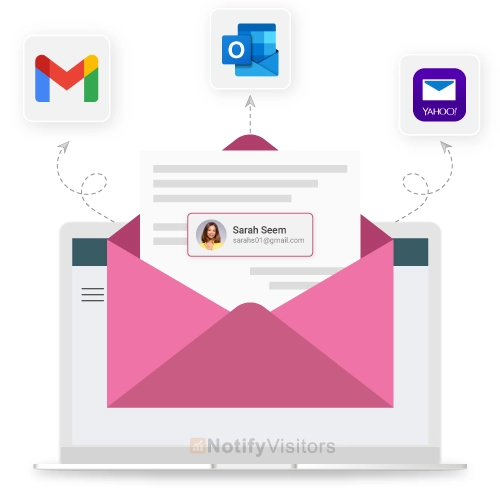
There are several tools and software available that can enhance your email tagging experience. Here are a few popular options:
- Gmail: Gmail offers a robust tagging feature that allows you to create and apply labels to your emails. These labels function like tags and can be customized to suit your specific needs.
- Microsoft Outlook: Microsoft Outlook also provides a tagging feature called “Categories.” Categories allow you to color-code and categorize your emails for easy identification and organization.
- Email Client Extensions: Various email client extensions, such as MailTag, Boomerang, and Streak, offer additional tagging functionalities like automated tagging, reminders, and email tracking.
How to Set Up Email Tagging in Major ESPs (Step-by-Step)
The conceptual framework above transfers across every modern email platform, but the implementation details differ. Here are the practical setup steps for the four ESPs that handle the bulk of mid-market and enterprise email marketing today.
Setting Up Tags in Mailchimp
Mailchimp calls them “tags” natively. To create a tag manually, head to your audience, click “Manage contacts,” then “Tags,” and click “Create tag.” For automated tagging, navigate to “Customer Journeys,” create a new journey, and add the “Add tag” action triggered by behaviours like “Opens an email,” “Clicks a link,” or “Submits a form.” Mailchimp’s free plan supports unlimited tags, so this is the lowest-friction starting point for small teams.
Pro tip: Mailchimp lets you bulk-tag a CSV upload during contact import. Use this to seed your initial tag taxonomy when migrating from another platform.
Setting Up Tags in Klaviyo
Klaviyo separates “Lists” (manually managed groups), “Segments” (dynamic rules), and “Profile Properties” (where most tagging actually lives). To create a tag, you’ll typically use a custom property — go to the profile, click “Add Property,” and add a key like tag_vip with value true. For automation, build a Flow with a “Profile Property” action that sets the tag based on event triggers (Placed Order, Viewed Product, Started Checkout). Klaviyo’s strength is the depth of behavioural triggers available out of the box, particularly for ecommerce.
Pro tip: Use boolean properties (tag_vip: true) instead of single-value properties so a contact can carry multiple tags simultaneously, just like in Mailchimp.
Setting Up Tags in HubSpot
HubSpot uses a hybrid model: “Static Lists” (manually maintained), “Active Lists” (dynamic, like Klaviyo Segments), and “Contact Properties” (where tag-equivalent data lives). To create a tag, add a multi-checkbox or single-checkbox custom property under Settings → Properties. To automate it, build a Workflow with the “Set property value” action triggered by form submissions, page views, email engagement, or CRM events. HubSpot’s strength is in tying tags to deal stages and lifecycle phases when paired with the CRM hub.
Pro tip: Use HubSpot’s “Lifecycle Stage” property as your default lifecycle tag. It’s already integrated with reporting and pipeline views, so you don’t need to duplicate the data.
Setting Up Tags in ActiveCampaign
ActiveCampaign has the most native tag support of the four. Go to “Contacts” → “Manage Tags” to create new tags. To automate, build an Automation with the “Add tag” or “Remove tag” action triggered by 80+ available events including specific page visits, deal stage changes, and SMS replies. ActiveCampaign also lets you set up “Tag-based automations” that fire whenever any contact gets a specific tag added — particularly useful for cross-channel orchestration.
Pro tip: ActiveCampaign supports tag goals in automations. You can set up a flow that says “exit when contact gets tagged customer” — a clean way to handle the conversion moment in nurture sequences.
Email Tagging for Team Collaboration
Effective team collaboration relies on clear communication and efficient information sharing. Email tagging can significantly enhance team collaboration by providing a structured and accessible email organization system.
By using shared tags that everyone on the team can access, you establish a common language for categorizing and locating project-related emails. This standardized approach eliminates confusion and ensures that team members can easily find the information they need, even when dealing with a high volume of emails.
Moreover, email tagging enables team members to collaborate seamlessly across different time zones or locations. By tagging emails with relevant project details or deadlines, team members can quickly identify their responsibilities and track progress, regardless of their physical location.
Email tagging also promotes transparency within the team. By using shared tags, team members can have visibility into the communication and actions taken by others. This transparency fosters accountability, reduces duplication of efforts, and promotes an efficient workflow.
Email tagging is a valuable tool for team collaboration, providing a structured and accessible system for organizing project-related emails. By implementing email tagging within your team, you can streamline communication, enhance accountability, and improve overall productivity.
Common Mistakes to Avoid When Using Email Tags
While email tagging can significantly improve your email management, it’s important to avoid common mistakes that can undermine its effectiveness. Here are a few mistakes to avoid:
- Overusing Tags: Using too many tags can make your email organization system complex and confusing. Stick to a reasonable number of tags that cover the essential categories.
- Inconsistent Tagging: Failing to use tags consistently can lead to misclassification and difficulties in locating specific emails. Ensure that everyone using the tagging system adheres to the same conventions.
- Ignoring Tag Maintenance: Neglecting to regularly review and update your tags can result in an outdated and inefficient system. Periodically assess your tagging system and make necessary adjustments.
- Not Training Your Team: If you are working in a team, neglecting to educate your team members on the email tagging system can lead to inconsistencies and misunderstandings. Ensure that everyone understands and follows the tagging guidelines. If more guidance is needed, Qooper mentoring can provide structured support and personalized coaching to help your team master the system.
5 Advanced Tagging Mistakes That Hurt Email Performance
The strategic mistakes above are the obvious ones. The five below are the tactical ones that show up specifically in mature email programs after 12-18 months of use:
- Tag explosion (no audit cycle). Most teams hit 80+ tags by the end of year one. Without a quarterly audit, half are unused and slowing the platform down. Schedule a 60-minute audit every quarter to retire tags with zero contacts attached.
- Mixing tags and segments incorrectly. Using a tag where a segment should sit (and vice versa) creates duplicate work. Rule of thumb: if it changes daily based on data, it’s a segment. If it’s a sticky attribute that stays until you remove it, it’s a tag.
- Missing tag-removal automation. Most teams set up tags that ADD but never set up the automation that REMOVES them. The
cart-abandonertag should auto-remove when the cart is recovered. Without removal logic, contacts pile up in stale tag states. - Tag drift across team members. Marketing creates
topic-saas. Sales createsSAAS. Customer success createsindustry-saas. All three reference the same thing but split your data across three tags. Lock taxonomy to one owner and gate tag creation behind a Slack approval. - No reporting on tag performance. Tags should drive measurable lift in send metrics. If a campaign sent to
[VIP]contacts doesn’t outperform a campaign sent to non-VIPs, the tag isn’t doing its job. Build a quarterly tag-performance review into your reporting cadence.
Tag Naming Conventions That Scale
The single biggest reason email tagging systems collapse by year two is inconsistent naming. VIP, vip, Vip-Customer, and customer_vip all reference the same idea but live in your platform as four different tags. Pick a naming convention before you create your fifth tag, not your fiftieth.
Prefix-Based Naming (Recommended)
Every tag starts with a 3-character prefix that signals which of the 4 taxonomy categories it belongs to. Example pattern:
beh-for Behavioral:beh-clicked-pricing,beh-abandoned-cart,beh-opened-3-emailsdem-for Demographic:dem-role-marketing,dem-industry-saas,dem-region-emealife-for Lifecycle:life-trial-active,life-customer-paid,life-churnedpref-for Preference:pref-frequency-weekly,pref-topic-email-marketing
The prefix makes audits trivial. Sort tags alphabetically and you instantly see which category dominates your system, which is empty, and where the duplicates live.
Hierarchical Naming
For platforms that support nested labels (Mailchimp uses slashes: lifecycle/customer/active), hierarchical naming gives you faceted filtering for free. Same data structure, just nested visually.
Date-Stamped Naming for Campaigns
For tags tied to specific campaigns or events, include the date. camp-bfcm-2025, event-webinar-2026-q1. Makes retiring old campaign tags trivial — anything older than 18 months goes in the audit pile automatically.
10-Point Email Tagging Best Practices Checklist
Pin this checklist next to your monitor. Every item below comes from real cleanup work in mature email programs. Each one prevents a problem that gets expensive to fix later:
- 1. Cap your active tag count at 60. More than that and you’ve got duplicates or unused tags hiding in there. Audit and consolidate.
- 2. Use a 3-char prefix for every tag.
beh-,dem-,life-,pref-. Lock the convention on day one. - 3. Document every tag in a shared sheet. Name, definition, trigger, removal logic, owner. If a tag isn’t documented, it shouldn’t exist.
- 4. Audit quarterly. 60-minute review every 90 days. Retire anything with zero contacts or zero use in the last 6 months.
- 5. Pair every “add tag” with a “remove tag” rule. Otherwise you’re just stacking labels forever.
- 6. Gate tag creation behind one owner. Marketing manager or RevOps lead. Anyone who wants a new tag asks them. Stops drift cold.
- 7. Build segments from tags, not the other way around. Tags are atoms. Segments are molecules. Get the dependency direction right.
- 8. Test tags work before campaigns. Send to a 5-contact test segment with the tag. Confirm the campaign actually fires only on tagged contacts.
- 9. Don’t tag PII or sensitive data. Health conditions, religion, political views — none of that as a tag. Data privacy laws (GDPR, CCPA) treat tags as personal data.
- 10. Report on tag-driven lift quarterly. If
[VIP]sends don’t outperform non-VIP sends, the tag isn’t earning its keep.
Examples of Successful Email Tagging Campaigns
To inspire your email tagging efforts, here are a few examples of successful email tagging campaigns:
- Sales Pipeline Management: A sales team can use tags like “Lead,” “Qualified,” “Negotiation,” and “Closed” to track the progress of their deals and prioritize follow-ups.
- Customer Support: A customer support team can use tags like “Technical Issue,” “Billing Inquiry,” or “Feature Request” to quickly identify and categorize customer inquiries for efficient resolution.
- Project Management: Project managers can use tags like “Planning,” “Execution,” “Review,” and “Completed” to track the status and progress of different project tasks.
Future Trends and Predictions for Email Tagging in 2023
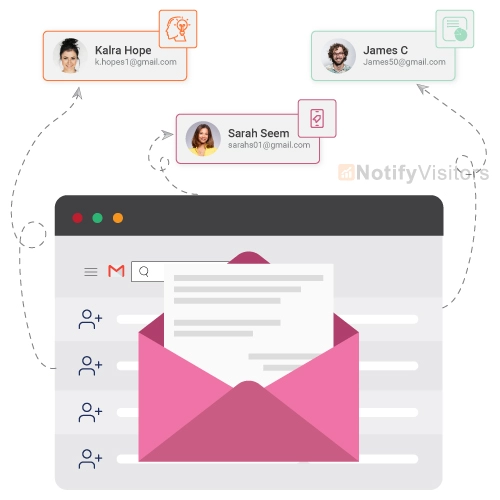
As we move into 2023, email tagging is expected to evolve further to meet the changing needs of email users. Some future trends and predictions for email tagging include:
- Artificial Intelligence-Powered Tagging: AI technology will play a more significant role in automatically tagging emails based on their content, context, and user preferences. Advances in ai agent development are enabling smarter and more adaptive tagging systems that learn from user behavior to improve accuracy and relevance over time.
- Integration with Project Management Tools: Email tagging will seamlessly integrate with popular project management tools, allowing for improved collaboration and task tracking.
- Enhanced Mobile Tagging Experience: Mobile email clients will provide more robust tagging features, ensuring that users can effectively organize their emails even when on the go.
How to Set Up Email Tagging Automation in Nvecta
Once your taxonomy is locked and naming conventions are clear, automation is what makes the system actually pay off. The five-stage flow below works in any modern email platform — Nvecta, Mailchimp, Klaviyo, HubSpot — but the setup is fastest in platforms with native tag automation built in:
User action or event fires
Add or remove tag
Tag enters dynamic group
Send/sequence fires
Measure tag-driven lift
1. Define the Trigger Event
Pick the user action or system event that should attach the tag. Common triggers: form submission, link click, page view threshold (3+ pricing page visits), purchase, plan upgrade, NPS score below 7. Be specific — vague triggers create noisy tag data.
2. Set Up the Tag Rule
In Nvecta or your platform of choice, create the rule that adds the tag when the trigger fires. Always pair it with a removal rule (when does this tag come off?). Without removal logic, your tag database degrades over time.
3. Build the Segment
Tags don’t drive sends directly. Segments do. Build a dynamic segment that says “all contacts with tag X who haven’t received campaign Y in the last 7 days” or whatever combined logic fits the campaign.
4. Connect to Automation
Wire the segment to the email automation that should fire — a single send, a multi-touch sequence, or a cross-channel orchestration. Test with a 5-contact internal segment before going live to make sure the trigger actually fires.
5. Track Tag-Driven Lift
The last stage is the one most teams skip. Compare campaign performance for tagged contacts versus non-tagged. Open rates, CTR, conversion rate. If the tag isn’t driving meaningful lift after 60 days, retire it or refine the trigger.
Nvecta’s email marketing platform handles all five stages with native tag automation, behavioural triggers, and per-tag reporting built in. For broader strategy, see our guides on email list management and dynamic email content.
Conclusion
Email tagging is a powerful tool that can revolutionize the way you manage your inbox. By implementing an effective tagging system, you can effortlessly organize your emails, increase productivity, and improve collaboration within your team.
Remember to choose relevant tags, be consistent, and leverage the available tools and software to enhance your email tagging experience. With the right approach, email tagging can transform your email workflow and make you a master of email organization in 2023 and beyond.
Frequently Asked Questions
1. What is email tagging?
Email tagging is the practice of attaching descriptive labels (tags) to individual contacts or messages so you can group, filter, and automate communications based on behaviour, demographics, lifecycle stage, or interest. Unlike folders (where an email lives in only one place), tags stack — one contact can carry 5-15 tags at once. Tags form the backbone of modern email automation in platforms like Mailchimp, Klaviyo, HubSpot, and ActiveCampaign.
2. What’s the difference between email tagging and segmentation?
Tags are static labels attached to individual contacts (Sarah has tags [VIP], [Cart-Abandoner], [Bay-Area]). Segments are dynamic filters that group contacts based on rules (all [VIP] contacts in [Bay-Area] who opened in the last 30 days). Tags describe a contact; segments query the contact list. Tags feed segments, not the other way around. Use tags as the building blocks; use segments to assemble the audience for a specific campaign.
3. What are the 4 types of email tags?
The 4 core tag categories are: (1) Behavioral tags — what the contact DID (clicked-pricing-page, abandoned-cart, viewed-demo); (2) Demographic tags — who the contact IS (role-marketing-manager, industry-saas, region-emea); (3) Lifecycle tags — where they are in the journey (new-subscriber, trial-active, customer-paid, churned); (4) Preference tags — what they CARE ABOUT (topic-email-marketing, frequency-weekly, format-video). Every tag should fit cleanly into one of these four buckets.
4. How do I set up email tagging in Mailchimp?
In Mailchimp: head to your audience, click “Manage contacts” → “Tags” → “Create tag.” For automated tagging, navigate to “Customer Journeys,” create a new journey, and add the “Add tag” action triggered by behaviours like “Opens an email,” “Clicks a link,” or “Submits a form.” Mailchimp’s free plan supports unlimited tags, so it’s the lowest-friction starting point. You can also bulk-tag a CSV upload during contact import to seed your initial tag taxonomy when migrating from another platform.
5. How do I set up email tagging in Klaviyo?
Klaviyo handles tagging through Profile Properties (custom data fields). Go to a profile, click “Add Property,” and add a key like tag_vip with value true. For automation, build a Flow with a “Profile Property” action that sets the tag based on event triggers (Placed Order, Viewed Product, Started Checkout). Use boolean properties (tag_vip: true) instead of single-value properties so a contact can carry multiple tags simultaneously, just like in Mailchimp.
6. How do I set up email tagging in HubSpot?
HubSpot uses Contact Properties for tag-equivalent data. Add a multi-checkbox or single-checkbox custom property under Settings → Properties. To automate, build a Workflow with the “Set property value” action triggered by form submissions, page views, email engagement, or CRM events. Use HubSpot’s “Lifecycle Stage” property as your default lifecycle tag — it’s already integrated with reporting and pipeline views, so you don’t need to duplicate the data.
7. What are the best email tagging best practices?
The 10 highest-impact best practices: cap your active tag count at 60, use a 3-character prefix for every tag (beh-, dem-, life-, pref-), document every tag in a shared sheet with name/definition/trigger/owner, audit quarterly, pair every “add tag” with a “remove tag” rule, gate tag creation behind one owner, build segments from tags (not the other way around), test tags on a 5-contact segment before campaigns, never tag PII or sensitive data, and report on tag-driven lift quarterly.
8. How many email tags should I have?
Most mature email programs end up with about 30-60 active tags split roughly 40% behavioral, 20% demographic, 20% lifecycle, and 20% preference. Tag counts above 100 almost always mean the team didn’t audit and consolidate, not that the brand has more sophisticated needs. If you’re hitting 80+ tags by year one, it’s time for an audit cycle to retire unused tags.
9. What’s the best email tag naming convention?
The most scalable convention is prefix-based: every tag starts with a 3-character prefix that signals which taxonomy category it belongs to (beh-, dem-, life-, pref-). Examples: beh-clicked-pricing, dem-industry-saas, life-trial-active, pref-frequency-weekly. The prefix makes audits trivial because sorting tags alphabetically immediately reveals which category dominates and where duplicates live. Lock the convention before you create your fifth tag.
10. What are common email tagging mistakes to avoid?
The five biggest tactical mistakes in mature email programs: (1) tag explosion without an audit cycle (most teams hit 80+ tags by year one), (2) mixing tags and segments incorrectly (use a tag for sticky attributes, a segment for dynamic filters), (3) missing tag-removal automation (the cart-abandoner tag should auto-remove when the cart is recovered), (4) tag drift across team members (marketing creates topic-saas while sales creates SAAS), and (5) no reporting on tag-driven lift.
11. How do I automate email tagging?
Email tagging automation runs through a 5-stage flow: (1) define the trigger (form submission, link click, purchase, plan upgrade), (2) set up the tag rule that adds or removes the tag when the trigger fires, (3) build the dynamic segment that combines tags with other conditions, (4) connect the segment to the email automation that should fire, and (5) track tag-driven lift in your reporting. Always pair every “add tag” rule with a “remove tag” rule to prevent stale data buildup.
12. Can I use email tags for B2B marketing?
Yes — B2B email marketing relies heavily on tagging. Common B2B tag use cases include lead scoring tags (MQL, SQL, Opportunity), role tags (decision-maker, influencer, end-user), industry vertical tags (saas, retail, finance), company size tags (smb, mid-market, enterprise), deal stage tags (prospecting, qualified, negotiation, closed), and content interest tags. HubSpot and ActiveCampaign offer the strongest native B2B tagging features, particularly when paired with their CRM modules for sales-marketing alignment.
Also Read:
