














 Email
Email SMS
SMS Whatsapp
 Web Push
 App Push
 Audience Sync for Ads
 Popups
 Channel A/B Testing
  Control groups Analysis
 Frequency Capping
 Funnel Analysis
 Cohort Analysis
 RFM Analysis
 Signup Forms
 Surveys
 NPS
NPS Landing pages personalization
  Website A/B Testing
  PWA/TWA
 Heatmaps
 Session Recording
 Wix
Wix Shopify
 Magento
 Woocommerce
 eCommerce D2C
  Mutual Funds
 Insurance
 Lending
  Recipes
  Knowledgebase
 Developer Docs
 Product Updates
 App Marketplace
 Academy
 Ebooks
 Case Studies
 Blog
Blog Templates
 Tanya
Tanya📌 Quick Answer: Shopify Order Confirmation Email
A Shopify order confirmation email is the automated email sent to customers right after they place an order on a Shopify store. According to Klaviyo, order confirmation emails average 60%+ open rates and 12%+ click rates, which makes them the highest-engagement email type in ecommerce. Shopify sends these emails by default, but customizing them with branded design, smart upsells, and personalization can lift repeat purchase rates by 20-30%. This guide covers setup steps, customization with Liquid code, real brand examples, best practices, and AI personalization angles for 2026.
Running a Shopify store means every detail counts, from the typography on your product pages to the order confirmation email that lands in your customer’s inbox seconds after checkout. If you want to learn how to edit, customize, and get more revenue out of your Shopify order confirmation email, this guide walks through every step.
This blog covers how to set up, edit, and customize your Shopify order confirmation email, with practical steps, Liquid code snippets, real brand examples, and the AI shifts changing post-purchase emails in 2026.
What is a Transactional Email?
Transactional emails are automated emails triggered by specific events or user actions on a website. An order confirmation email falls into this category because it’s sent automatically after someone completes a purchase. Other transactional emails include shipping notifications, password resets, account verification, and refund confirmations.
Transactional emails matter because they communicate your brand at the highest-attention moment a customer ever has with you. They’re not promotional, but they’re the chance to connect with your customer right after they’ve trusted you with their money.
One of the most powerful marketing emails you’ll ever send is an order confirmation email. After a customer makes a purchase, the order details are automatically sent to them as confirmation. The default Shopify order confirmation email works fine to get you started, but as your store grows, you’ll want to set up your own version for a more branded, conversion-focused experience.
Does Shopify Send Order Confirmation Emails Automatically?
Yes, Shopify automatically sends order confirmation emails to customers immediately after they place an order. The default template covers order details, billing and shipping addresses, line items, total cost, and basic store info. It’s functional, but it’s also generic — every Shopify store ships with the same baseline design.
Brands that customize their order confirmation emails consistently see better engagement, more repeat purchases, and higher revenue from upsells. The default template is your starting point, not your finish line.
How to Set Up an Order Confirmation Email in Shopify (Step-by-Step)
Shopify ships with built-in email templates you can edit, plus you can layer in third-party apps for deeper customization. Here’s the basic 8-step setup process inside Shopify admin:
- Log in to your Shopify admin and go to Settings → Notifications
- Scroll to “Order confirmation” under the Orders section
- Click “Edit code” to access the HTML/Liquid template
- Update the subject line for a higher open rate (we’ll cover examples below)
- Customize the email body using Liquid variables for personalization
- Update sender name and reply-to email under Store settings
- Test the email with a sample order to verify formatting on desktop and mobile
- Save and publish the customized template
Pair this with a strong email marketing platform sitting alongside Shopify and you can run advanced post-purchase flows that go beyond what the native template offers.
How to Customize Every Shopify Email Template
Once you have your notification emails set up, you can add your logo and change the color scheme across all templates at once. This keeps your branding consistent without editing each template individually.
Follow these steps:
- To add your logo: Go to Settings → Notifications. Click Customize and then Choose file to upload your logo to all email templates at once.
- To choose colors: From the same Settings → Notifications page, click Customize and use the color picker to update header, body, and button colors across all templates.
How to Customize a Specific Shopify Email Template
If you want to customize just your order confirmation email or add specific information to one transactional email type, follow these steps:
- Go to Settings → Notifications. On the notifications tab, click on the specific notification you want to edit (in this case, “Order confirmation”). You can then edit the content and the email subject line. Click Save when done.
- Check your changes by clicking Actions → Preview before saving, so you catch any formatting issues before customers see them.
For brands ready to push beyond the Shopify defaults, sample Liquid code blocks for personalization:
{% if customer.first_name %}
  Hi {{ customer.first_name }},
{% else %}
  Hi there,
{% endif %}

Your order #{{ order_name }} is confirmed!
Total: {{ total_price | money }}
Estimated delivery: {{ shipping_date }}
This snippet personalizes the greeting based on whether the customer’s name is available, then dynamically inserts the order number, total, and shipping date. Small Liquid customizations like this make a generic template feel personal.
Now let’s get into the practical best practices for getting more value out of your Shopify order confirmation emails.
Best Practices to Customize Shopify Order Confirmation Email
1. Optimize Your Shopify Traffic Experience
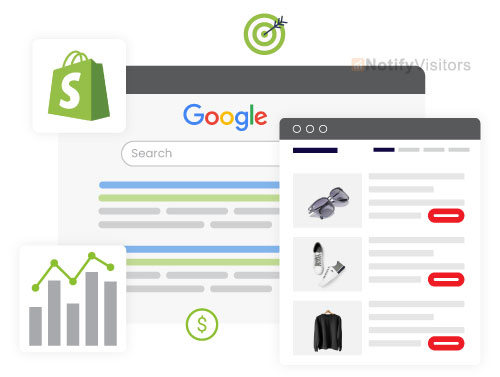
Email marketing needs to be consistent across every touchpoint of your brand. When crafting your Shopify confirmation email, think beyond default guidelines and figure out how to bring your real brand voice into the inbox.
A well-designed confirmation email is the easiest way to leave a positive impression on a new customer, so don’t treat it as an afterthought. A consistent experience across every channel a customer touches is the heart of omnichannel marketing in 2026.
2. Maintain a Consistent Brand Voice
Content matters, especially in transactional emails. The first change you should make to your default email setup is making the messaging feel uniquely yours. Include the important order information, but write it in the same voice you use everywhere else.
Your Shopify store should sound the same in every email notification, from order confirmations to shipping updates to refund acknowledgments. Brands like Chubbies and Bombas have entire confirmation flows that read like a personal note from a friend, and the engagement metrics reflect it.
3. Send the Confirmation Immediately After Purchase
Sending the confirmation email within 30 minutes of an order being placed is critical for the customer experience. Faster is better. This reassures customers that everything went through correctly, gives them a chance to double-check their billing address, and reduces the “wait, did my order actually go through?” support tickets that drain your team.
The same goes for follow-up emails like shipping notifications. Send them consistently so customers know what to expect at each stage of their order journey.
4. Keep Visual Communication Consistent
Beyond brand voice, align the visual style of your emails with your Shopify store. Same colors, same fonts, same imagery treatment. If a customer can’t immediately tell the email is from you, you’ve lost the branding opportunity.
You can hire professionals to build custom HTML email templates, but Shopify’s built-in templates give you a solid baseline to start from.
Shopify admin lets you edit existing templates to update the header, footer, change CSS for custom colors, and add your logo. For deeper customization, you can edit the underlying Liquid code directly.
Always proofread emails before pushing them live. Plain text emails work best for one-off transactional events.
5. Use Cross-Selling and Upselling Opportunities
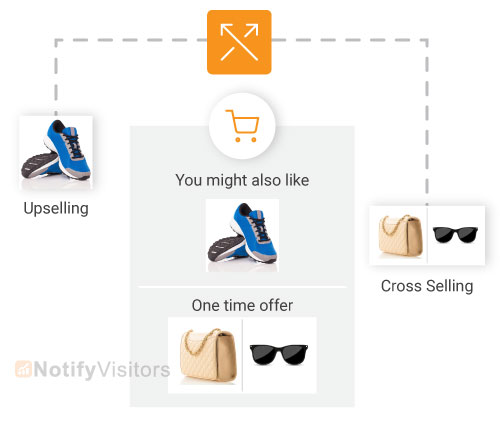
The high open rates of business emails make order confirmation emails the perfect spot for upsells and cross-sells. The customer has already trusted you with their payment info, so they’re far more likely to add something else than a cold prospect would be. Smart marketing automation tools make this easy to set up once and run forever.
With cross-selling, you offer additional products related to what they just purchased. Bought a shirt? Show them matching trousers. Bought a tent? Show them sleeping bags and camping stoves.
Reselling takes a slightly different angle, offering upgraded versions of what they already bought to lift the average order value. Either approach works as long as you keep the offers genuinely useful and limit the section to 2-3 products max so you don’t crowd the actual order details.
Cross-selling and upselling can lift your average order value significantly with relatively little effort once the email is set up. The time investment pays back fast.
6. Write Compelling Subject Lines
Subject lines for Shopify confirmation emails should reflect both the content and your brand voice. Adding warmth or personality lifts open rates significantly compared to the default “Order #1234 confirmed” subject line every Shopify store starts with.
Subject lines that work well:
- Standard: “Order #{{ order_number }} confirmed”
- Friendly: “Yay! Your order is on its way 🎉”
- Branded: “Thanks for your {{ brand_name }} order”
- Personal: “{{ first_name }}, here’s your order”
- Anticipation: “Order confirmed — here’s what happens next”
7. Reduce Cart Abandonment Rate
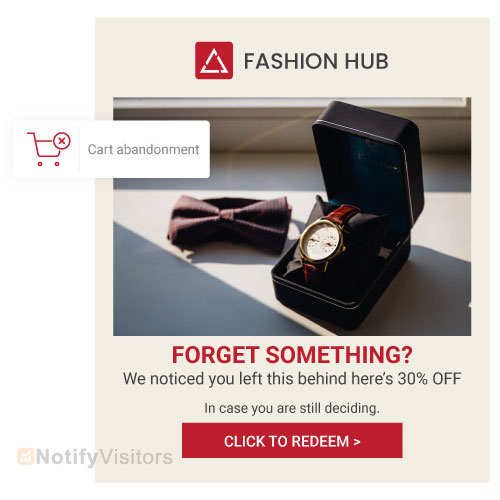
Since Shopify confirmation emails are only sent after a purchase, minimizing abandoned cart traffic should be a priority alongside post-purchase optimization. Many shoppers hesitate to complete a purchase on the first visit for all kinds of reasons (shipping costs, account creation friction, payment options). Some will come back, but most won’t unless you nudge them.
Nvecta’s multi-channel automated messaging capabilities let you reach customers and remind them of their abandoned carts through email, SMS, and WhatsApp at the moments they’re most likely to convert.
8. Effective Communication When Things Go Wrong
Beyond the standard confirmation and shipping emails, communicate clearly when there are delays, stock issues, or fulfillment problems. These informational emails help manage customer expectations and prevent the support tickets and refund requests that pile up when customers feel left in the dark.
9. Create a Smart CTA
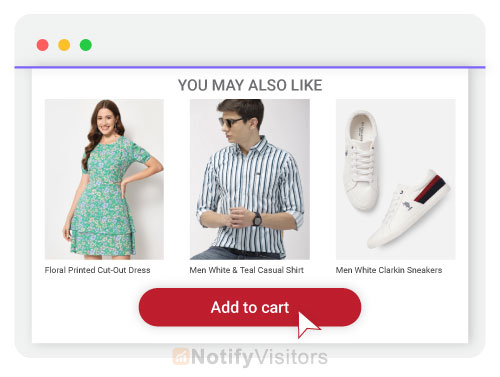
A compelling Call to Action is a must for your Shopify order confirmation email. Add a CTA button that nudges customers toward their next step, whether that’s tracking the order, joining your loyalty program, or referring a friend. You can also add social media links at the bottom of the email to extend the relationship beyond just the transaction. For deeper inspiration on what works, see our breakdown of email CTA examples that consistently convert.
Shopify Shipping Confirmation Email (Separate Email Type)
The order confirmation email is just the first email a customer gets after a purchase. The second important transactional email in the Shopify flow is the shipping confirmation email, which fires when the order is marked as fulfilled in admin.
Best practices for Shopify shipping confirmation emails:
- Include the tracking number and clickable tracking link at the top
- Show the estimated delivery date clearly
- Repeat the order summary so customers don’t have to dig back through their inbox
- Include carrier info (FedEx, USPS, DHL, etc.) for trust
- Add a “What if my package is delayed?” link to reduce support tickets
To customize the shipping confirmation email, follow the same path: Settings → Notifications → Shipping confirmation → Edit code.
Real Shopify Order Confirmation Email Examples
Studying real brand confirmation emails is the fastest way to figure out what works in your category. Here are 10 Shopify brands worth modeling for confirmation email patterns:
- Allbirds: Clean minimal design, sustainability messaging, soft upsell
- Chubbies: Humor-led copy that reads like a friend texting you
- Glossier: Community-led tone with subscriber-only previews
- Casper: Calming color palette matching the brand’s sleep angle
- Warby Parker: Clear tracking link + try-on reminder
- Bonobos: Friendly voice + cross-sell of complementary items
- Brooklinen: Loyalty program signup CTA in the footer
- Outdoor Voices: Lifestyle-led visuals showing product in use
- MVMT: Sleek, masculine design matching the brand aesthetic
- Bombas: Donation milestone messaging (their “one purchased = one donated” model)
For deeper inspiration on confirmation email design across categories, check out our guide on confirmation email templates that consistently outperform defaults.
AI-Powered Shopify Order Confirmation Emails in 2026
The biggest shift in Shopify confirmation emails heading into 2026 is the integration of AI across the full post-purchase flow. The old approach sent the same template to everyone. The new approach uses machine learning to personalize the product recommendations, dynamic timing of follow-up emails, and even the tone of the message based on the customer’s past behavior.
A solid customer data platform sitting underneath your Shopify store is what makes deep personalization actually work. With clean unified data, you can serve different upsell offers to first-time buyers vs returning customers, adjust send times by timezone, and predict which products will resonate with each individual.
Strong personalization strategy built on AI consistently outperforms static templates by significant margins. Modern agentic AI systems can autonomously handle multi-step post-purchase flows (confirmation, shipping, delivery, review request, repurchase reminder) without manual orchestration at every step.
The catch worth stating clearly: AI only works on clean data. Adding AI to fragmented systems creates worse outcomes faster, not better ones. The data layer has to come first, then AI optimization builds on top.
Common Shopify Order Confirmation Email Mistakes to Avoid
- Sticking with the default Shopify template. Generic templates miss every branding opportunity. Customize at least the logo, colors, and subject line.
- Missing brand voice. If your confirmation email sounds like every other Shopify store, you’ve lost the chance to stand out.
- No upsell or cross-sell section. You’re leaving real revenue on the table.
- Slow send time. Customers expect confirmation within minutes, not hours.
- Poor mobile design. Most order confirmations are opened on mobile. Test there first.
- Missing tracking link. Customers want to track their order. Make it one tap away.
- No clear support contact. Hide your support email and you’ll lose the customer at the first issue.
- Single send with no follow-up. The confirmation is the start of the post-purchase flow, not the end.
Conclusion
It might not be the first sales channel that comes to mind, but Shopify stores can significantly grow revenue with a well-crafted order confirmation email. The combination of high open rates, customer trust at peak, and built-in customization makes this email one of the most underrated pieces of any ecommerce funnel.
Use email automation whenever you’re running email marketing at scale. It helps you connect with new customers, grow your existing base, and turn one-time buyers into repeat customers over time. The 30-60 minutes you spend customizing your Shopify order confirmation email today will pay back for years.
For more help on order confirmation emails and the full Shopify email stack, schedule a demo with Nvecta. We’ll walk you through how a unified data and email platform can take your Shopify post-purchase flow from generic to genuinely personalized.
Frequently Asked Questions
What is a Shopify order confirmation email?
A Shopify order confirmation email is the automated email sent to customers immediately after they place an order on a Shopify store. It includes order details, billing and shipping addresses, line items, total cost, and store contact information. According to Klaviyo, order confirmation emails average 60%+ open rates, making them the highest-engagement email type in ecommerce.
Does Shopify send order confirmation emails automatically?
Yes, Shopify automatically sends order confirmation emails to customers right after they place an order. The default template covers the basics, but many merchants prefer to customize the template or send through third-party platforms for better branding, upsells, and personalization.
How do I customize Shopify order confirmation email?
To customize your Shopify order confirmation email, go to Settings → Notifications → Order confirmation. Click “Edit code” to access the HTML and Liquid template. From there you can update the subject line, body content, colors, logo, and add Liquid variables for dynamic personalization. Click “Preview” to test changes before saving.
How do I edit order confirmation email in Shopify?
To edit the order confirmation email in Shopify, log into your admin, navigate to Settings → Notifications, find the Order confirmation template, and click “Edit code.” You can modify the subject line, HTML body, and any Liquid code controlling personalization. Save changes after previewing them with a sample order.
How do I change Shopify order confirmation email?
Changing the Shopify order confirmation email is done through Settings → Notifications → Order confirmation. Click “Edit code” to update HTML, change colors, add your logo, modify the subject line, and add upsell sections. For deeper changes, you can edit the underlying Liquid code directly or use a third-party app for visual editing.
What are best practices for Shopify order confirmation emails?
Best practices include using a recognizable sender name, writing a clear subject line, including the order summary upfront, adding estimated delivery date, including support contact info, adding an upsell section, using brand colors and logo, optimizing for mobile, including a clear CTA, and A/B testing subject lines to find what resonates with your audience.
How do I set up shipping confirmation email in Shopify?
To set up the shipping confirmation email in Shopify, go to Settings → Notifications → Shipping confirmation → Edit code. Customize the subject line, add tracking variables, include estimated delivery date, and brand the design to match your order confirmation email. The shipping confirmation fires automatically when you mark an order as fulfilled in admin.
Why does Shopify use generic emails for order confirmations?
Shopify uses generic email templates by default because they need to work for every type of merchant across every industry out of the box. The generic design is a safe starting point, not a recommended endpoint. Merchants who customize their order confirmation emails consistently see higher engagement, better repeat purchase rates, and more revenue from upsells.
Can I add upsells to Shopify order confirmation emails?
Yes, you can add upsells, cross-sells, and product recommendations to Shopify order confirmation emails. Use the theme editor or edit the Liquid template directly to add product blocks. Many Shopify apps also let you add dynamic product recommendations without code. Keep upsell sections short (2-3 products max) so they don’t crowd the actual order details.
What’s the best subject line for an order confirmation email?
The best subject line depends on your brand voice, but proven patterns include “Order #{{ order_number }} confirmed,” “Thanks for your order, {{ first_name }},” “Yay! Your order is on its way,” and “Your {{ brand_name }} order is confirmed.” Test variations to find what lifts open rates for your specific audience. Personal and friendly subject lines usually outperform corporate ones.
How do I add my logo to Shopify order confirmation email?
To add your logo to the Shopify order confirmation email, go to Settings → Notifications, click “Customize,” then “Choose file” to upload your logo. The logo will automatically appear across all email templates including order confirmation, shipping confirmation, refund notifications, and customer account emails.
What is the Shopify order confirmation URL?
The Shopify order confirmation URL is the page customers see immediately after completing their order at checkout. It’s also called the “thank you page” and is separate from the email confirmation. You can customize the order confirmation URL page through your Shopify theme editor or with apps that add upsell offers to that page.
Can I A/B test Shopify order confirmation emails?
Shopify’s native email system doesn’t support A/B testing directly, but you can A/B test order confirmation emails through third-party email platforms like Klaviyo, Omnisend, or Nvecta. Test subject lines, upsell offers, CTAs, and send timing to find what lifts open rates and downstream conversions.
What’s the difference between order confirmation and shipping confirmation?
Order confirmation is sent immediately after a customer places an order. Shipping confirmation is sent when the order is marked as fulfilled and includes the tracking number. Both are transactional emails that fire automatically in Shopify but at different stages of the order journey.
How does AI change order confirmation emails in 2026?
AI is reshaping order confirmation emails through personalized product recommendations based on browsing and purchase history, dynamic subject line optimization, predictive send timing, AI-generated upsell offers per individual, and agentic AI that manages multi-step post-purchase flows (confirmation, shipping, delivery, review, repurchase) autonomously. Brands using mature AI in their post-purchase flow consistently see higher repeat purchase rates.
Also Read:
- 11 Effective Email List Building Tips for Shopify Stores
- 11 Tips to Increase Email Engagement for Shopify Stores
- How to Improve Shopify Email Open Rate? Proven Ways to Follow
- 19 Best eCommerce Email Marketing Software
- 17 Best Email Marketing Apps for Shopify
