Until now every scheduled report in NVECTA left the platform the same way: by email. That works when a person reads the report, and stops working the moment a system needs it, because someone has to fetch the file out of an inbox and move it into the warehouse, pipeline or dashboard that actually consumes it.
NVECTA now adds AWS as an export partner for scheduled reports. Pick it in the schedule, choose one of your saved S3 credentials, and every run of that schedule is delivered into your bucket instead. Email is still the default and every schedule you already have keeps delivering exactly as it does today.
Where to find it
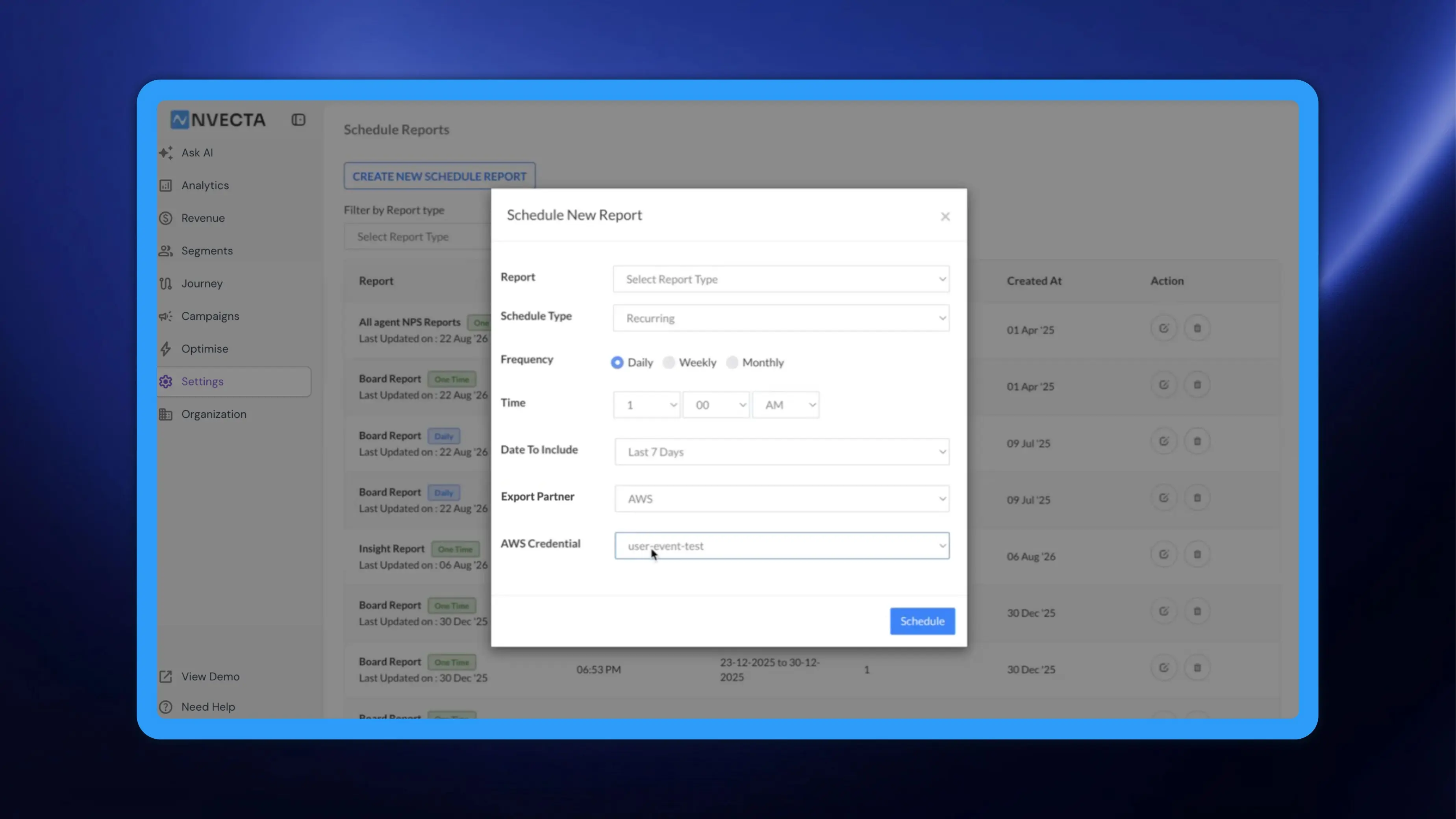
The new option lives in the schedule itself. Open the Schedule Reports screen and click CREATE NEW SCHEDULE REPORT, which opens the Schedule New Report dialog.
The same Export Partner field appears wherever you schedule a report, including the shorter dialog you get from inside a funnel or insight, so the choice is available from either route.
How to use it
Set the schedule up the way you normally would. Choose your Report, set Schedule Type, and for a recurring schedule set Frequency to Daily, Weekly or Monthly along with a Time, then pick the window of data under Date To Include. None of that changes.
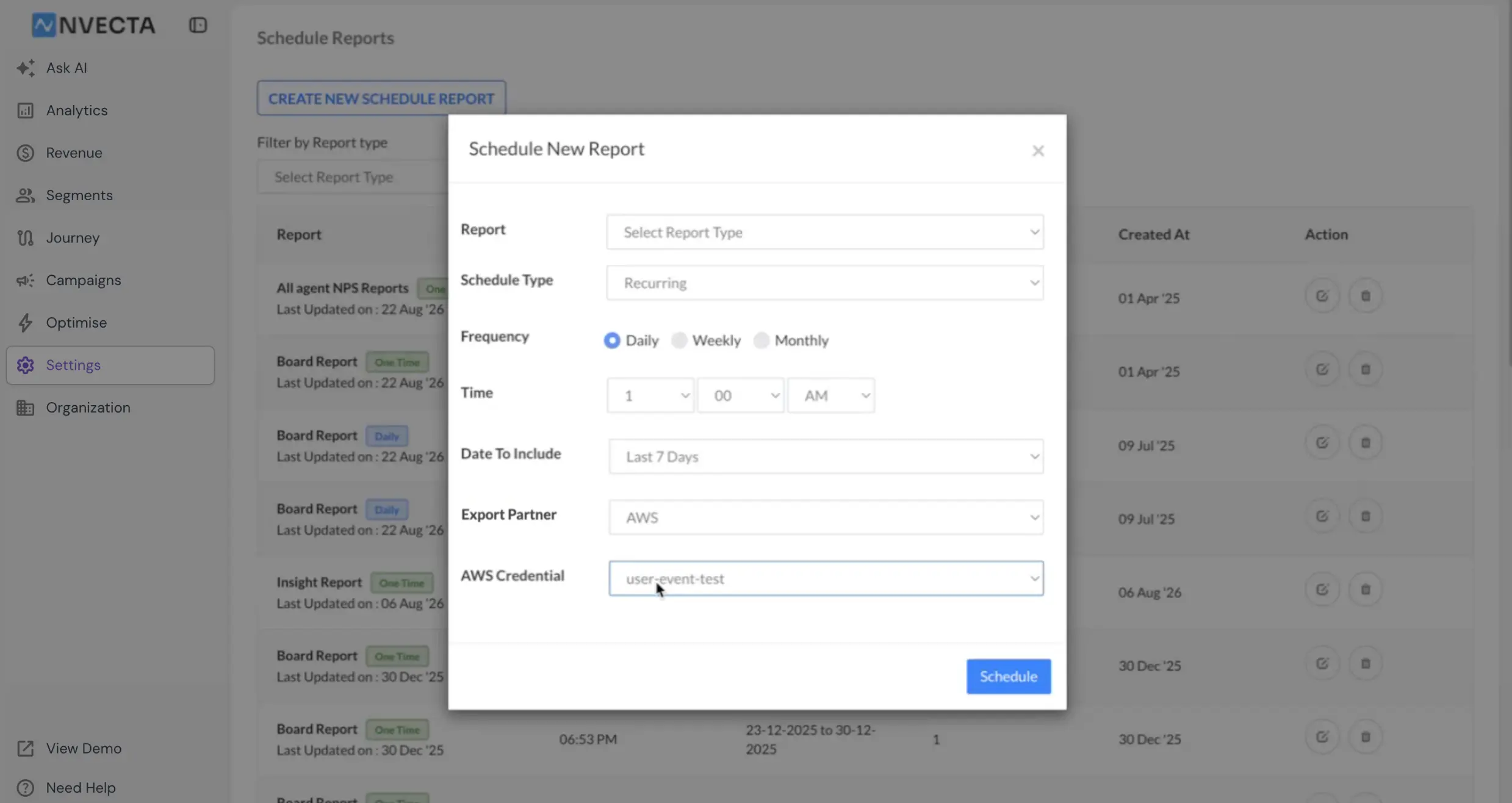
The delivery step is where the new option appears. Export Partner opens on Email; open the dropdown and choose AWS. A second field, AWS Credential, then appears and lists the S3 keys already saved on your account, so you select the one for the bucket you want. If you have several saved, you pick a single one for this schedule. Click Schedule to save it.
From then on the choice applies to every run of that schedule — one time or recurring, daily, weekly or monthly. Reports that used to arrive by email, campaign reports included, land in the bucket instead.
Saving an S3 credential first
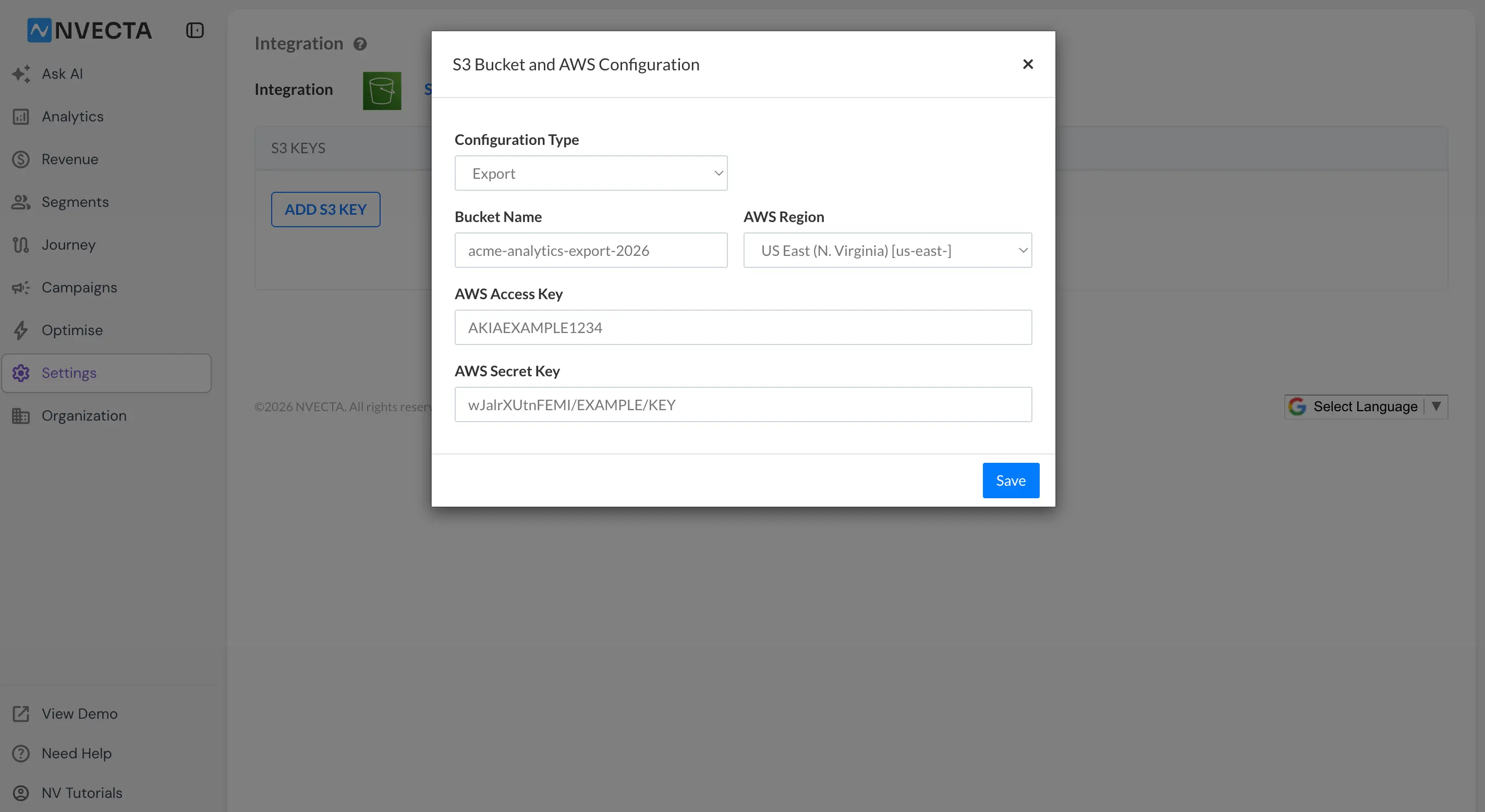
The AWS Credential dropdown is populated from your saved keys, so add a key before you schedule anything to AWS. Go to Settings → Configure (under export) and open the Amazon S3 Keys tab, then click ADD S3 KEY.