Campaign labels work well until you have a lot of them. Every team adds its own, the list grows past the point where anyone can scan it, and picking the right label in a dropdown turns into a hunt.
NVECTA now adds categories on top of labels. You create a category, attach the labels that belong to it, and from then on labels are grouped by category wherever you pick or review them instead of arriving as one flat list. Your labels themselves do not change: nothing is renamed, nothing is reassigned, and any label you have not filed yet keeps working and simply shows as Uncategorized.
Where to find it
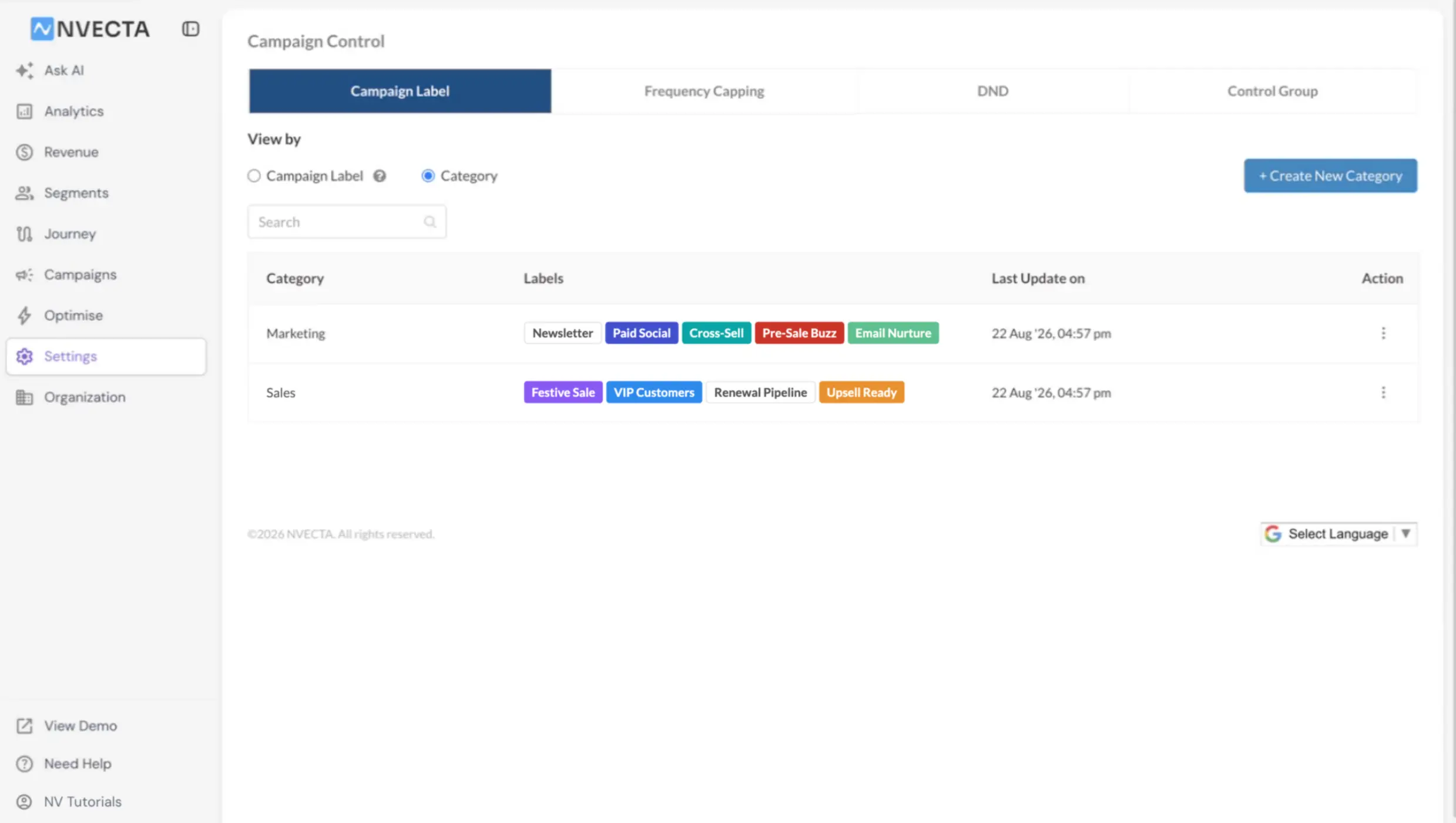
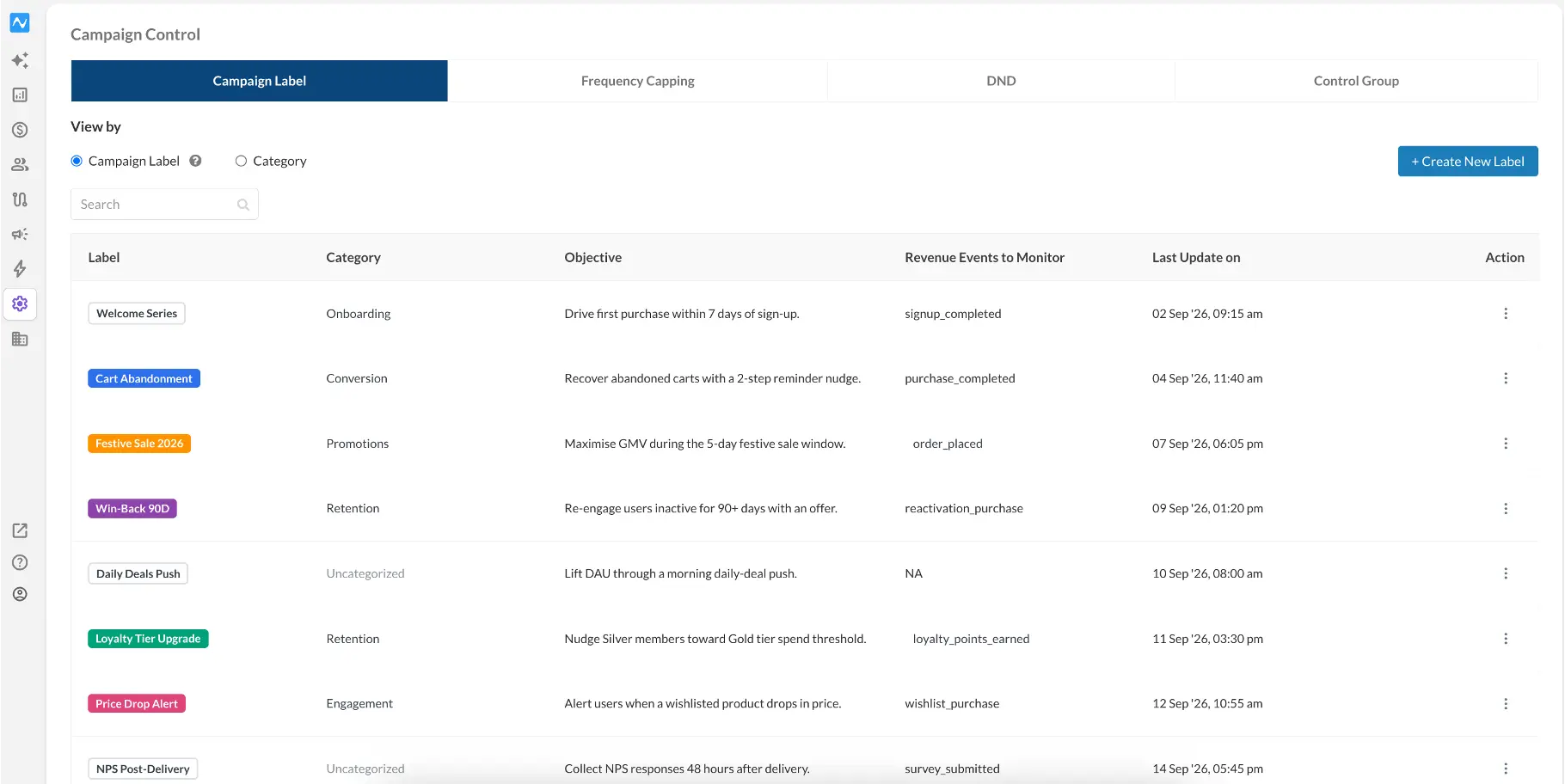
Go to Settings → Campaign Control and stay on the Campaign Label tab. Under View by you now have two radio options, Campaign Label and Category, and the screen switches between two views of the same data. Choose Category and you get the category list with a Search box, a + Create New Category button, and a table of Category, Labels, Last Update on and Action menu with edit and delete options.
Creating a category
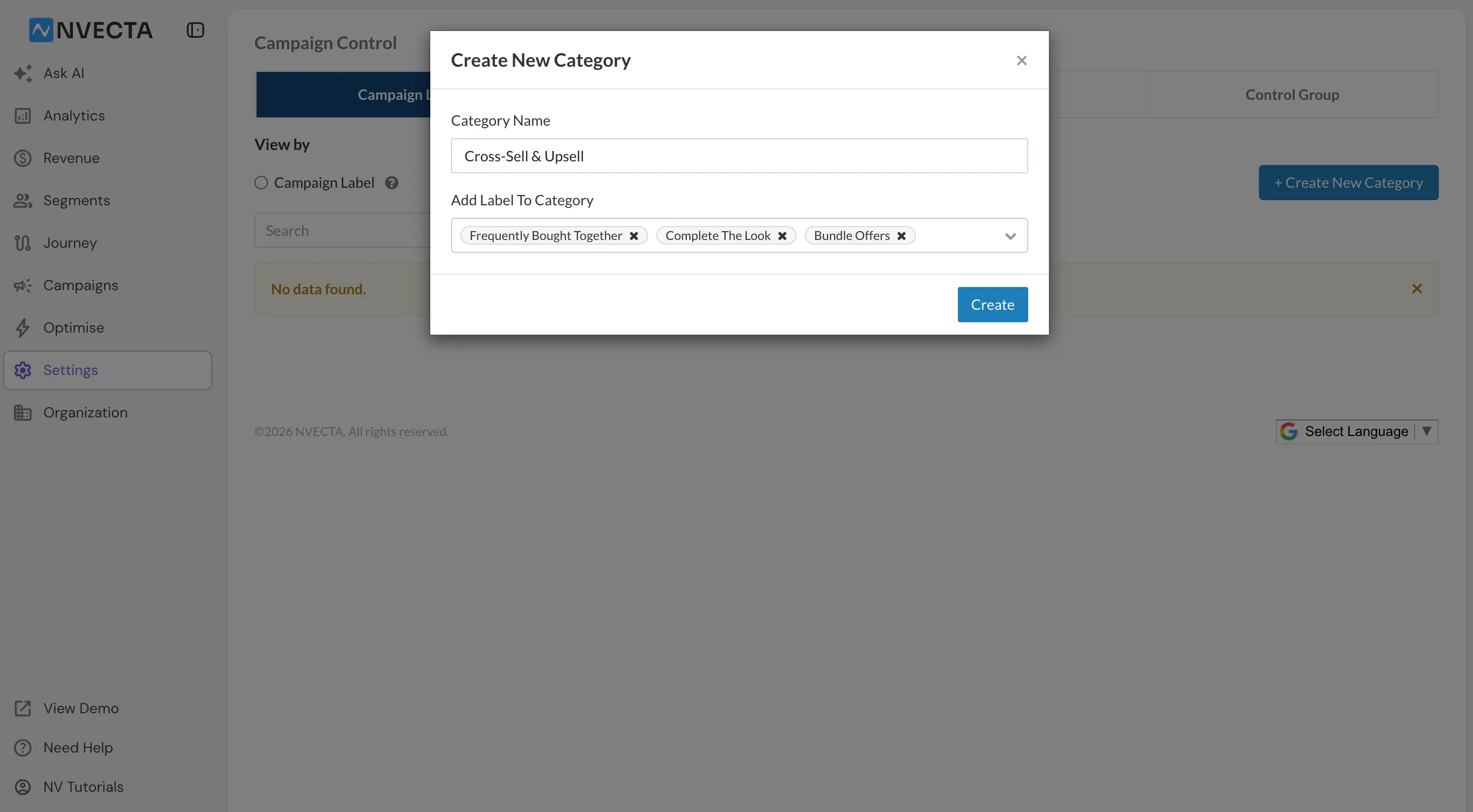
Click + Create New Category to open the Create New Category dialog. Give it a Category Name, then use Add Label To Category and its Select labels dropdown to tick the labels that belong there. The dropdown is a checkbox list, so you attach as many labels as the category needs in one go. Once saved, the category appears in the Category view with its labels listed against it.
Where categories show up
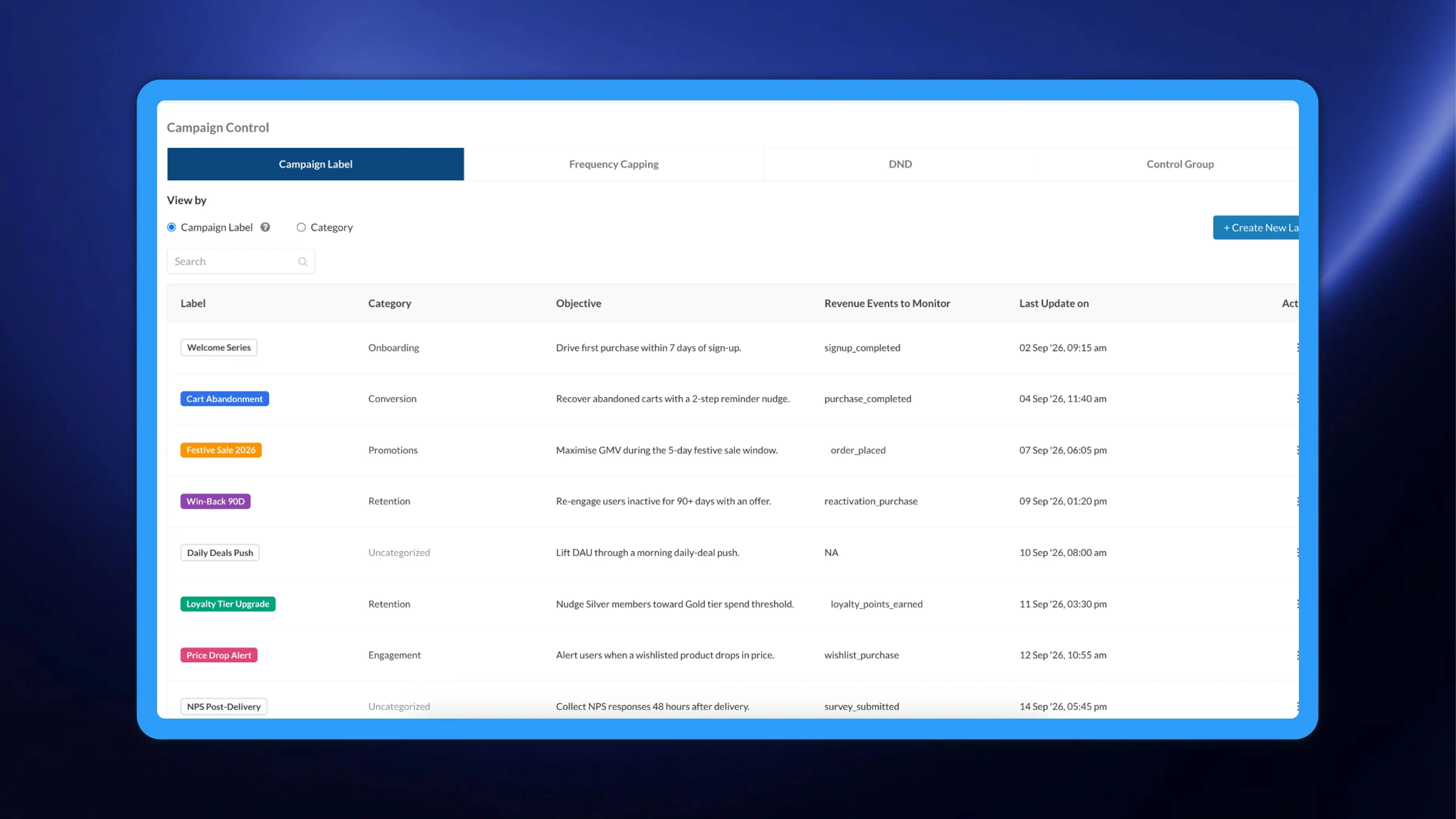
Switch View by back to Campaign Label and the label list now carries a Category column next to Label, ahead of Objective, Revenue Events to Monitor, Last Update on and Action, so you can see at a glance which labels are filed and which read Uncategorized.
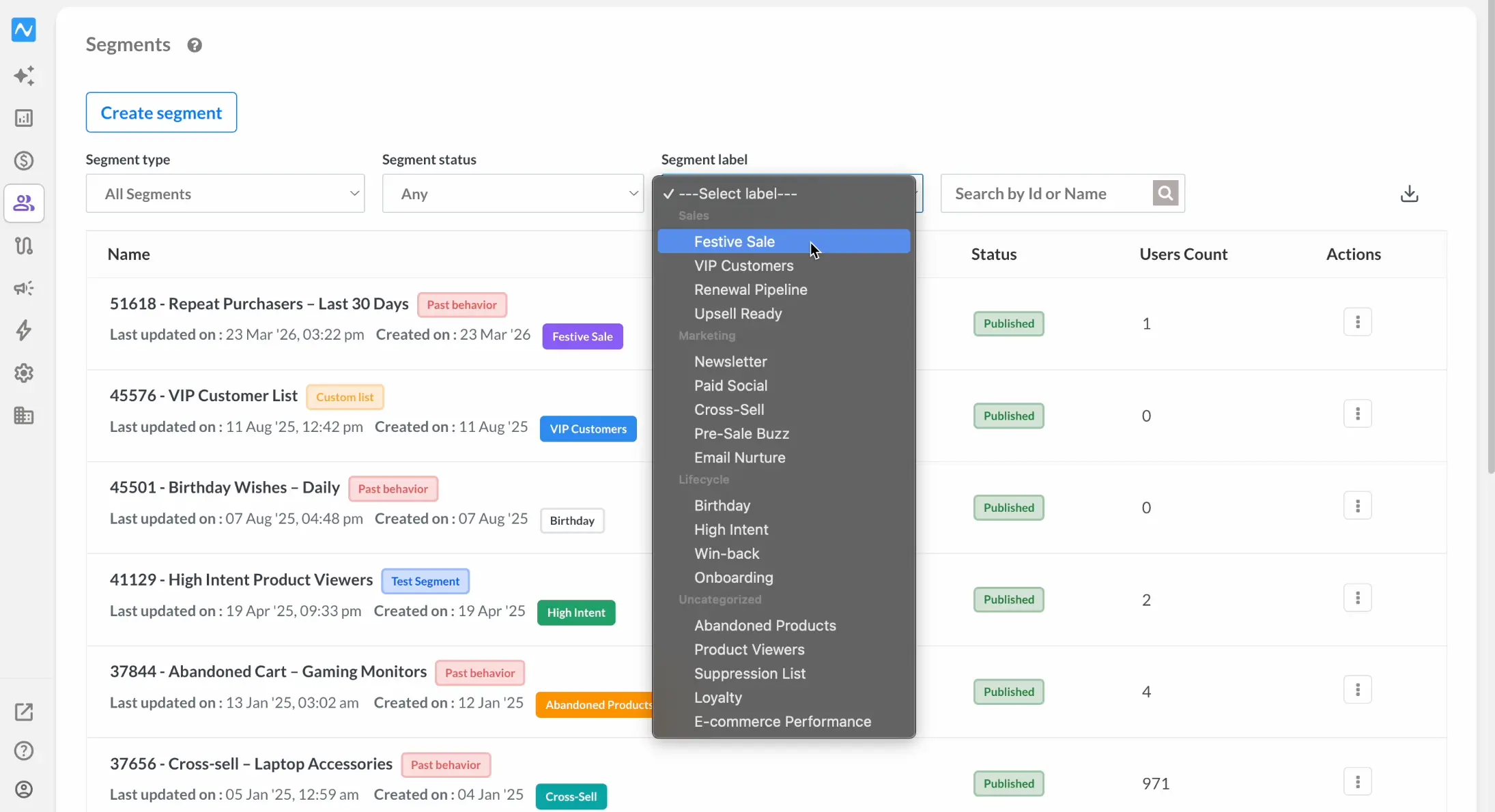
The grouping then follows the label everywhere you choose one. On the Segments screen, for instance, the Segment label filter opens with labels gathered under their category headings and an Uncategorized group holding everything not yet filed, rather than the single alphabetical run you had before.