Audience selections move. A segment fills up, a subscription group grows, and a campaign you sized for a few hundred people goes out to a few thousand – you find out from the send cost or the delivery report rather than before you hit send.
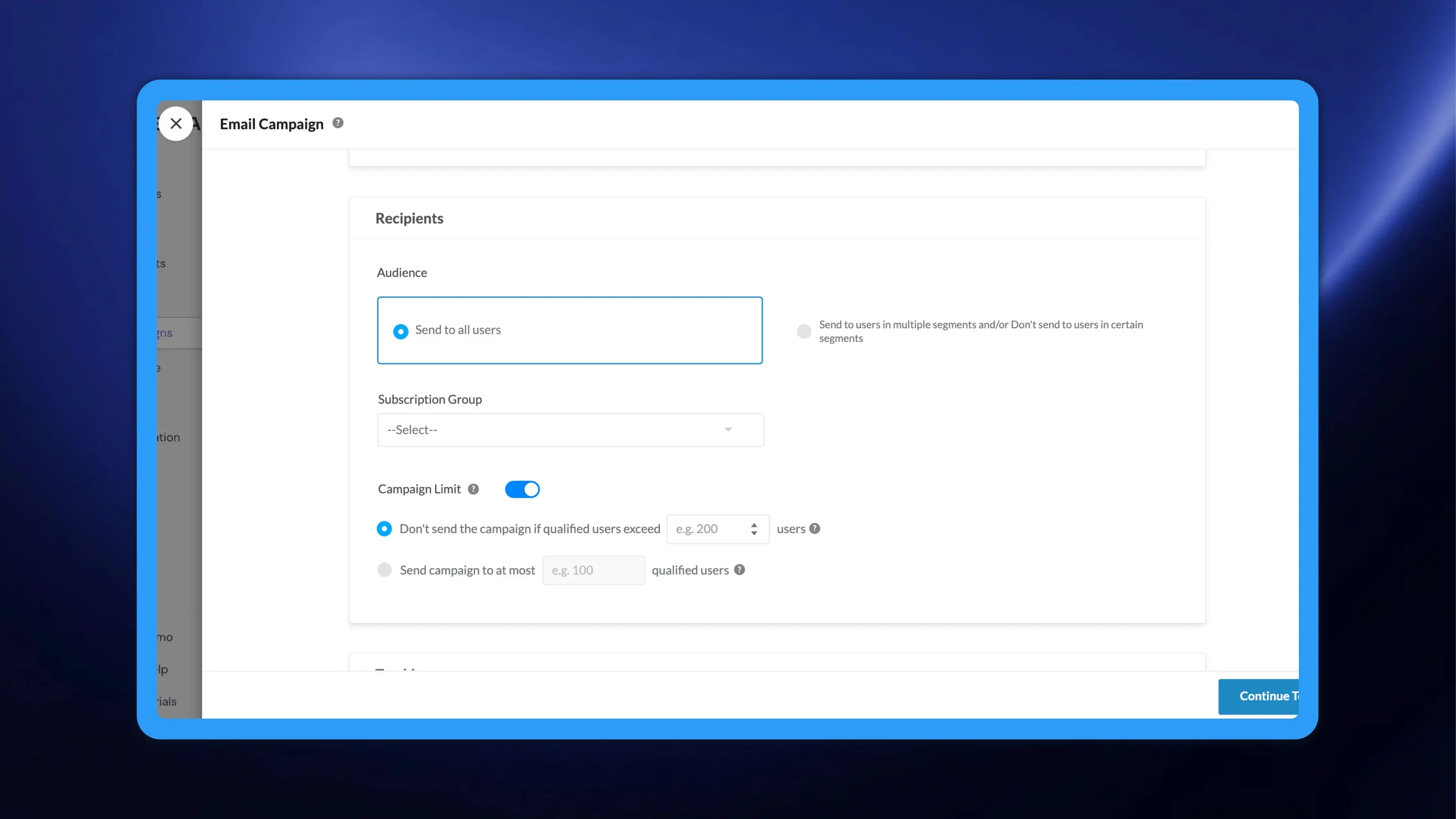
NVECTA now gives you a Campaign Limit on the Recipients step. You either block the send outright if the qualified audience is bigger than a ceiling you set, or cap the send to a fixed number of qualified users. The limit is restated on Review and enforced before the campaign can be sent or scheduled, so the ceiling you set is the ceiling that is applied.
Channel availability
The campaign limit is available for Email, SMS, RCS and WhatsApp campaigns. In this changelog we'll cover email campaign flow. For the equivalent flows, see How to create an SMS campaign and How to create a WhatsApp campaign.
This sits alongside the guardrails you already have rather than replacing them. Frequency capping still lives in Settings and still works per user across campaigns; the campaign limit is per campaign and works on the total qualified audience for that one send.
How to use it
- Open Campaigns and create an email campaign. Pick your audience as usual on Recipients, whether that is Send to all users, a Subscription Group, or a segment selection.
- Turn on Campaign Limit and two options will appear.
- Choose Don’t send the campaign if qualified users exceed and enter a number of users if you want a hard stop. If the qualified audience for your selection comes out above that number, the campaign is not sent and the send fails rather than going out partially.
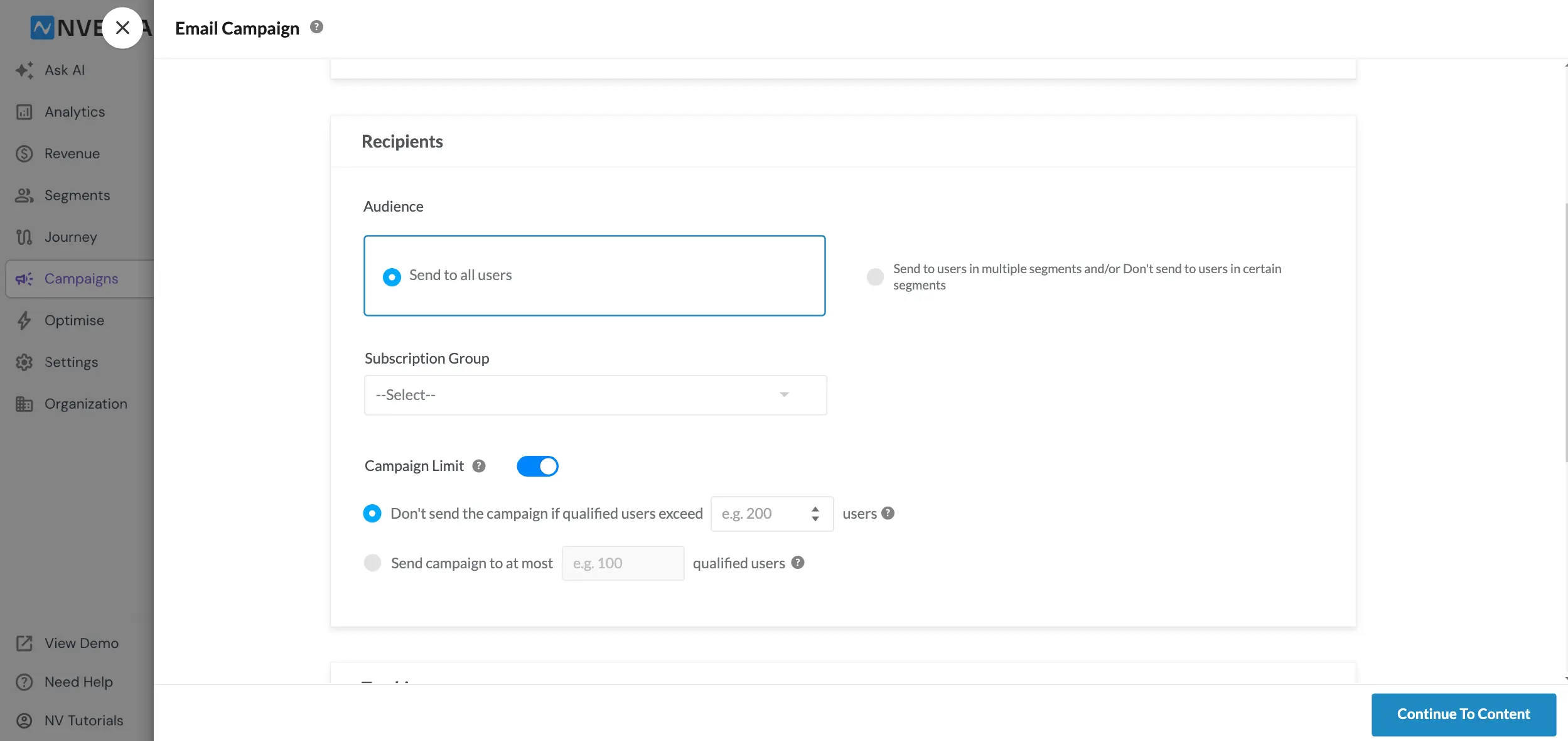
- Choose Send campaign to at most and enter a number of qualified users if you want a cap instead of a stop. The campaign goes to that many qualified users and no more. Lets say if your selection qualifies 1,000 users and the cap is 500, 500 people receive it. The 500 are the first 500 in the qualified list, not any random selection, so the cap is predictable and repeatable rather than a list you cannot reconstruct.
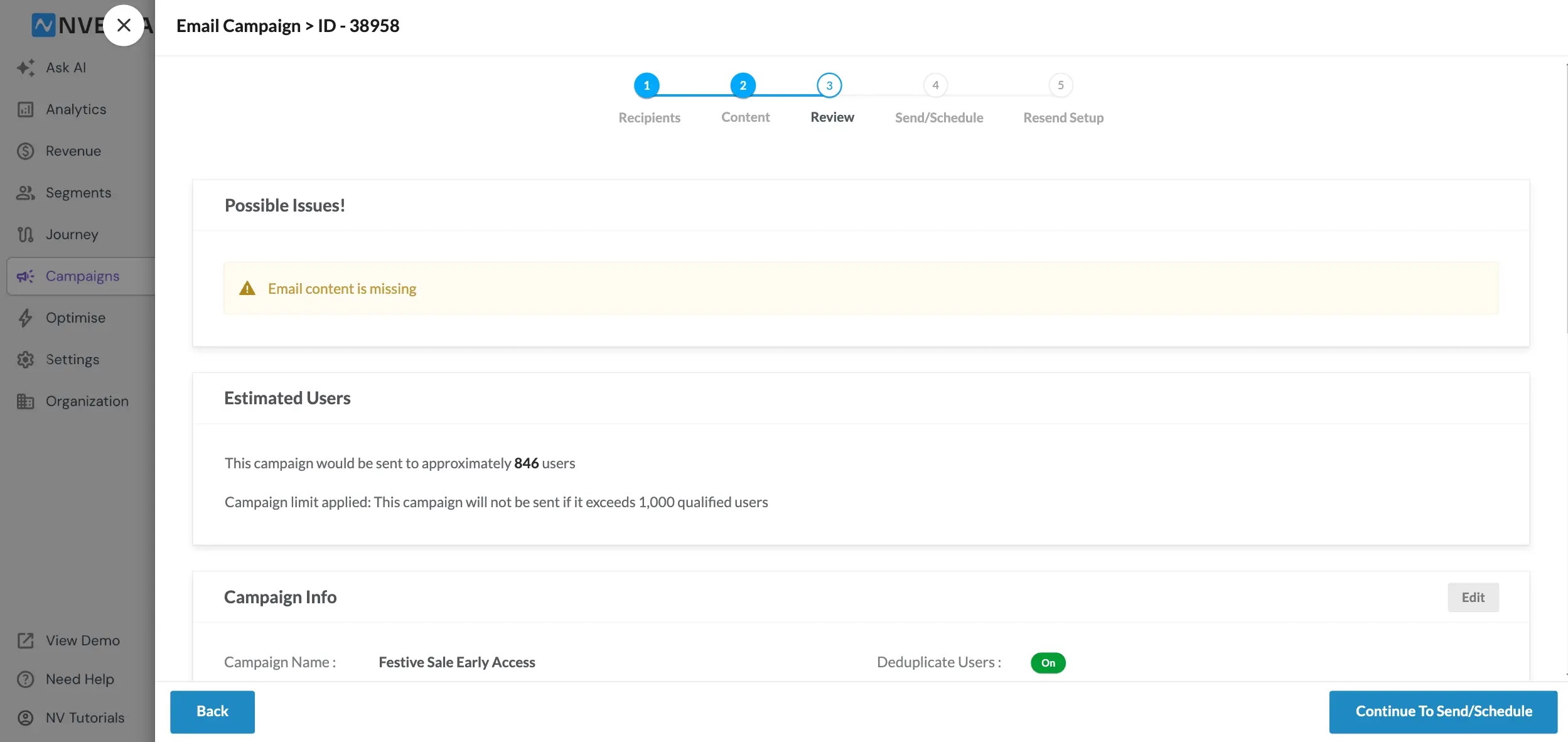
- Continue to Review. The Estimated Users panel shows the approximate audience and, underneath it, the limit you applied and the number it applies to, for example Campaign limit applied: This campaign will not be sent if it exceeds 1,000 qualified users. Check it there before you move on with Continue To Send/Schedule.
Example
You want to send a campaign carrying a high-value discount code to a few hundred people. Build the email, select the segment of users who have shown interest in the product category, then turn on Campaign Limit, choose Send campaign to at most and enter the number you can actually fulfil. The segment may have grown well past that since you last checked; the send still goes to that many qualified users, taken from the top of the list.
Problem it solves
Audience size was something you estimated and then trusted, with nothing between the estimate and the send. That made broad selections risky in exactly the cases where cost, stock or deliverability are finite. A campaign limit turns that estimate into an enforced boundary, and it gives you the choice between failing safely and sending a predictable subset.
You decide the ceiling once, and the campaign cannot quietly exceed it.