Marketers and analysts regularly need to act on values that are not stored anywhere as a user property: how much a customer has spent in the last quarter, how many times they completed an action, or the largest single transaction they have made. Until now, those numbers had to be derived outside NVECTA from raw event exports. Computed Attributes let you define them once inside the platform. NVECTA rolls each user's event history into a single user-level value and keeps it available as a selectable attribute, so data teams spend less time on manual extracts and marketers get richer user data without any new tracking work.
If you are new to how events and their properties are captured in NVECTA, kindly go through Track Events - Definitions, Attributes and Events for a thorough tutorial, since computed attributes are built directly on that event data.
Where to find it
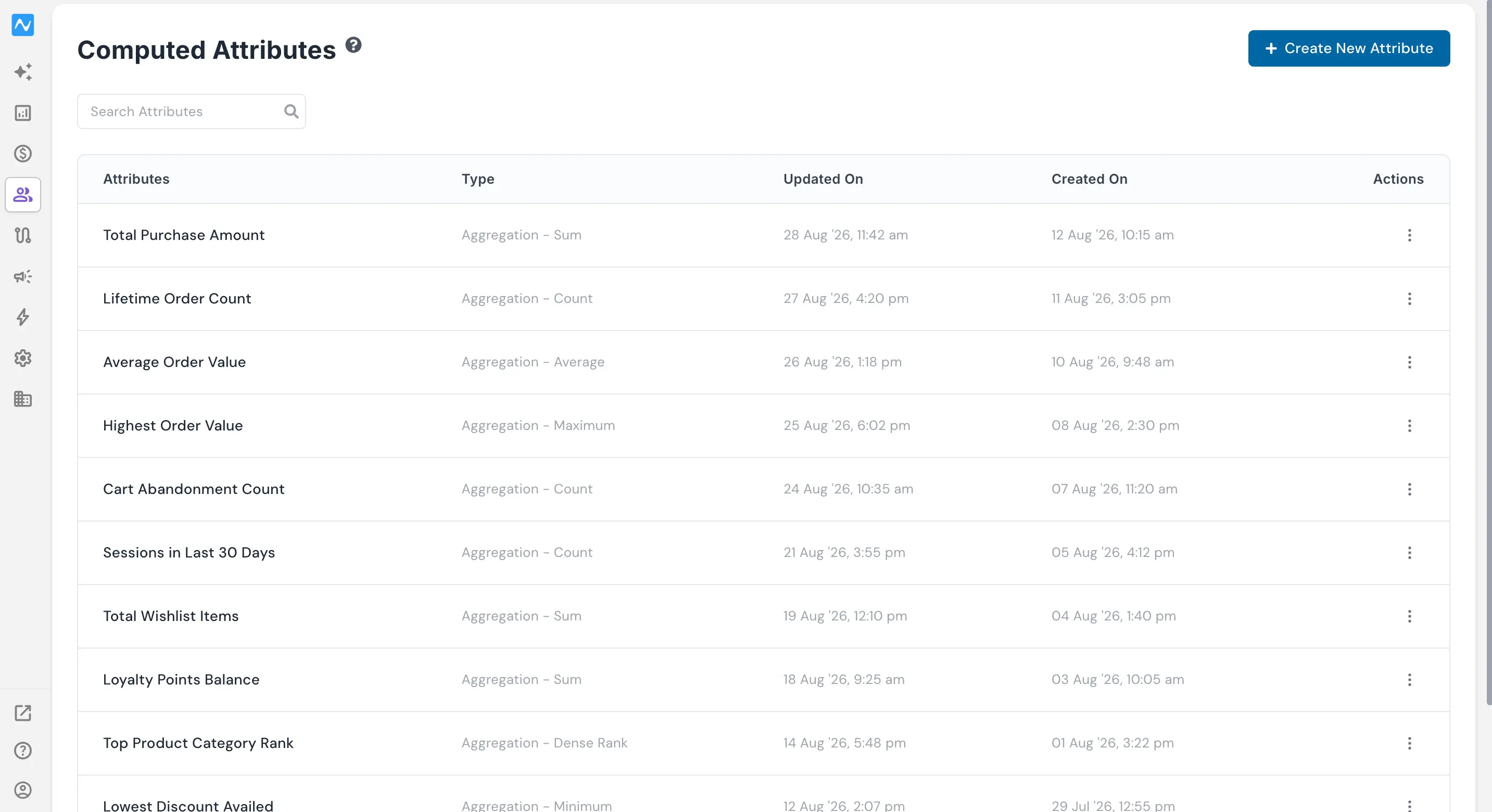
Go to Segments → Computed Attributes. The listing shows every attribute you have created along with its Type, Updated On and Created On, a search box to find an attribute by name, and an Actions menu on each row offering Edit, Duplicate and Delete. Click Create New Attribute to build a new one.
How to use it
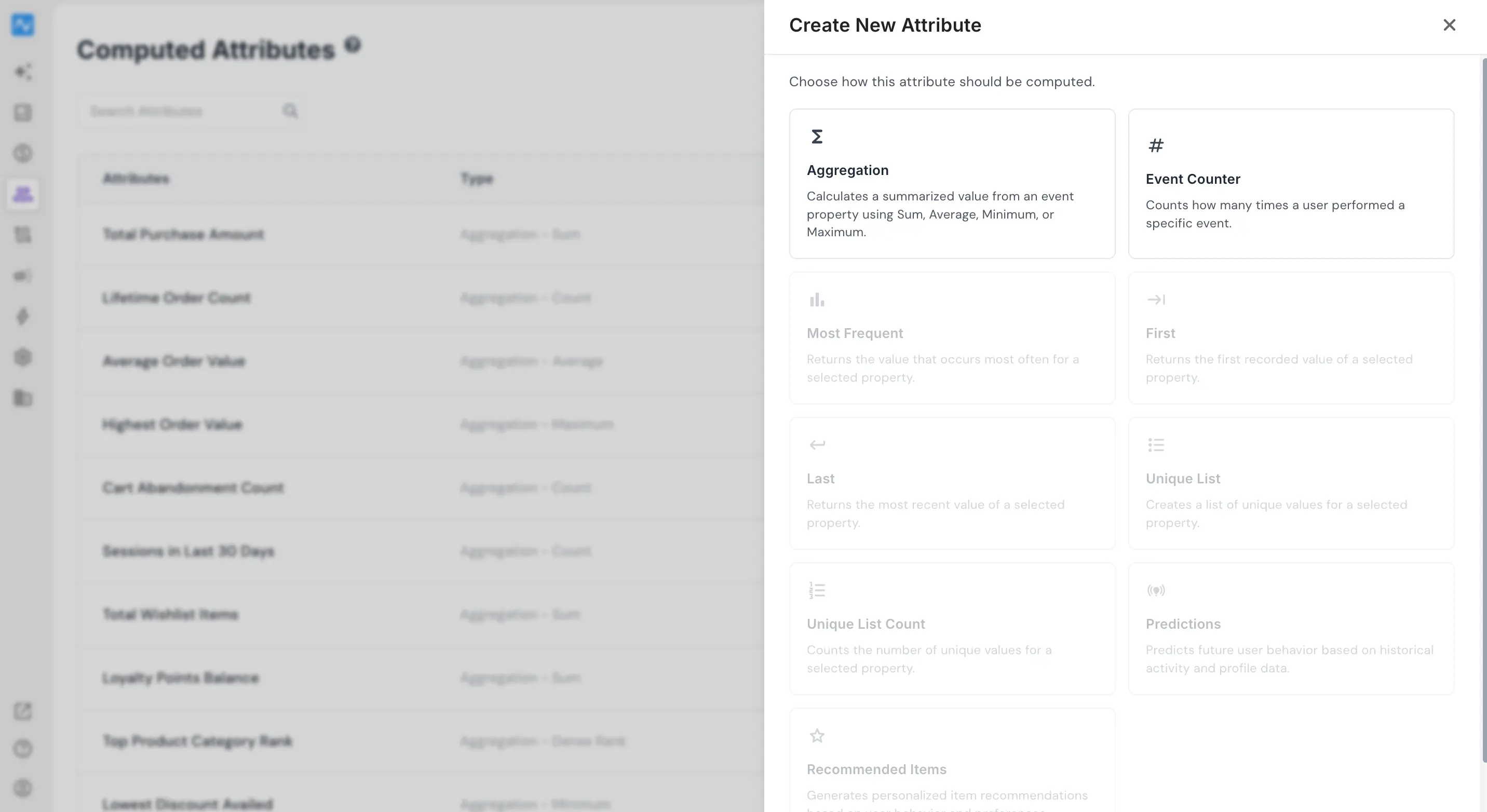
Create New Attribute opens a panel headed Choose how this attribute should be computed. Currently, two computation methods are available:
- Aggregation: calculates a summarized value from an event property using Sum, Average, Minimum or Maximum.
- Event Counter: counts how many times a user performed a specific event.
Seven further methods appear in the same panel will be coming soon: Most Frequent, First, Last, Unique List, Unique List Count, Predictions and Recommended Items.
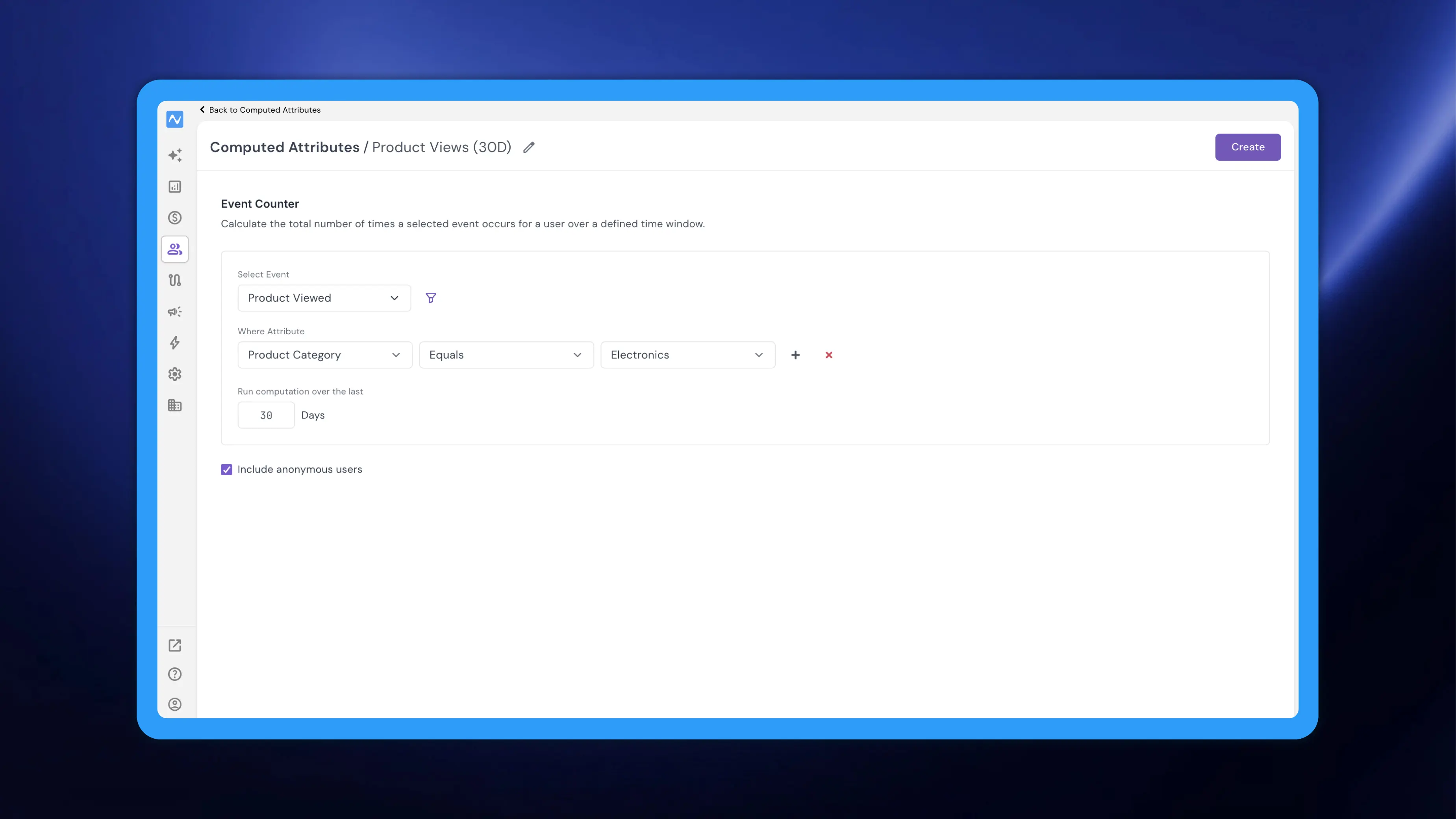
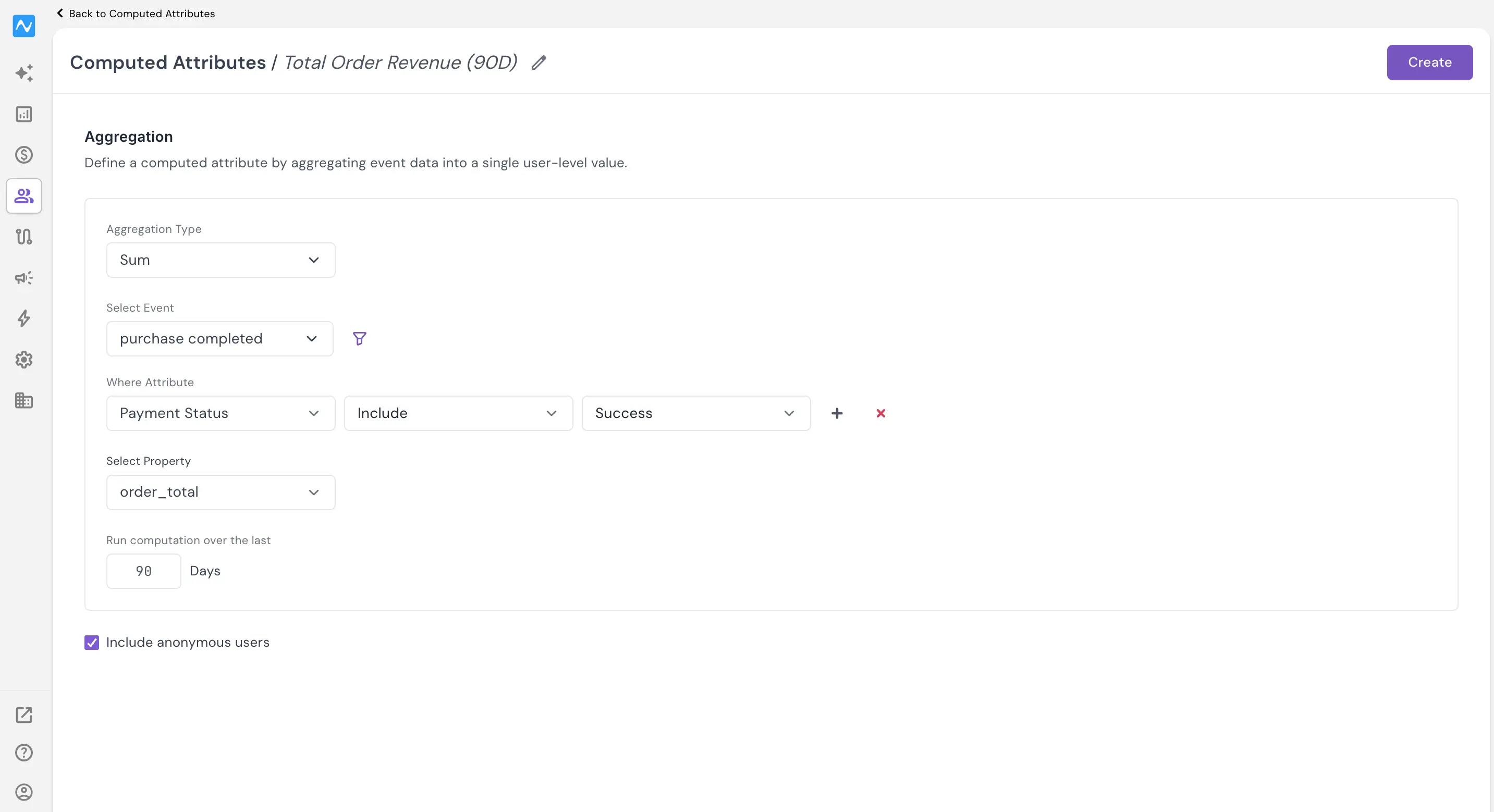
For Aggregation, choose an Aggregation Type (Sum, Average, Minimum, Maximum, Percentile or Dense Rank), pick the event under Select Event, and then the property to aggregate under Select Property. The filter icon beside Select Event adds a Where Attribute condition (attribute, condition, value) so only matching events feed the calculation. Set Run computation over the last N Days, which defaults to 90, and use the Include anonymous users checkbox to decide whether unidentified users are counted. Name the attribute using the pencil icon beside untitled in the header, then click Create.
Event Counter uses a shorter form: Select Event with the same optional Where Attribute filter, Run computation over the last N Days, and Include anonymous users.
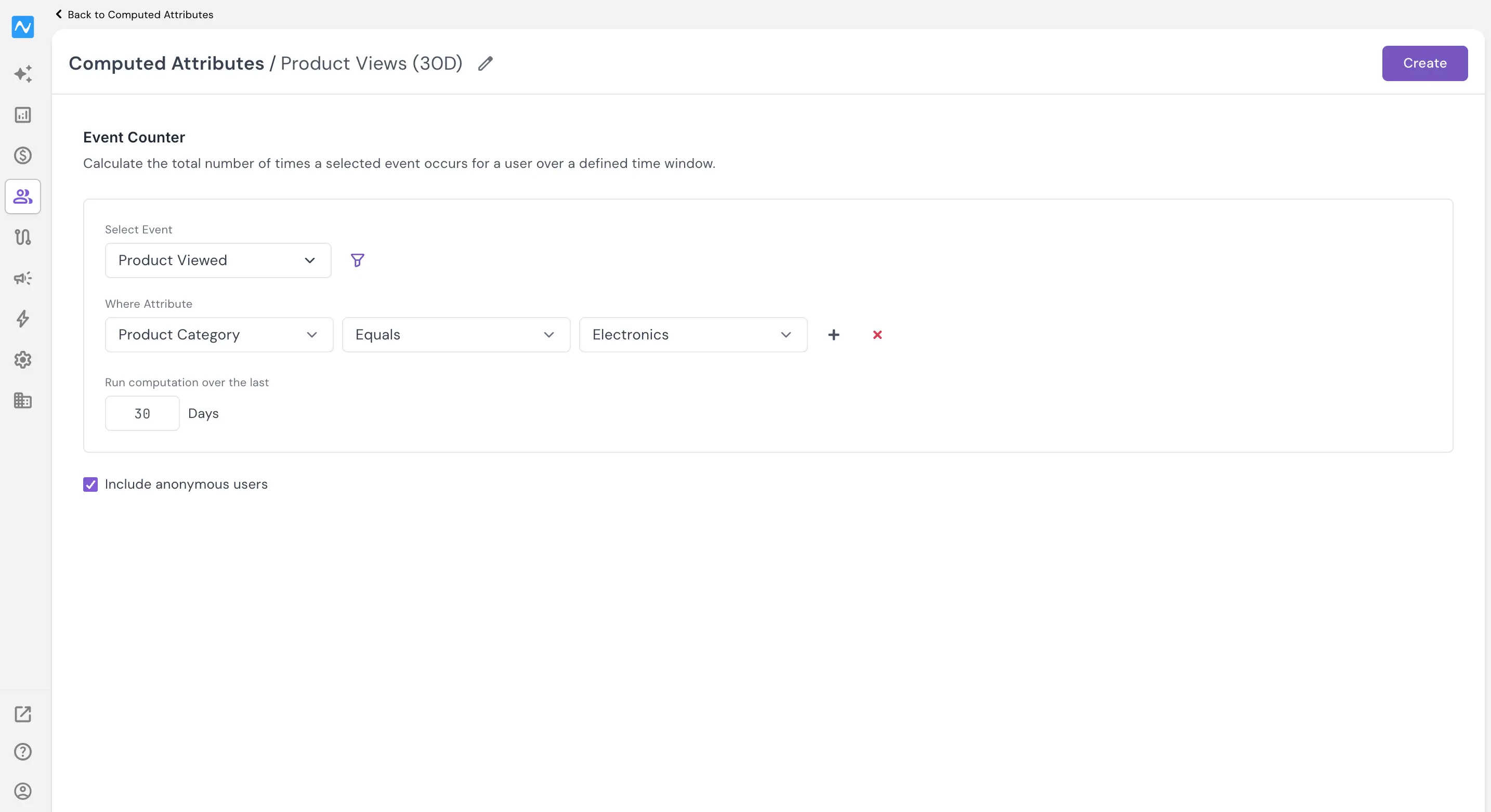
Example
Say a bank or insurer tracks a transaction event that carries the transaction amount as a property/attribute. An Aggregation using Sum on that property over the last 90 days gives every customer a rolling 90-day transaction value. Maximum on the same property gives their single largest transaction, a useful proxy for ticket size and upgrade potential.
Where you can use it today
Computed attributes are currently available in data exports. Go to Settings → Export, click CREATE NEW EXPORT DATA and choose the Segment export type. Your computed attributes then appear grouped under a COMPUTED ATTRIBUTES heading inside the Choose User Attributes field; select the ones you need, and their values are included in the exported file.
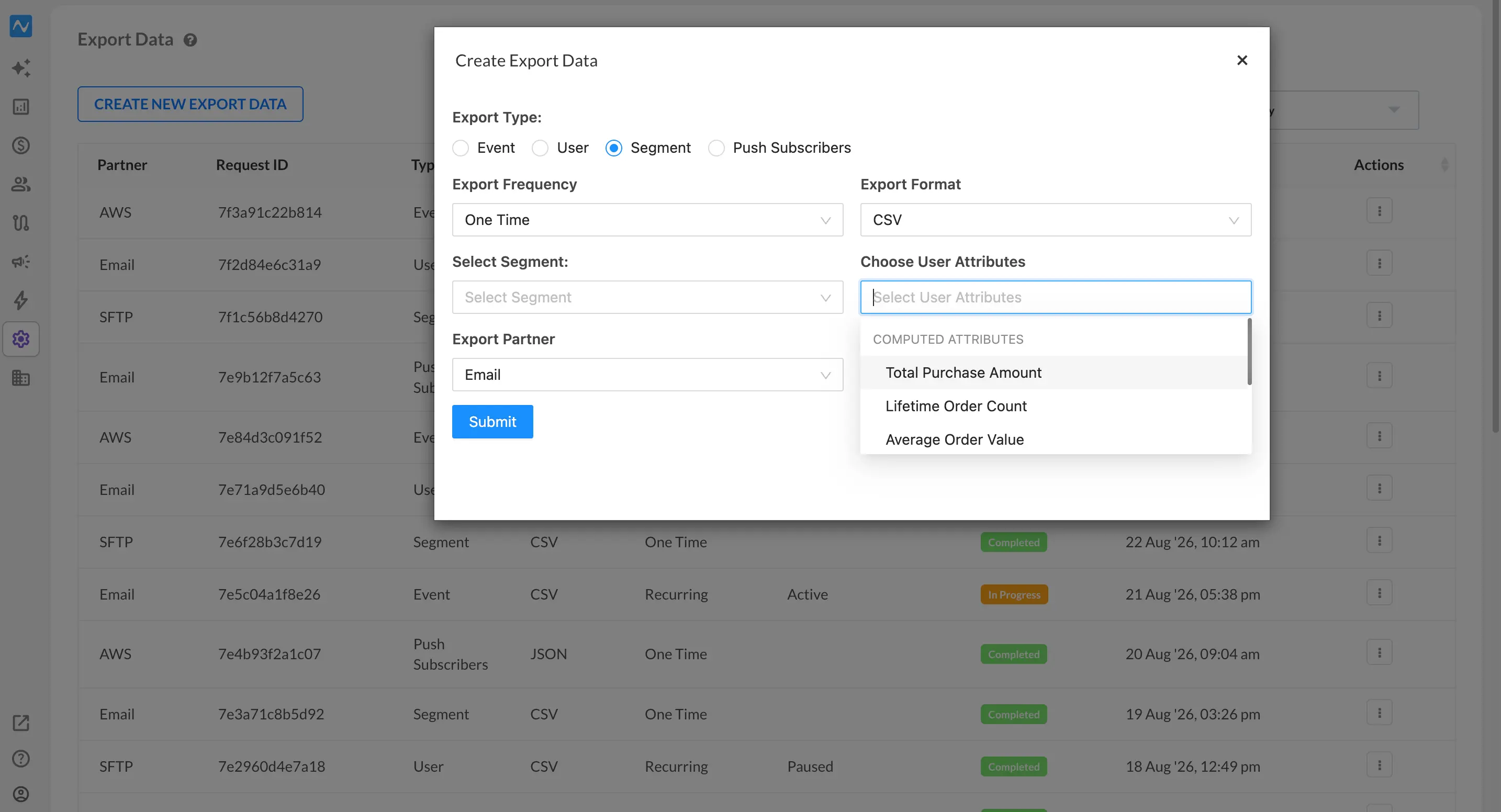
Computed attributes are limited to exports for now. A future release will surface them in user profiles as well.