The new Distinct count aggregation enables you to filter users based on the number of distinct values of a property, which is ideal for use cases that require a broad range of engagement.
Why it’s useful
-
Distinct count answers: “How many different X did the user have/do?”
-
Regular count answers: “How many times did the user do X (total)?”
Example:
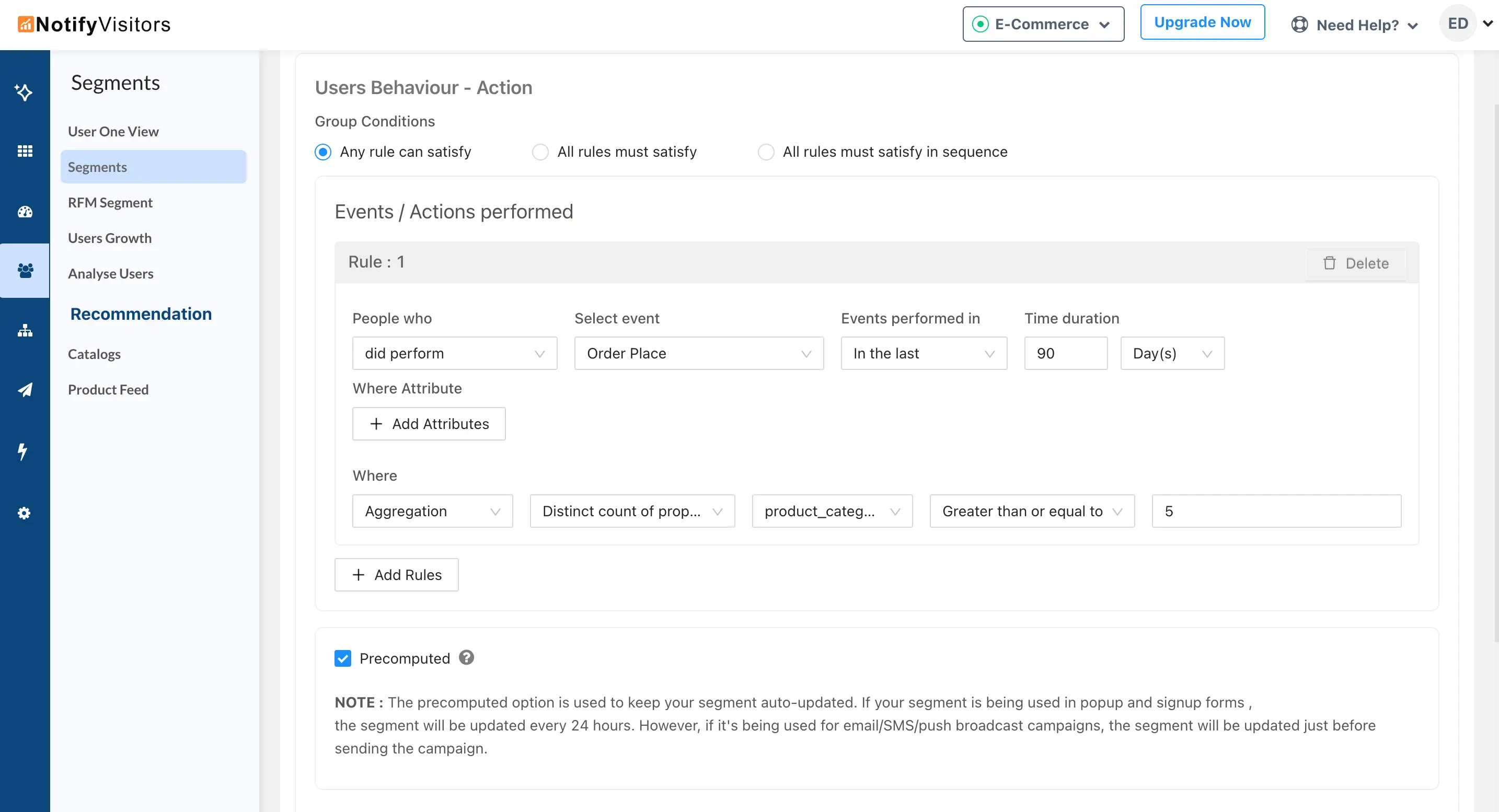
Create a segment of users who performed “Order Place” in the last 90 days. Apply Distinct count on the attribute product_category ≥ 5.
This returns users who purchased from 5 or more different categories recently.
If you used a regular count ≥ 5 instead, you’d include anyone with 5 purchases total, even if all were from a single category.
What you can count distinctly
You can apply distinct count to attributes or time:
Attributes
- Any event attribute (e.g.,
product_category,brand,store_id)
Time
-
Date: Unique calendar dates. Example: Distinct count = 3 → purchases on 21-07-2025, 24-08-2025, 21-10-2025.
-
Day: Unique day numbers 1–30/31 (useful for patterns across months). Example: Distinct count = 3 → purchases on days 21, 24, 25 (any months).
-
Month: Unique months. Example: Distinct count = 3 → purchases in January, March, August (any years).
How to set it up
To use this feature, create a new segment. Add an event and optionally an attribute (if required). Next, click the dropdown under the ‘Where’ option and select ‘Aggregation’. From the subsequent dropdown, choose ‘Distinct Count of Property’. Then, select the attribute or time-based property you want to count and define the desired number of distinct counts.
Tips
-
Use Distinct count when you care about variety/uniqueness (e.g., category breadth, store diversity, unique purchase dates).
-
Use Regular count when you care about volume/frequency (e.g., total purchases, total sessions).