Until now, a funnel only told you something if you opened the console and looked at it. Anyone who needed the weekly conversion numbers — a growth lead, an ops head, — either logged in themselves or waited for someone to screenshot it. NVECTA now lets you schedule any saved funnel as a recurring or one-time email, so the funnel you already built delivers itself to the people who act on it. And insight reports, which were already schedulable, now go out in the current report format instead of the older one.
How to use it
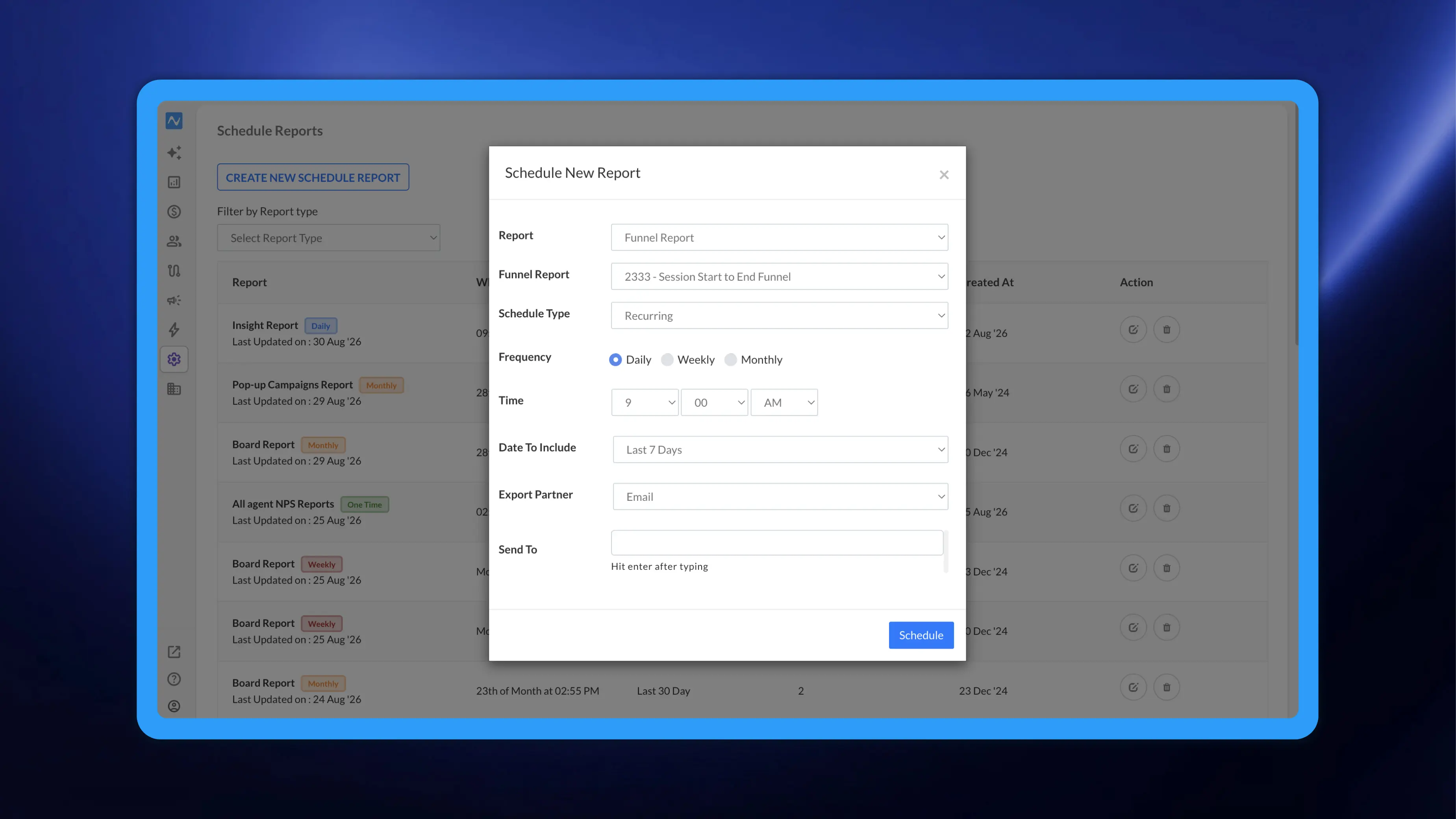
Go to Settings → Schedule Reports. The screen lists every scheduled report you have, with columns for Report, When, Dates To Include, Subscribers, Created At and Action, plus a Filter by Report type dropdown above the table. Click CREATE NEW SCHEDULE REPORT to open the Schedule New Report dialog, then set Report to Funnel Report. A second dropdown appears, also labelled Funnel Report, listing every saved funnel by ID and name.
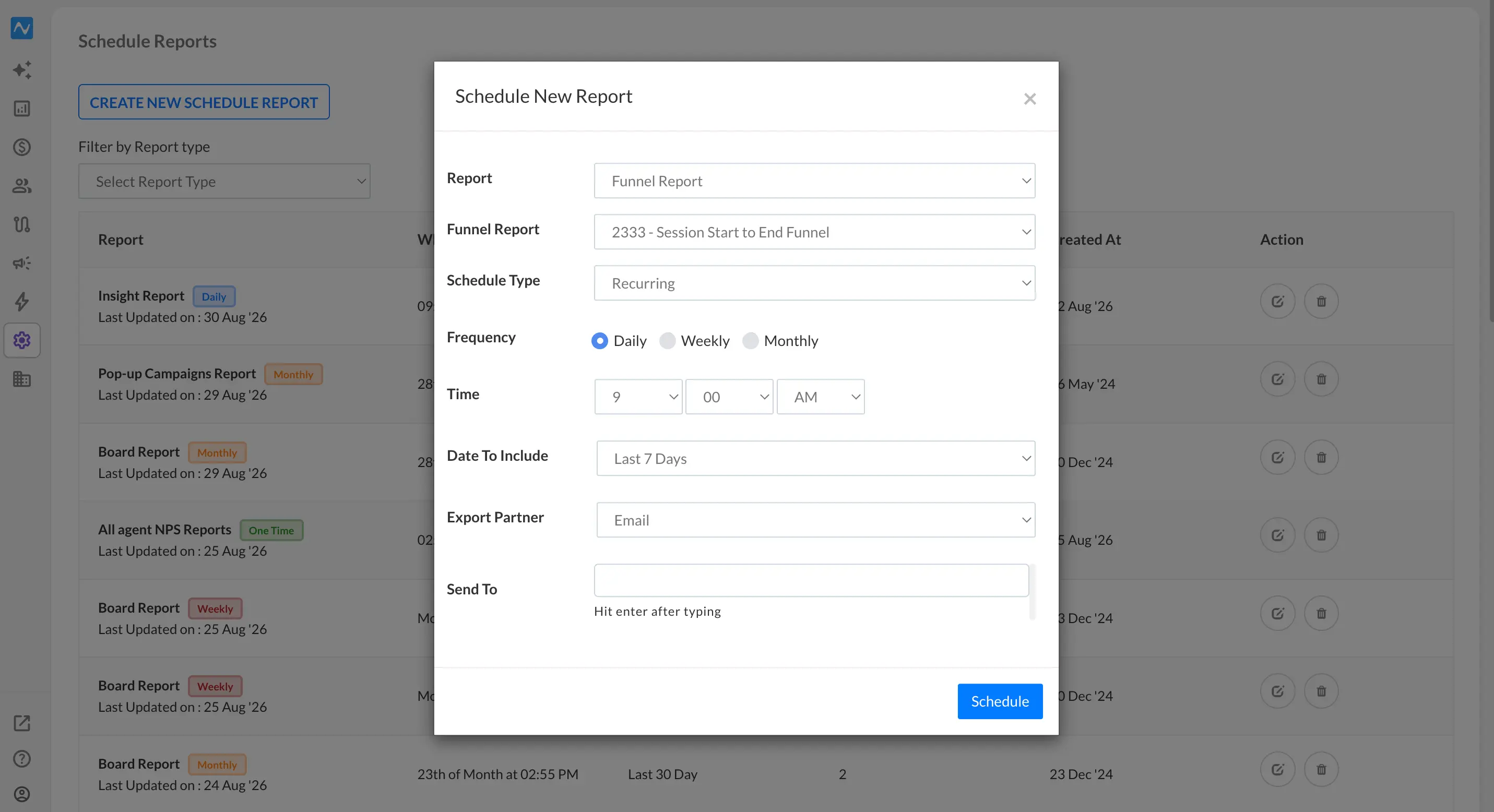
The rest of the form is the same one you use for campaign reports:
- Schedule Type — Recurring or One Time. Recurring adds Frequency (Daily, Weekly, Monthly) and Time; One Time hides both.
- Date To Include — the data window in the email. Defaults to Last 7 Days; Last 1 Days, Last 15 Days, Last 30 Days, This Month, Last Month and Custom Date are also available, and Custom Date opens a date-range field.
- Export Partner — Email sends to the addresses in Send To (type an address and hit enter for each one). AWS replaces Send To with an AWS Credential picker.
Click Schedule and the report joins the list, where the Action column gives you edit and delete.
Scheduling straight from the funnel
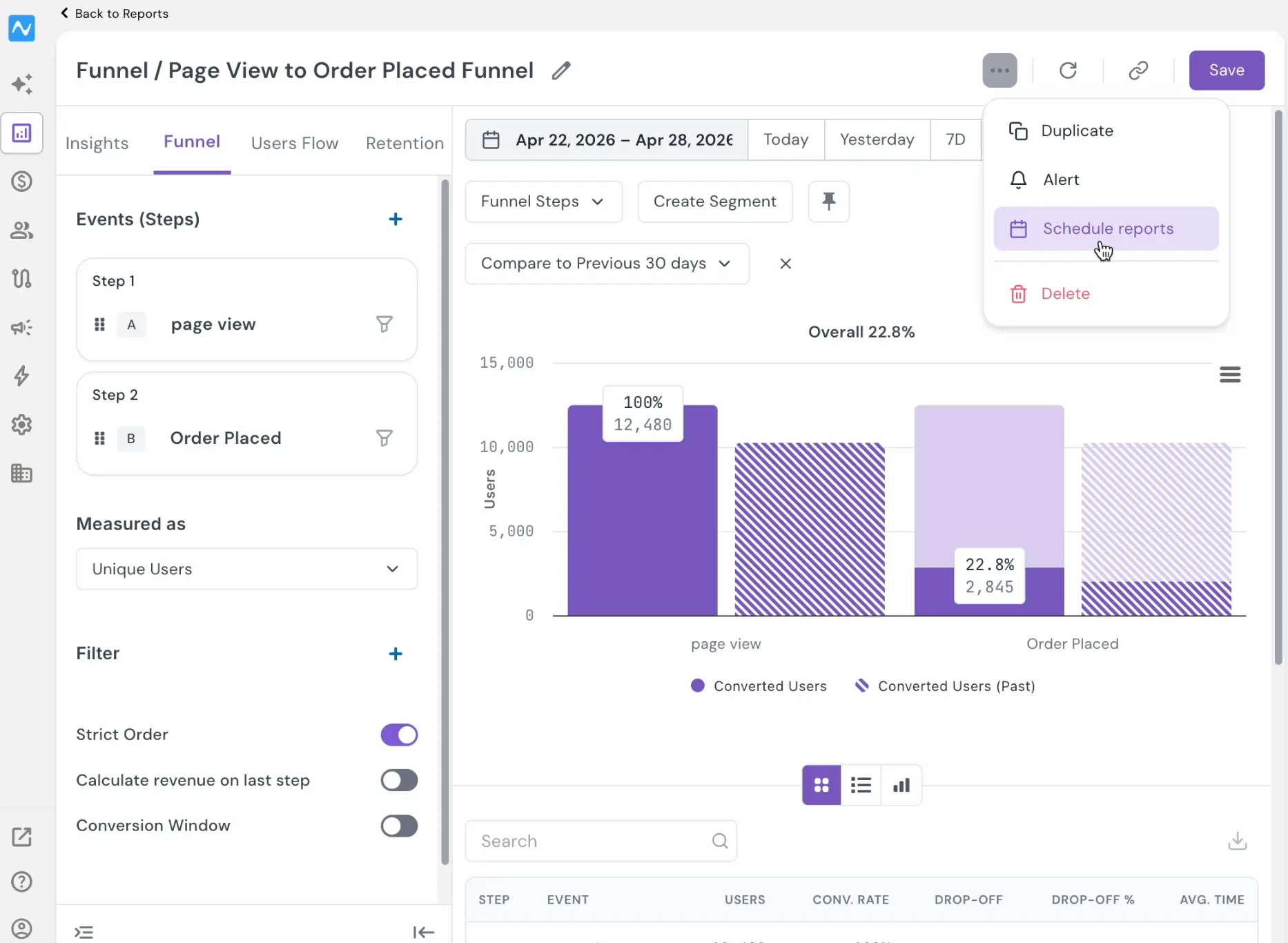
You do not have to go to Settings everytime. Open any funnel from Analytics → Funnels, click the ... menu next to Save, and choose Schedule reports.
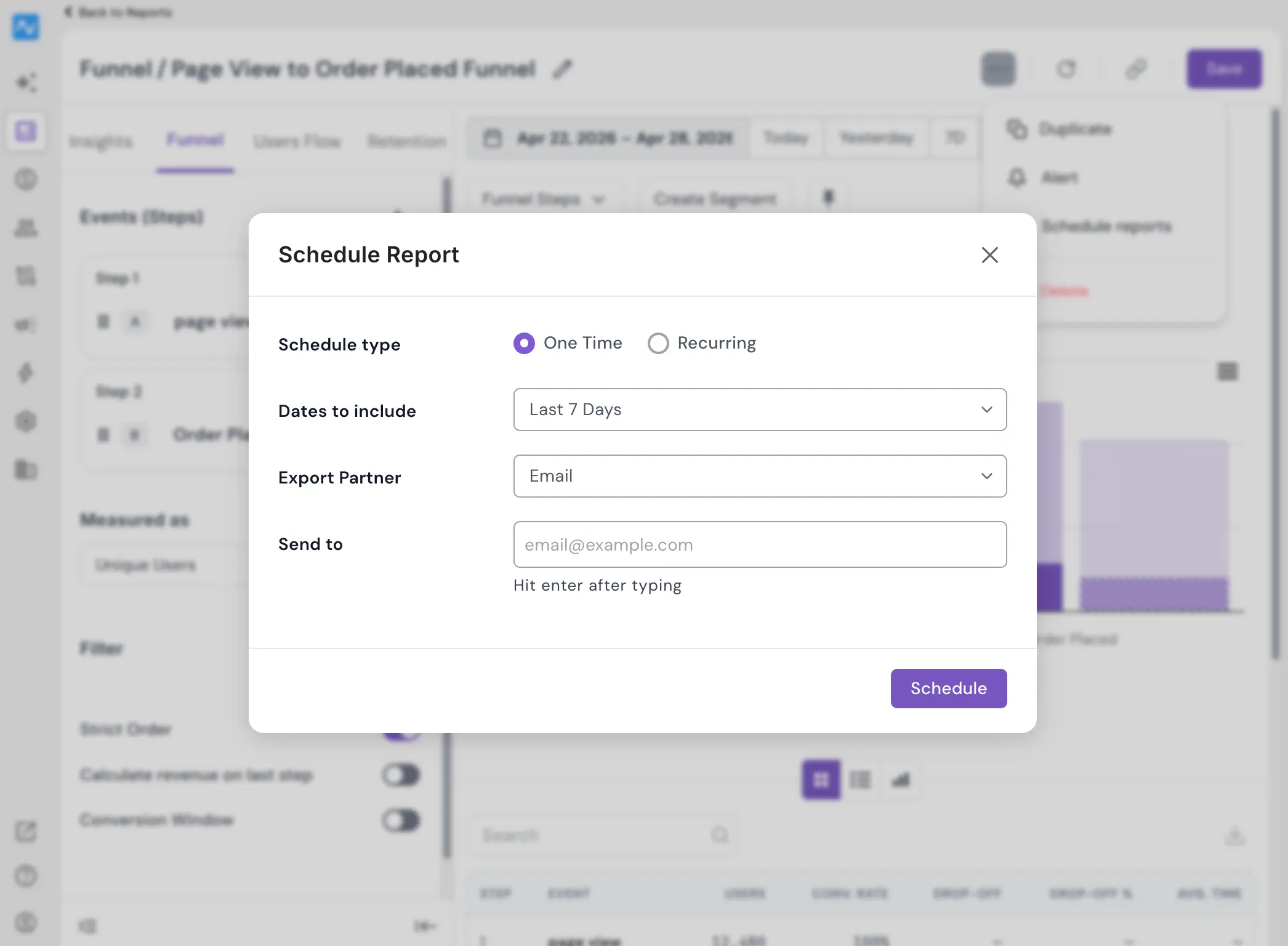
This opens a shorter Schedule Report dialog scoped to the funnel you are already looking at, so there is no report picker. Schedule type defaults to One Time here; switching to Recurring adds Frequency and Time, where Weekly asks for a day (Monday by default) and Monthly for a date (1st of Month). Dates to include offers Last 1 Days through Last Month or a Custom Date picker is also available. Export Partner and Send to work exactly as above.
Example
A lending team runs a personal-loan application funnel in NVECTA: the customer's own application-start, KYC-completion and disbursal events as three steps, with Strict Order on and a conversion window that matches how long an application realistically stays open. Today someone opens that funnel every Monday to see where applications died last week.
Instead, open the funnel, click ... → Schedule reports, set Schedule type to Recurring, Frequency to Weekly, the day to Monday, the time to 9:00 AM, and Dates to include to Last 7 Days. Add the credit-ops and product owners under Send to. Every Monday morning the step-by-step drop-off for the previous week is waiting for them, and the KYC stage falling off ten points shows up in an inbox instead of surfacing three weeks later.
If you are new to funnels, go through How to create a funnel for a thorough tutorial. Also checkout How to set up scheduled reports covering the scheduling form itself.
What changed for Insight reports
Scheduled Insight Report emails previously carried data laid out in the older report format. They now follow the current Insights report structure you see on screen.
Existing Insight Report schedules keep running on their current frequency, recipients and date window. Nothing needs to be recreated.