An Insights report often has to carry events you never wanted to look at. A conversion ratio needs both its numerator and its denominator on the canvas, so the moment you add them, a report meant to show one number shows three. And building a variant of an event you have already configured is just as slow: the same event, the same measure, one different filter, set up again from scratch.
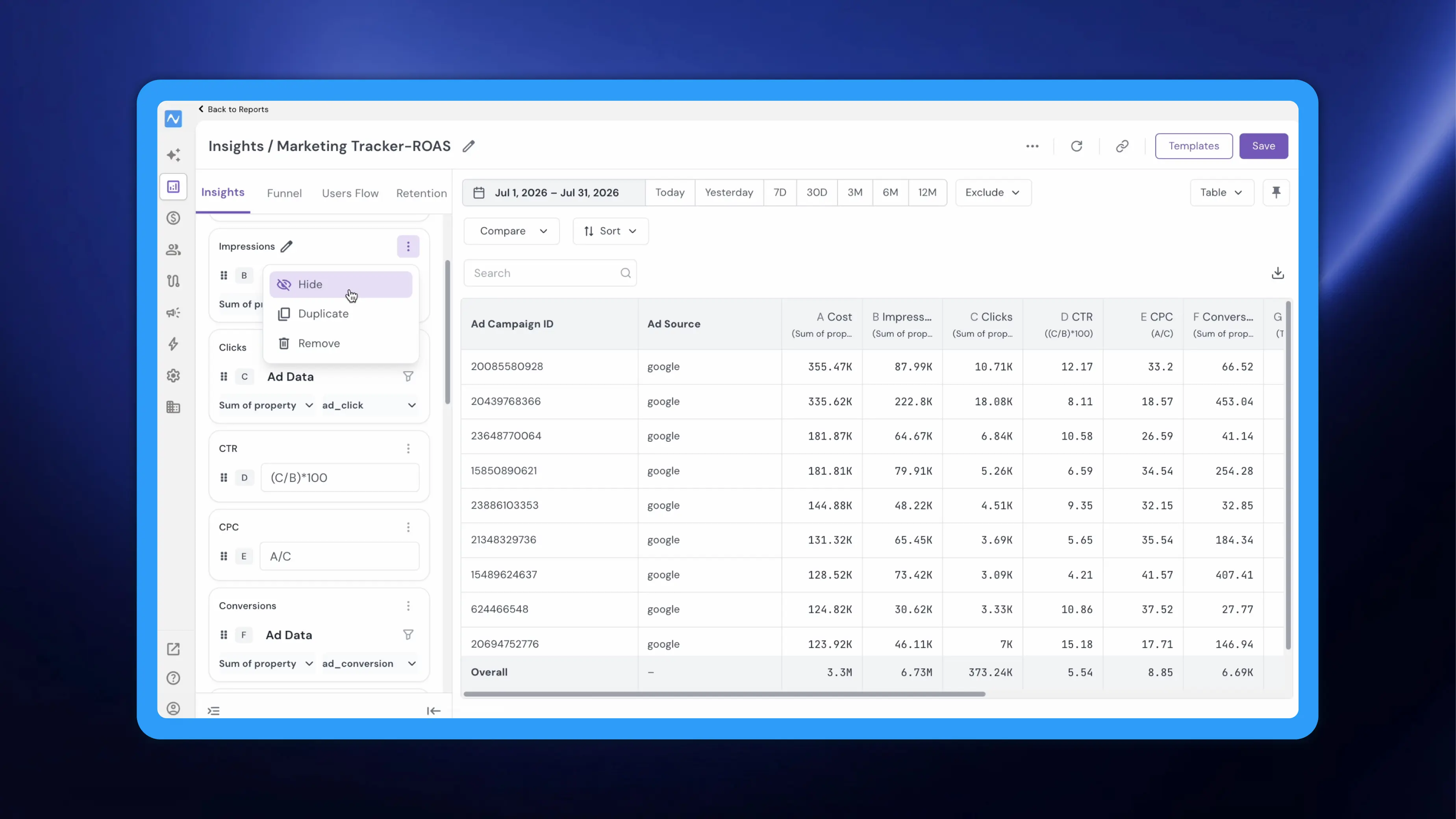
Every event card in an Insights report now carries Hide and Duplicate in its three-dot menu. Hide takes an event out of the table and the chart while it keeps feeding your formulas, and Duplicate copies a configured card with its measure and filters intact. Your report shows what you want read, not everything it needs to calculate.
Where to find it
Go to Analytics → Insights, then open a report from the Reports list or click Create New Report. In the report builder, the left panel holds your Events. Each event sits on its own card with a letter label (A, B, C and so on), the event name, its measure and its filters, and a three-dot menu at the top right of the card. This menu holds the new Hide and Duplicate options.
How to use it
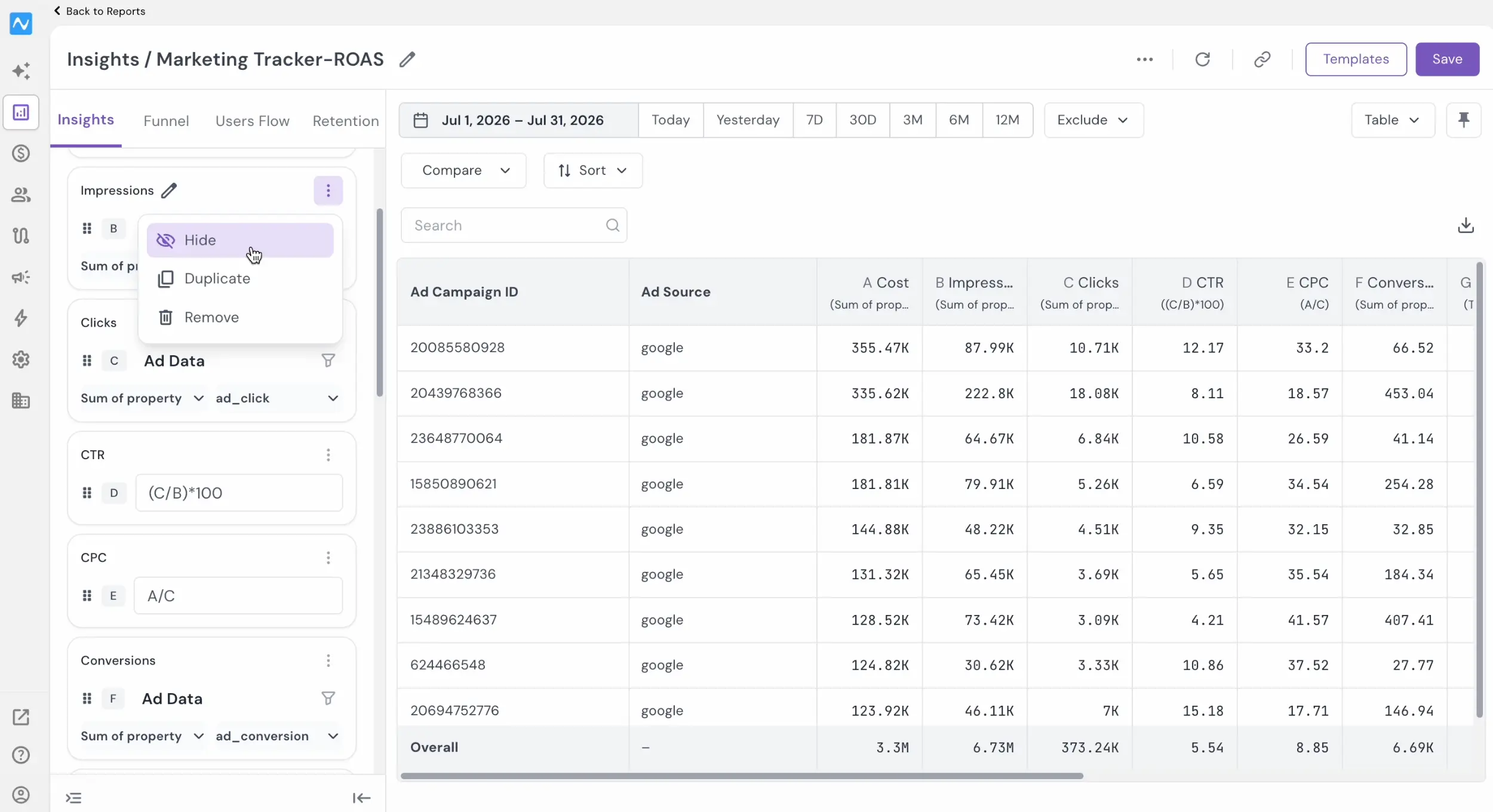
To take an event out of the output, open its three-dot menu and click Hide. Its column leaves the table and its series leaves the chart at once, with no Apply step. The card stays in the Events panel with a crossed-out eye icon in its header, and the menu item flips to Show, so you can bring the column back whenever you want it.
A hidden event is still calculated. Its letter label stays assigned to it, and any Formula card that references that letter keeps returning a value: a formula written as A/B holds its result with both A and B hidden, which leaves the ratio as the only column on screen.
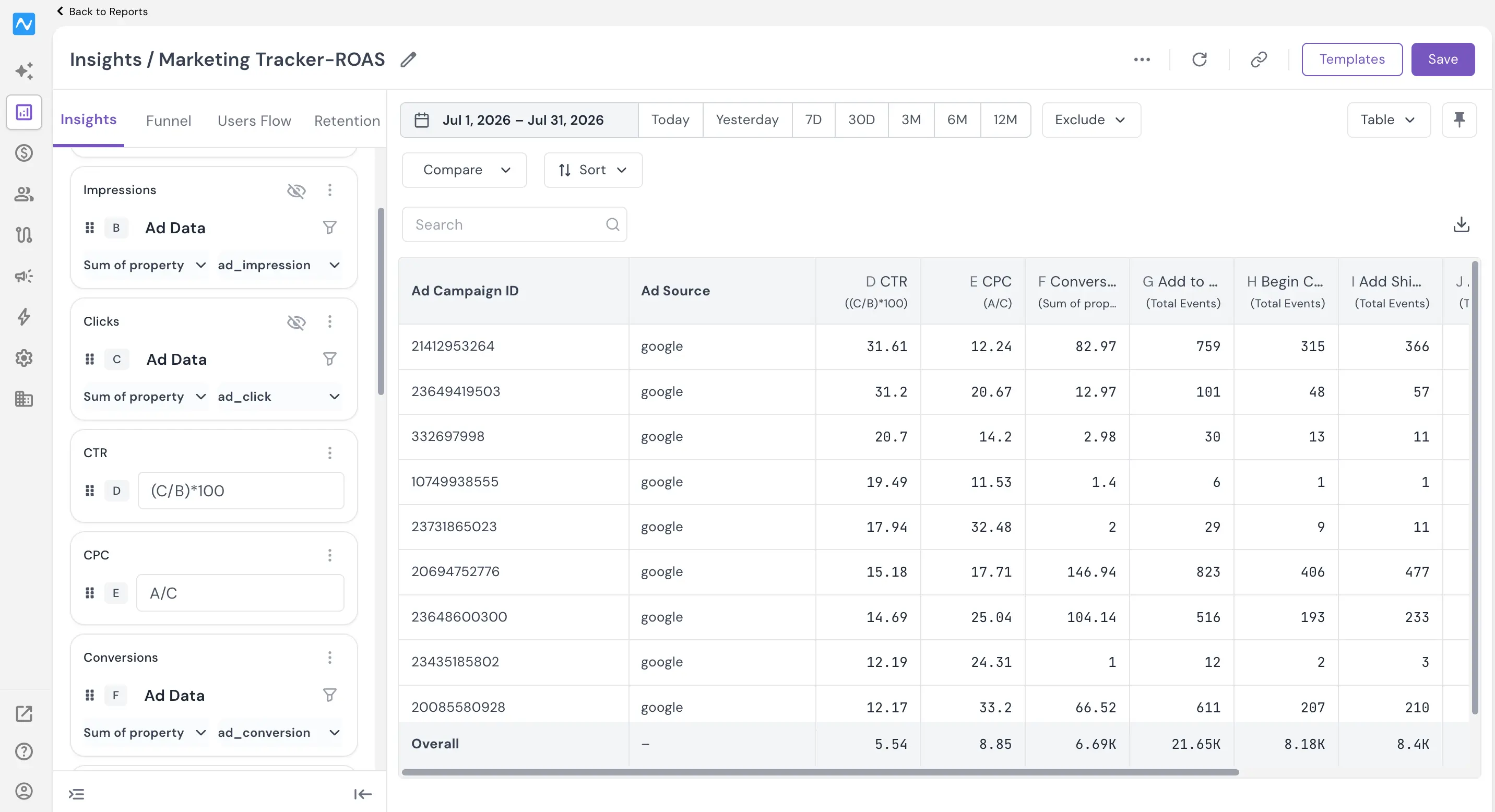
To copy a card, open the same menu and click Duplicate. NVECTA adds a new card directly below the original, named after it with - copy and carrying the same event, measure, and filters, and the cards below it take the next letters. change whatever you want different on the copy: rename it with the pencil beside its title, switch its measure, or set a different filter, then click Apply to recalculate the report.
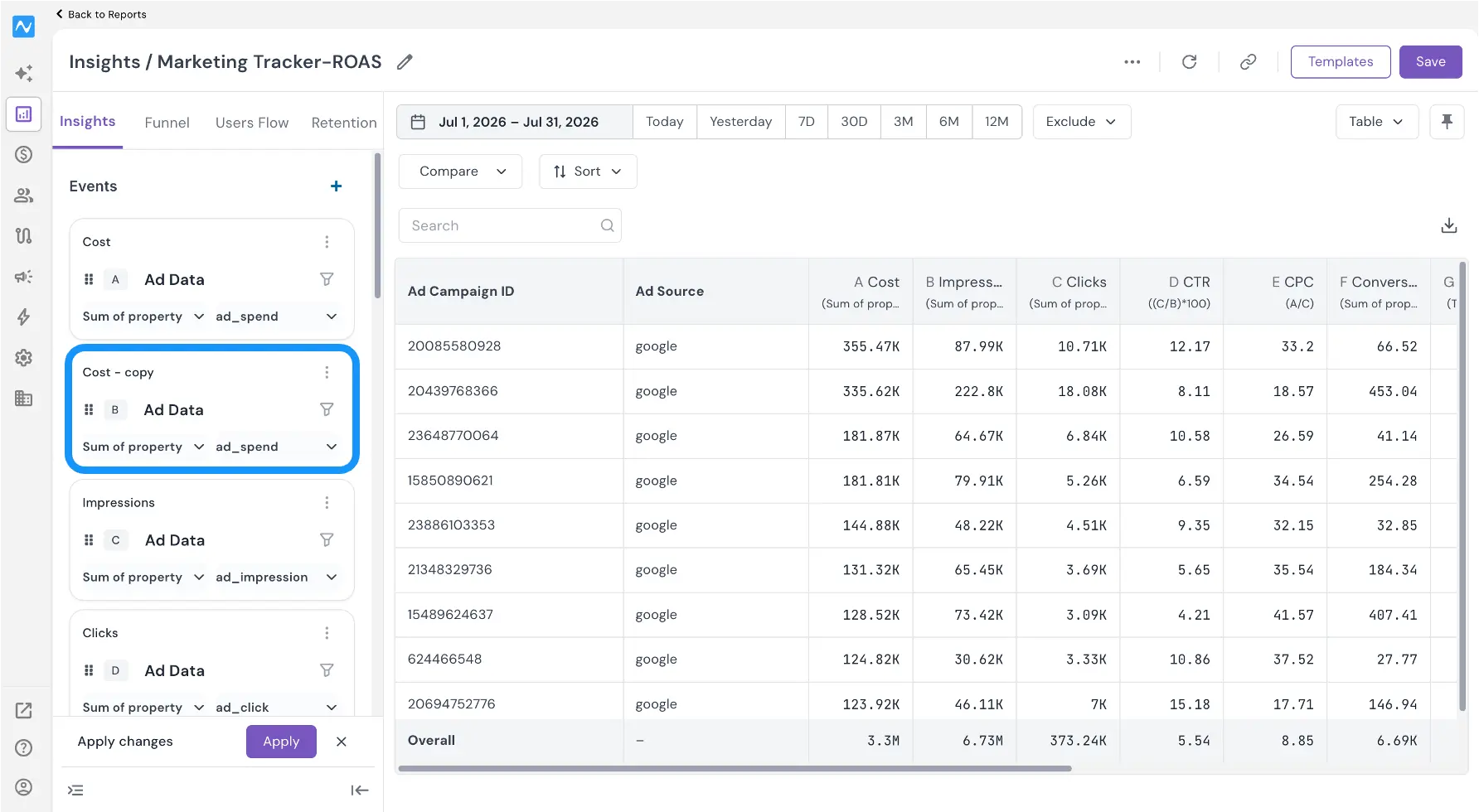
Any event you hide is also excluded from the report's CSV export, so the download matches what you see on screen.