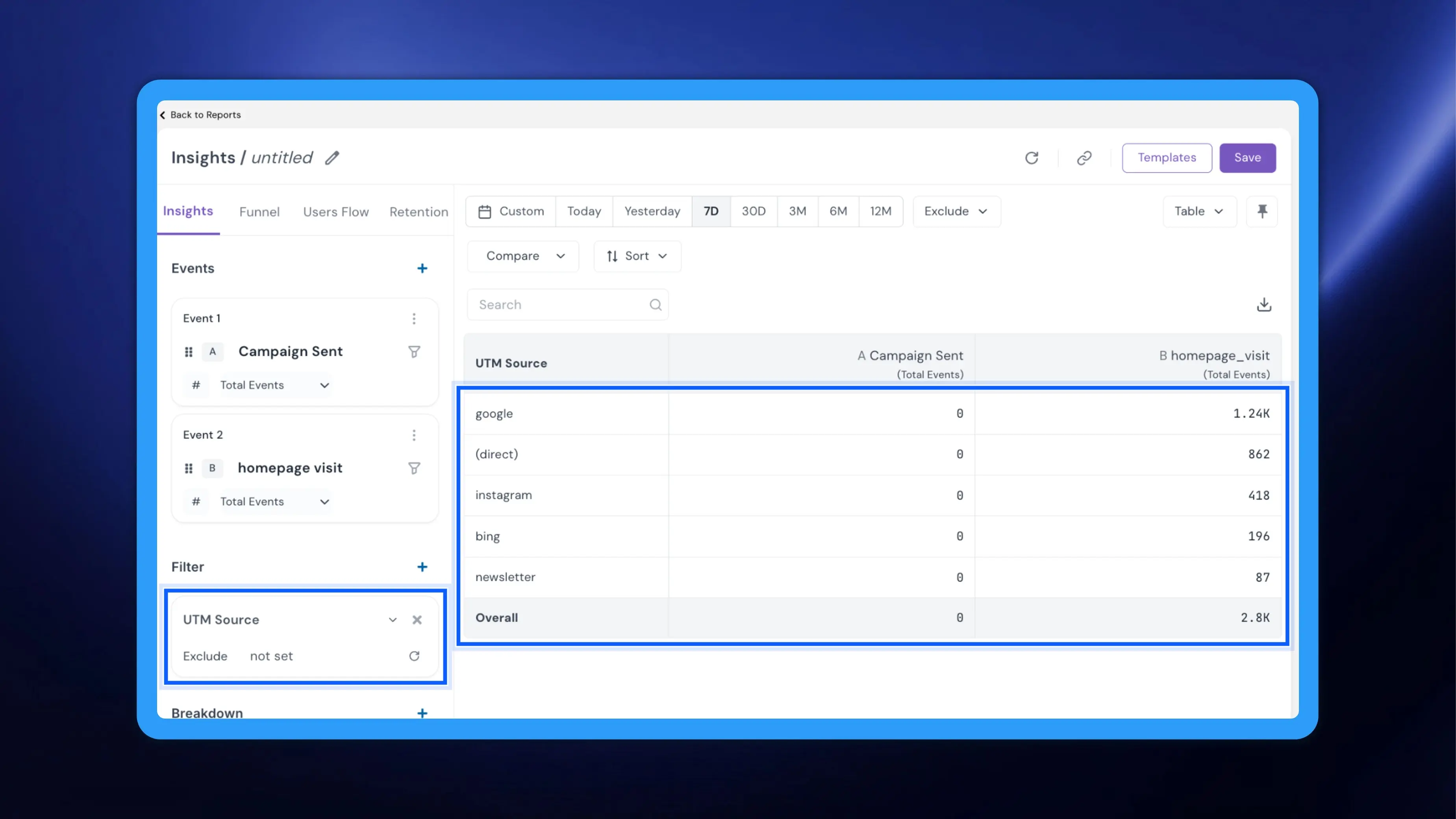
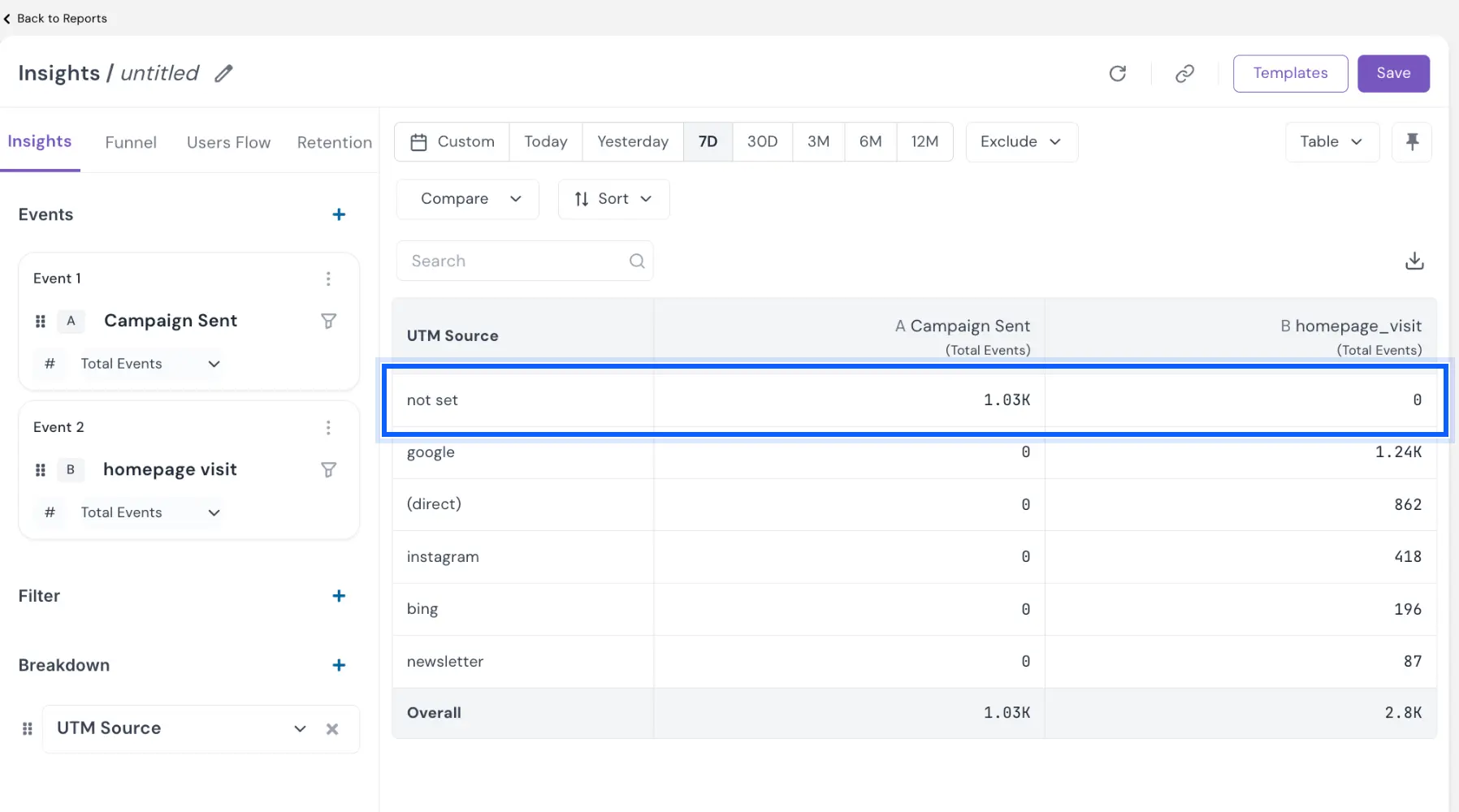
When an attribute has no value on some events, Insights groups those events under not set. In a UTM source breakdown, for example, events that never carried UTM parameters, such as campaign sends, show up as one large not set row that crowds out the sources you want to compare. NVECTA now lets you filter not set out of any breakdown, so your report shows only the values that mean something.
How to use it
Go to Analytics → Insights and open a report with a breakdown, such as UTM Source. The not set row appears alongside the real values. You remove it from the Filter section in the left panel.
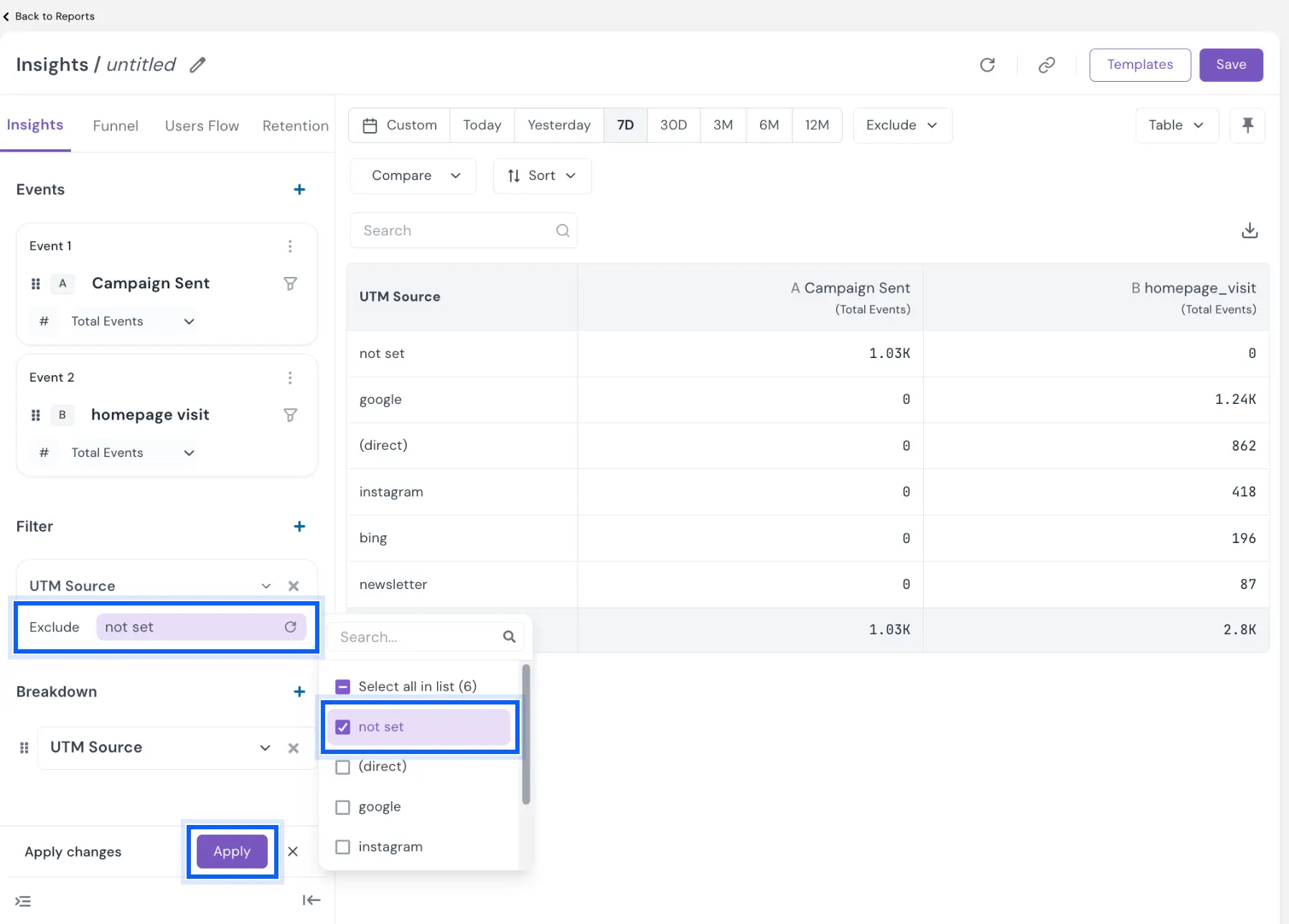
- Under Filter, click + and choose the attribute you broke the report down by, for example UTM Source.
- Click the operator and choose Exclude. The other operators are Include, Contains, Not Contains and Is Exist.
- Open Select value(s) and tick not set.
- Click Apply in the Apply changes bar.
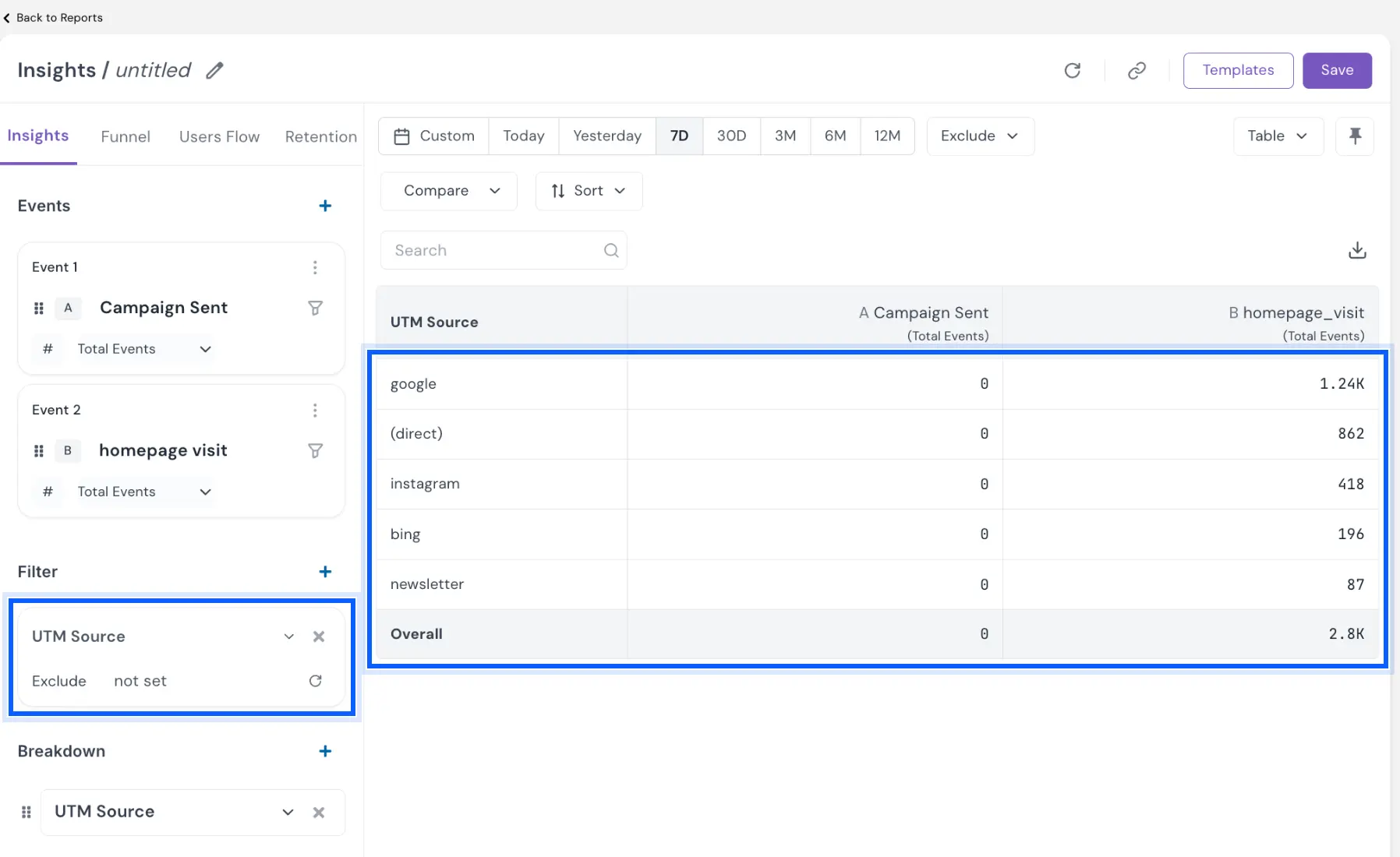
The filter now shows Exclude with not set as its value, the not set row disappears from the table, and the Overall row recalculates.
Coming soon: you'll be able to remove not set directly from the table in one click, without adding a filter.
Example
A marketplace's performance marketer compares homepage visits by UTM source for the last seven days to see which acquisition channels are pulling their weight. Because the report also includes campaign events that carry no UTM source, a not set row sits at the top with over a thousand events and pushes google, bing and direct traffic down the list. Excluding not set leaves only the real sources, ranked by the visits they drove.
Problem it solves
not set is a bucket for missing data, not a source, a city or a device. Left in a report, it distorts rankings and totals and invites the wrong questions. Filtering it out gives you a clean view of the values you track, while the original events remain available whenever you need them.
Your breakdowns now show only the values that matter.