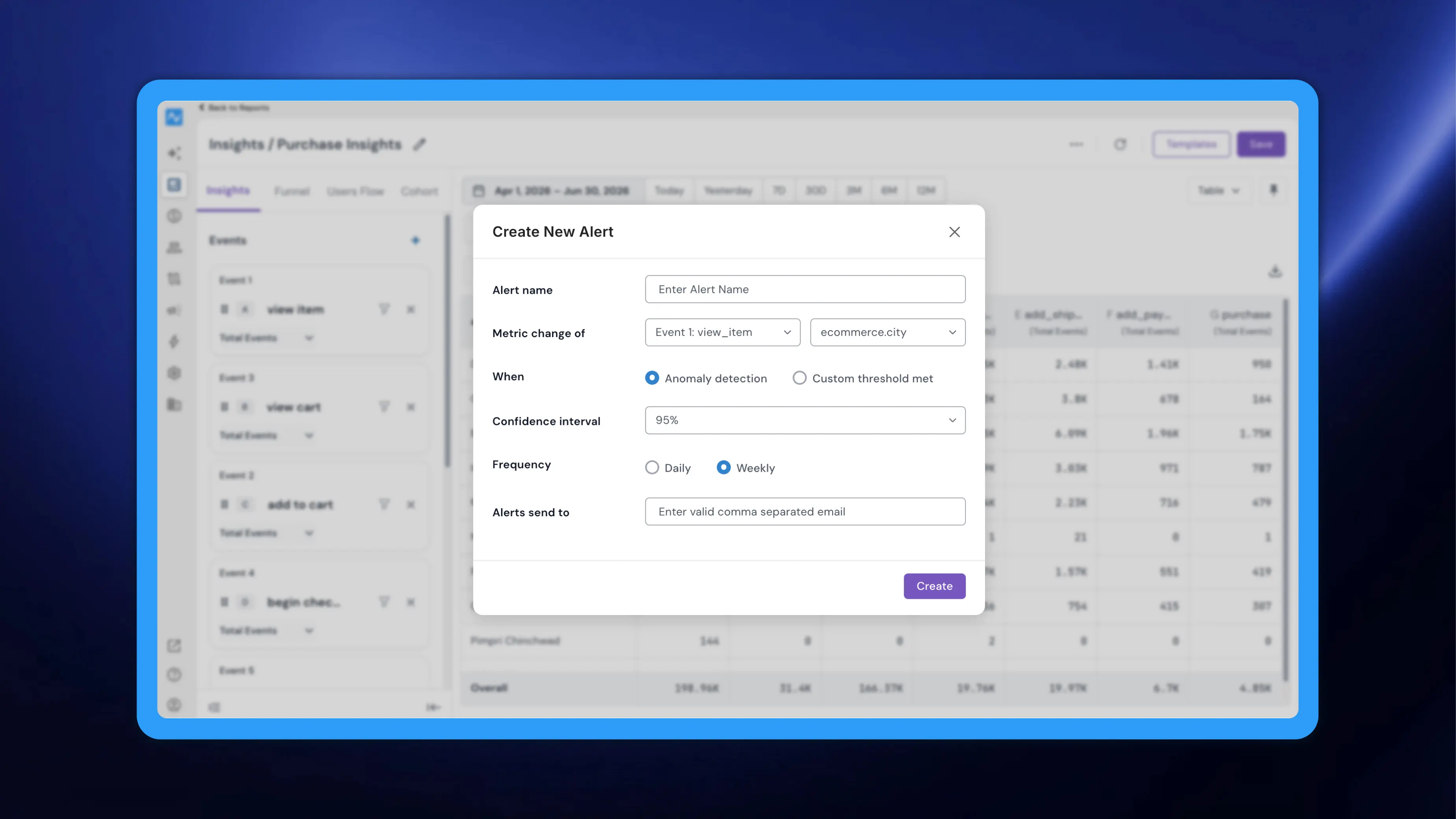
NVECTA already lets you configure alerts from Settings. This update brings alerts directly into your Insights reports and adds a smarter way to trigger them: anomaly detection. Instead of firing every time a metric crosses a fixed number, anomaly detection learns a metric's normal rhythm and alerts you only when a change is genuinely unusual, cutting down on false alarms while making sure real problems don't slip past.
Where to find it
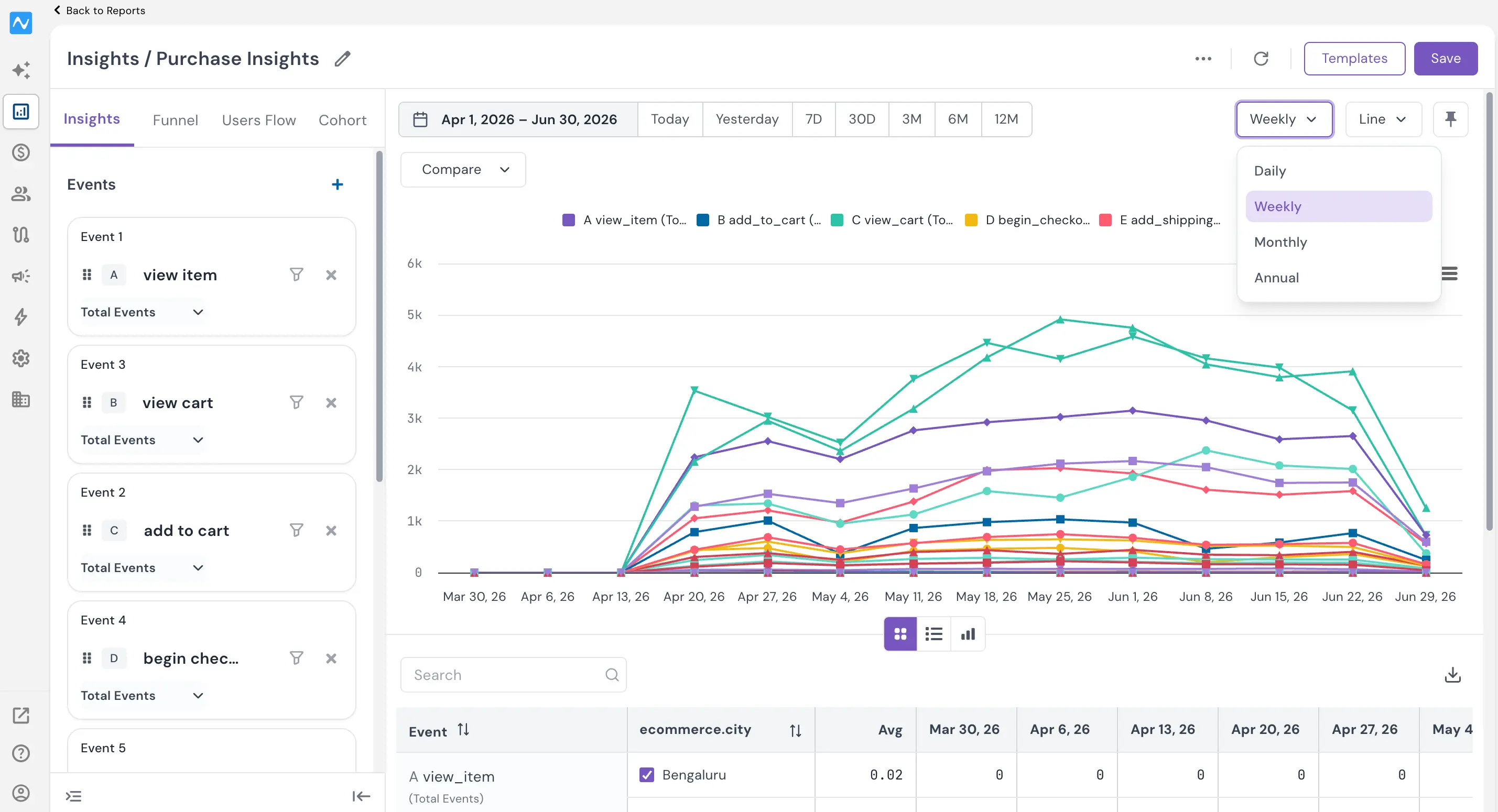
Open a saved Insights report (Analytics → Reports → Insights), click the three-dot (⋯) menu in the top-right corner, and select the alert option to open the Create New Alert dialog.
How to use it
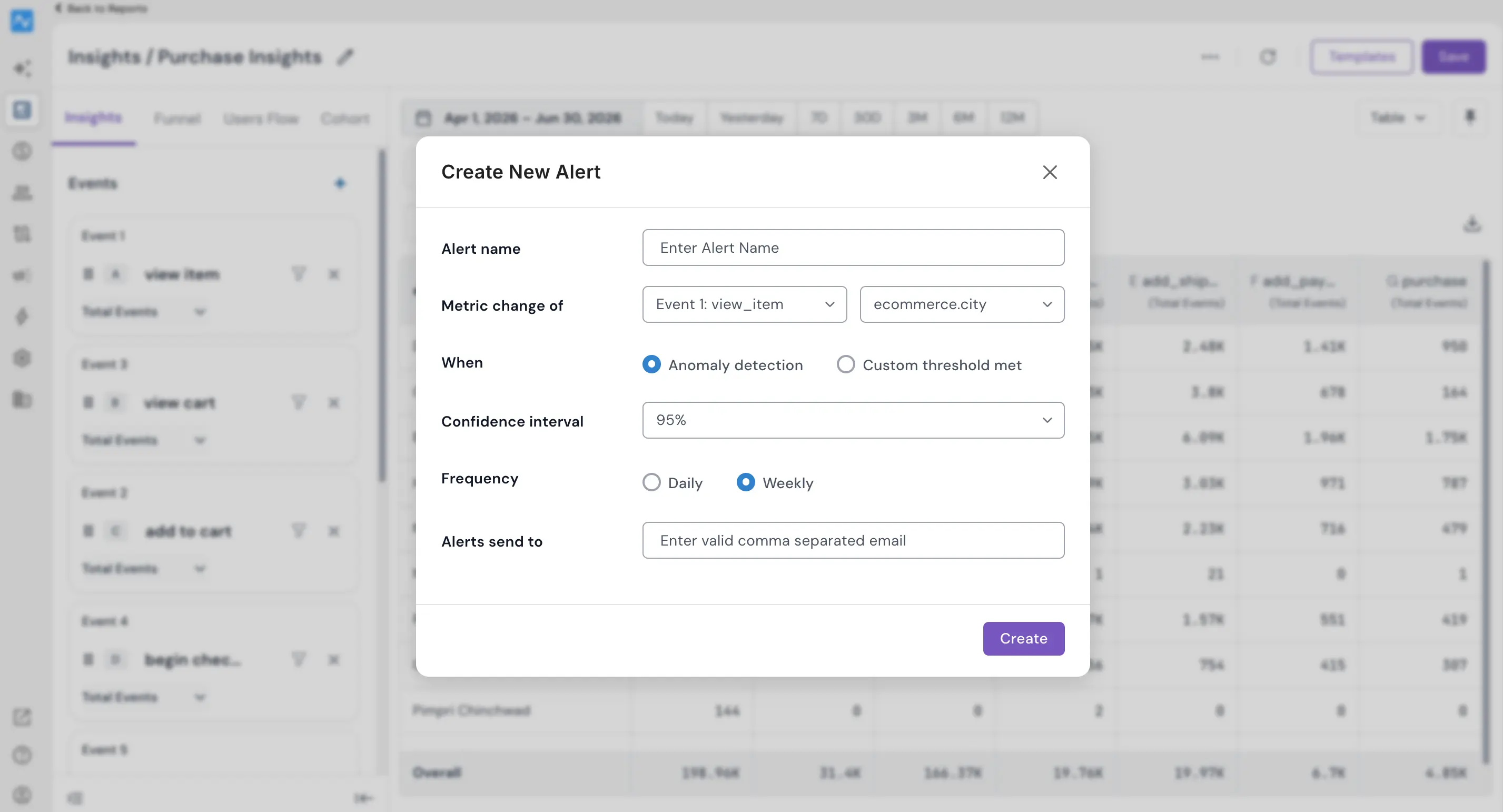
Give the alert a name and choose the event to monitor under Metric change of. Then, under When, pick one of two trigger types:
→ Custom threshold met — the existing behaviour. Choose Above or Below, enter a value, and NVECTA alerts you whenever the metric crosses it.
→ Anomaly detection — the new option. Rather than a fixed number, the system runs multiple statistical calculations to decide whether a rise or drop is natural or a true anomaly, based on how the metric has behaved in comparable past periods.
Here's why that matters. Say your page views usually dip over the weekend. A flat "alert me on a 10% drop" rule would email you every Saturday for a dip that's completely expected. Anomaly detection recognises that weekend pattern and stays quiet, but if that same 10% drop lands on a Monday, when traffic is normally strong, it flags it as unusual and sends the alert.
To make that judgment, the system compares the current value against the same recent comparable periods: for a Daily alert it looks at the same weekday over the last few weeks (for example, this Sunday against the previous four Sundays), and for a Weekly alert it looks at the last four weeks. You control how strict it is with the confidence level dropdown (90%, 95%, or 99%). If you select 95%, an alert is sent only when the model is 95% or more confident the change is a genuine anomaly; anything below that stays silent.
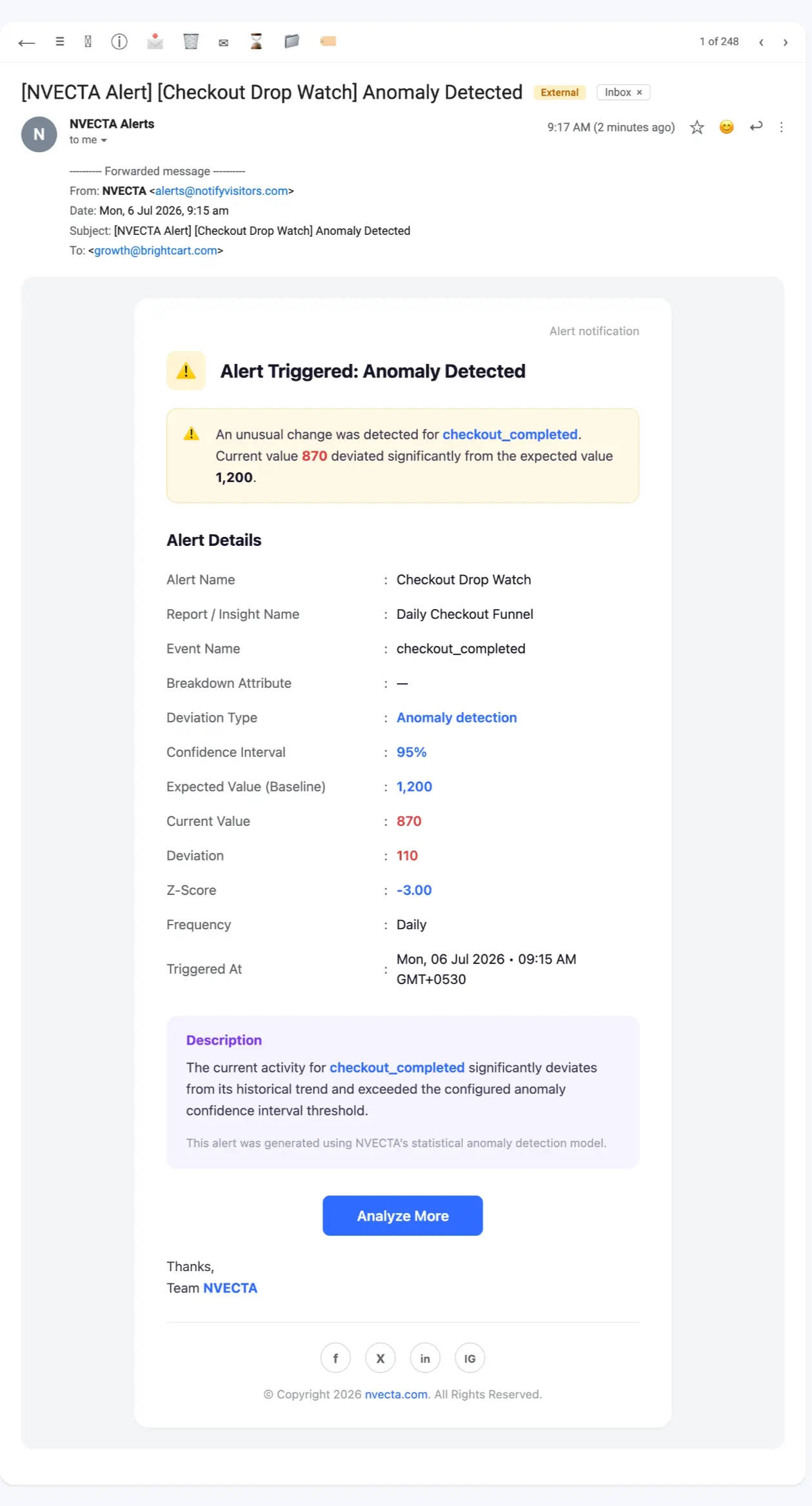
Set the Frequency (Daily or Weekly), enter one or more recipient addresses under Alerts send to, and click Create. When an anomaly fires, recipients receive an email summarising the alert, expected vs. current value, confidence interval, deviation, and z-score, with an Analyse More button that opens the report in NVECTA console for a closer look.
Note: Alerts can only be applied to saved Insights reports, so save your report before creating one. If you later edit a report that has alerts attached and save the changes, NVECTA warns you that the existing alert will be removed; you can proceed or cancel as needed.
Problem it solves
Fixed-threshold alerts don't understand context, so they either flood you with false alarms during normal fluctuations or force you to set the bar so loose that real issues go unnoticed. By learning each metric's historical pattern and alerting only when a change is statistically significant, anomaly detection surfaces the changes that actually deserve attention, right where you analyse your data.
With alerts and anomaly detection built into Insights, you can move from watching dashboards to being told, precisely and only when it matters, that something has changed.