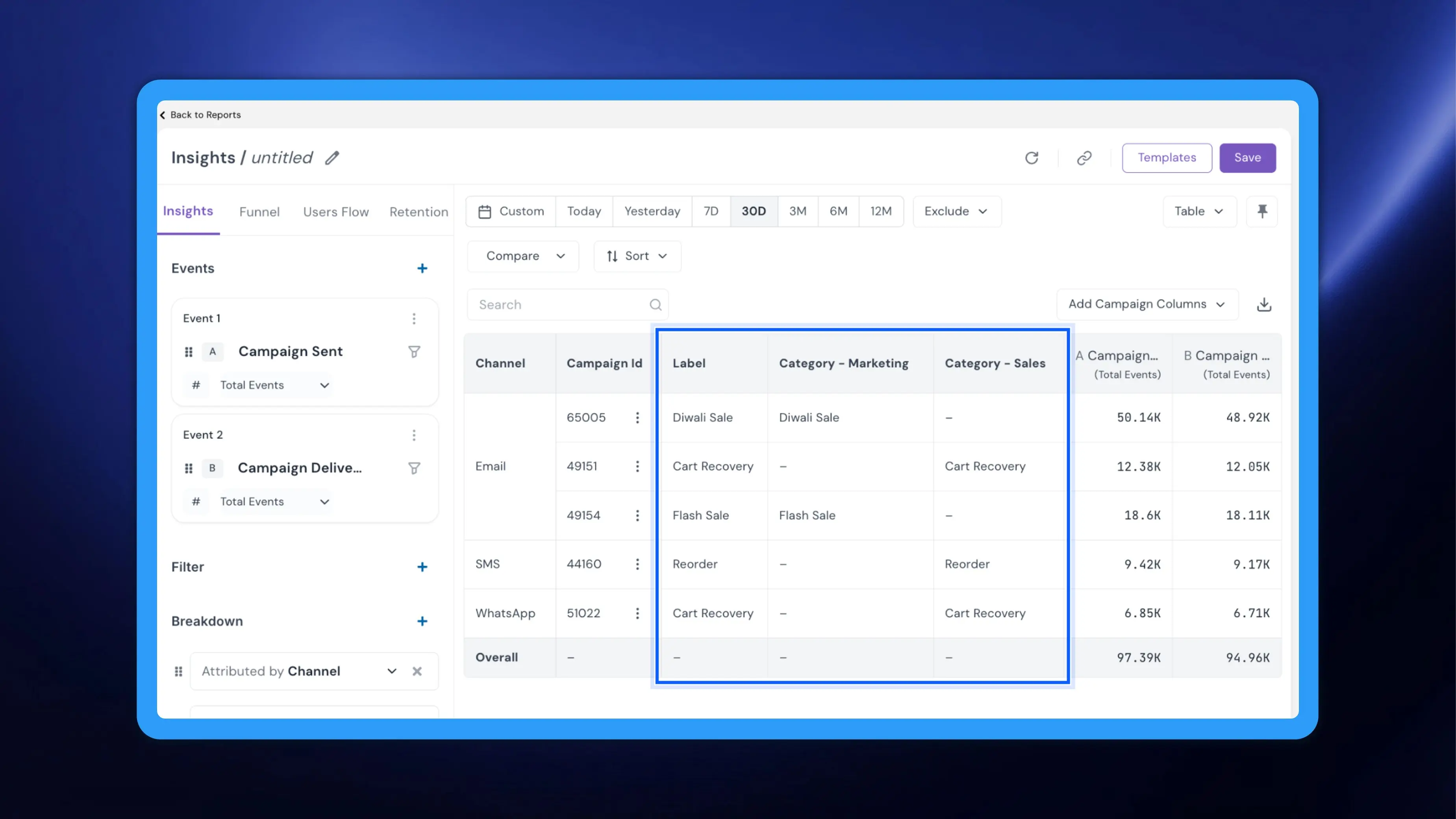
In our previous update, we covered campaign label categories, which group your campaign labels under named categories so long label lists stay easy to browse in the Campaign Label list and in filters. Those categories now carry into Insights as well. You can add Label and each label category as columns in the Insights table, so every campaign row shows what the campaign was for, right beside its numbers.
Where to find it
Go to Analytics → Insights and add a campaign event such as Campaign Sent or Campaign Delivered. Under Breakdown, add Attributed by Campaign Id (optionally with Attributed by Channel) and set the view to Table. The Add Campaign Columns dropdown appears above the table, next to the download icon.
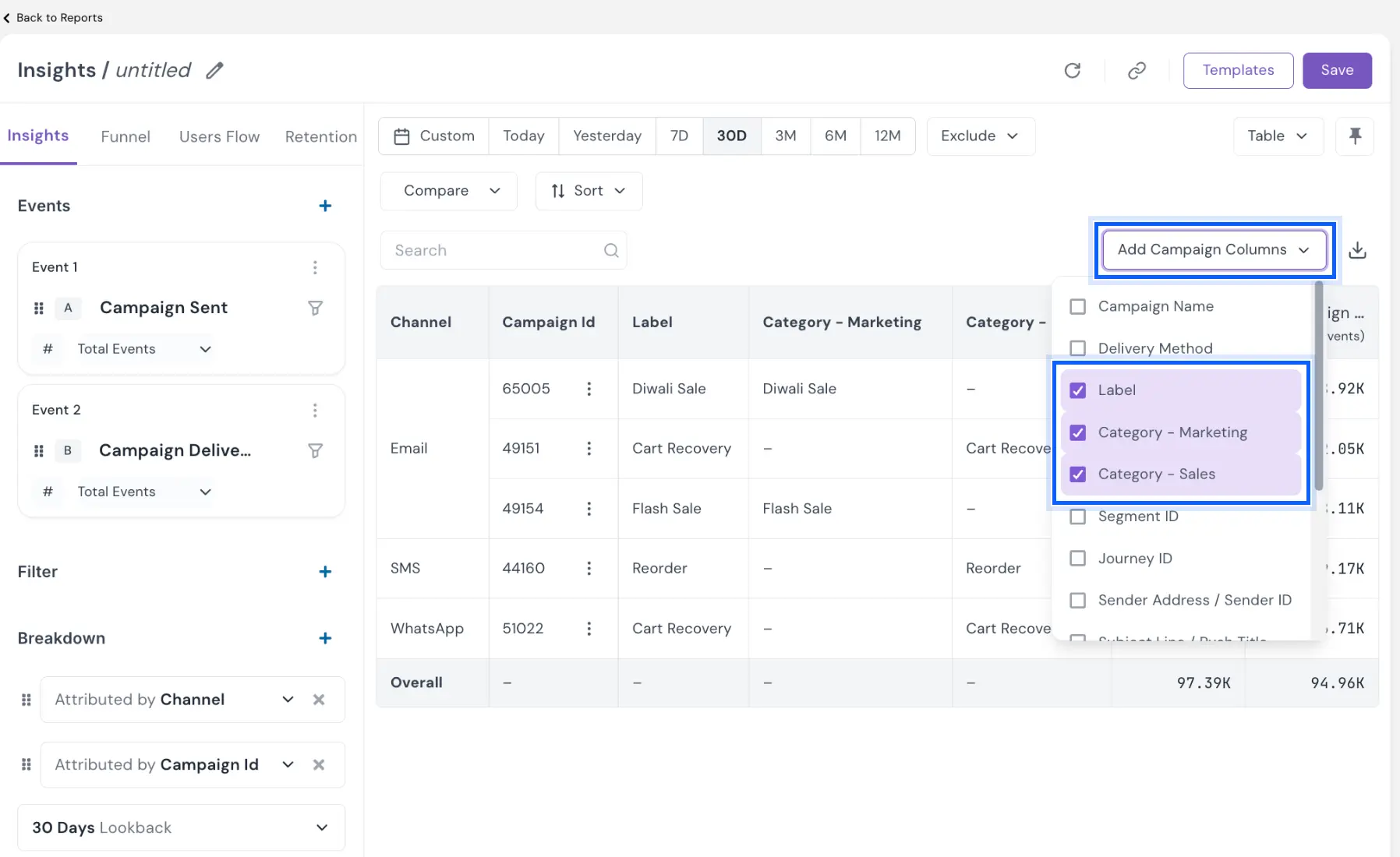
Open Add Campaign Columns and tick Label, or any of your label categories, which appear as Category - <category name> (for example, Category - Marketing).
You can select several categories at once. Each one becomes its own column showing the campaign's label in that category, or a dash when the campaign has none. Event counts and the Overall row stay exactly as they were; the new columns only add context.
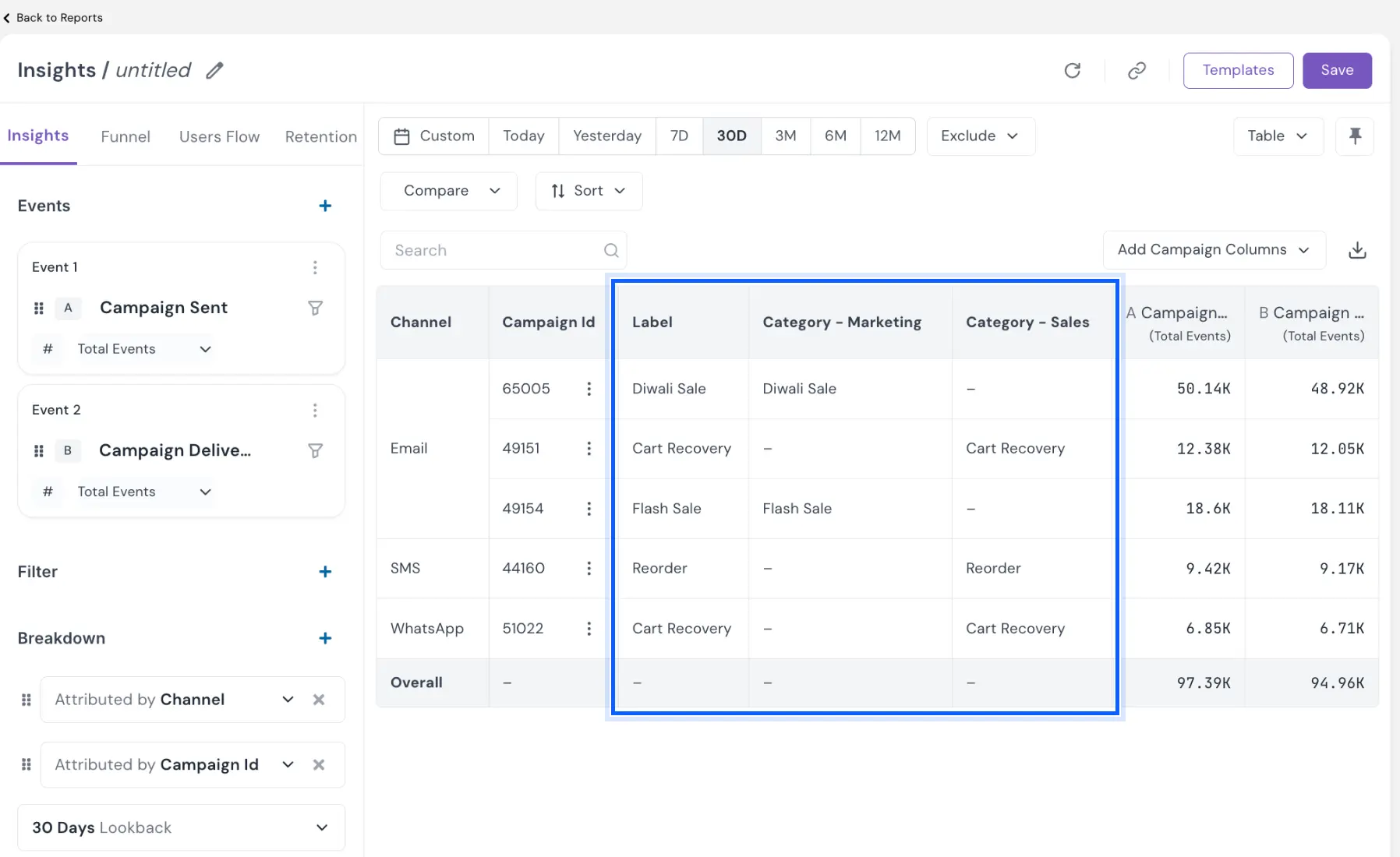
Example
A D2C personal-care brand groups its campaign labels into two categories: Marketing, for launches and seasonal offers, and Sales, for cart recovery and replenishment reminders. In Insights, the CRM manager plots Campaign Sent and Campaign Delivered for the last 30 days, breaks them down by channel and campaign ID, and adds both category columns from Add Campaign Columns. Each campaign row now shows its purpose next to its volumes, and the table is ready for the weekly review without a single lookup.
If you are new to labels, kindly go through Campaign Labels In NVECTA.
Your campaign reports now show not just how much you sent, but why you sent it.