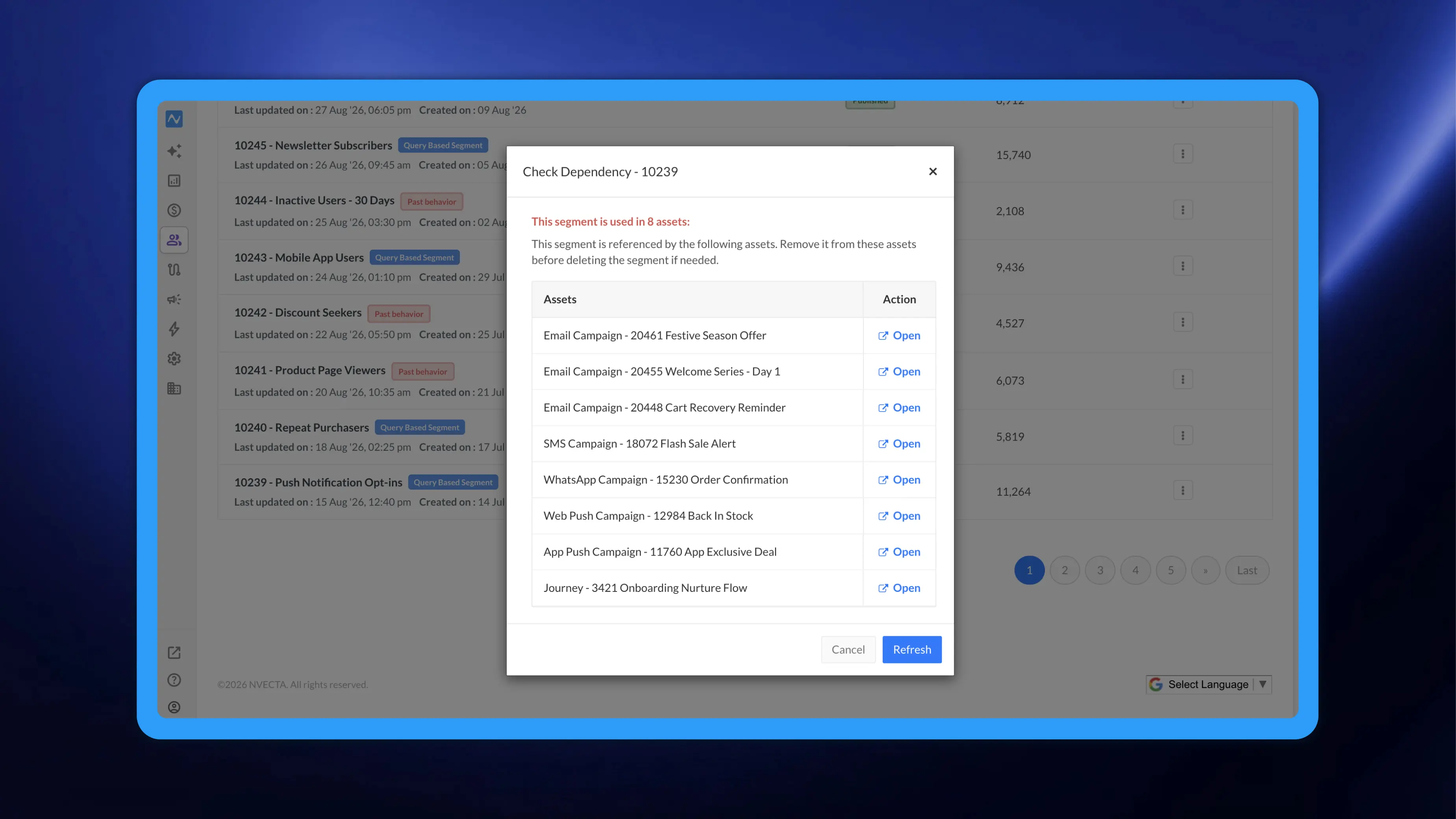
A segment rarely lives on its own. The same audience can sit behind an email campaign, a journey, a signup form, a popup, and more, and nothing in the console used to tell you which. Deleting a segment that was still in use meant finding out afterwards, when live work started behaving unexpectedly.
NVECTA now shows you every asset that references a segment, both from the segment list and again at the moment you delete, so you can see what a segment is powering before you remove it. If you are new to segments, kindly go through How To Create A Segment for a thorough tutorial.
Where to find it
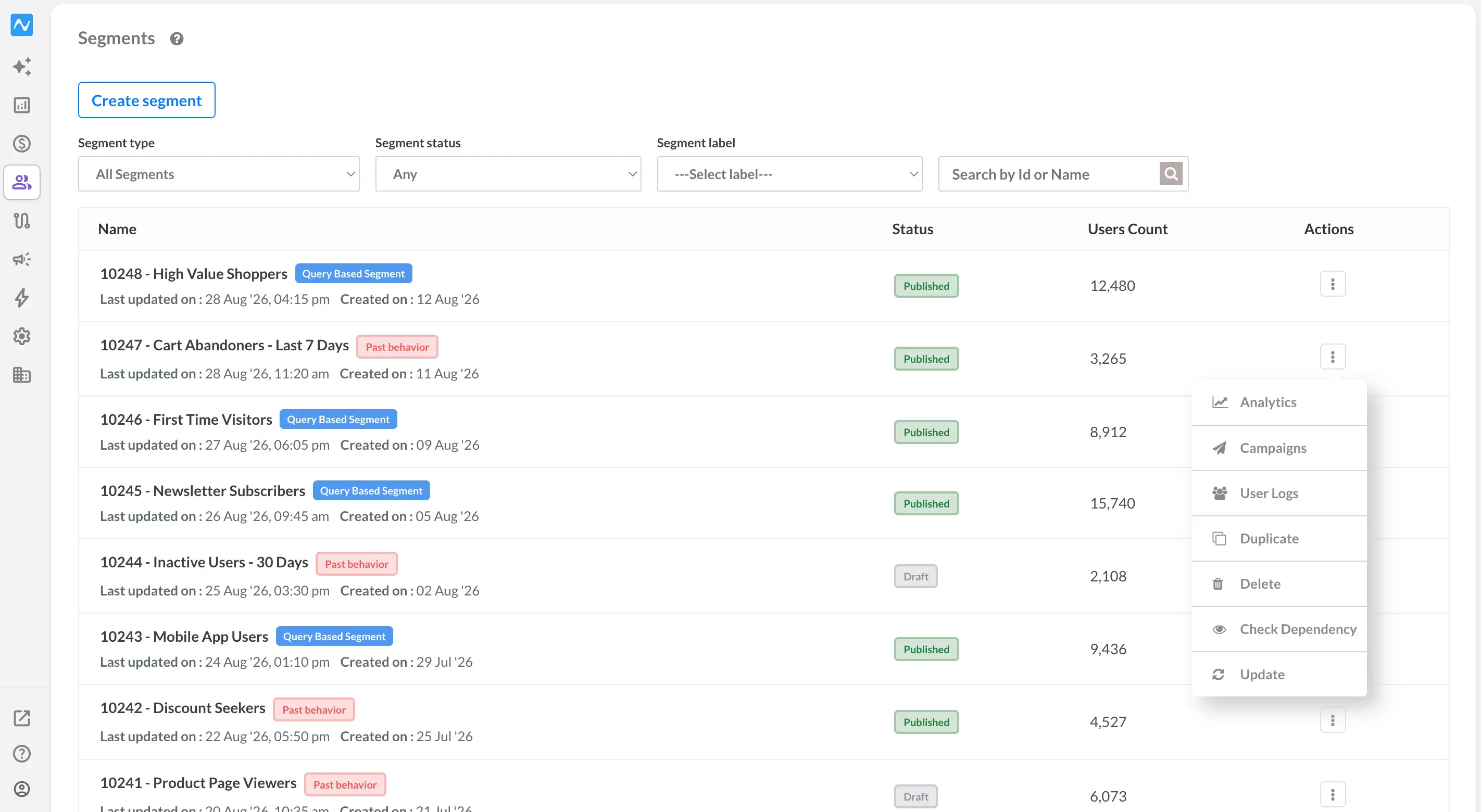
Go to Segments → Segments tab. The list shows every segment with its Name, Status and Users Count, and a three-dot menu in the Actions column. Open that menu on any row and you will see Check Dependency, sitting just below Delete. It is available on published and draft segments alike.
How to use it
Select Check Dependency. NVECTA opens a Check Dependency - [segment ID] dialog and reports what it found.
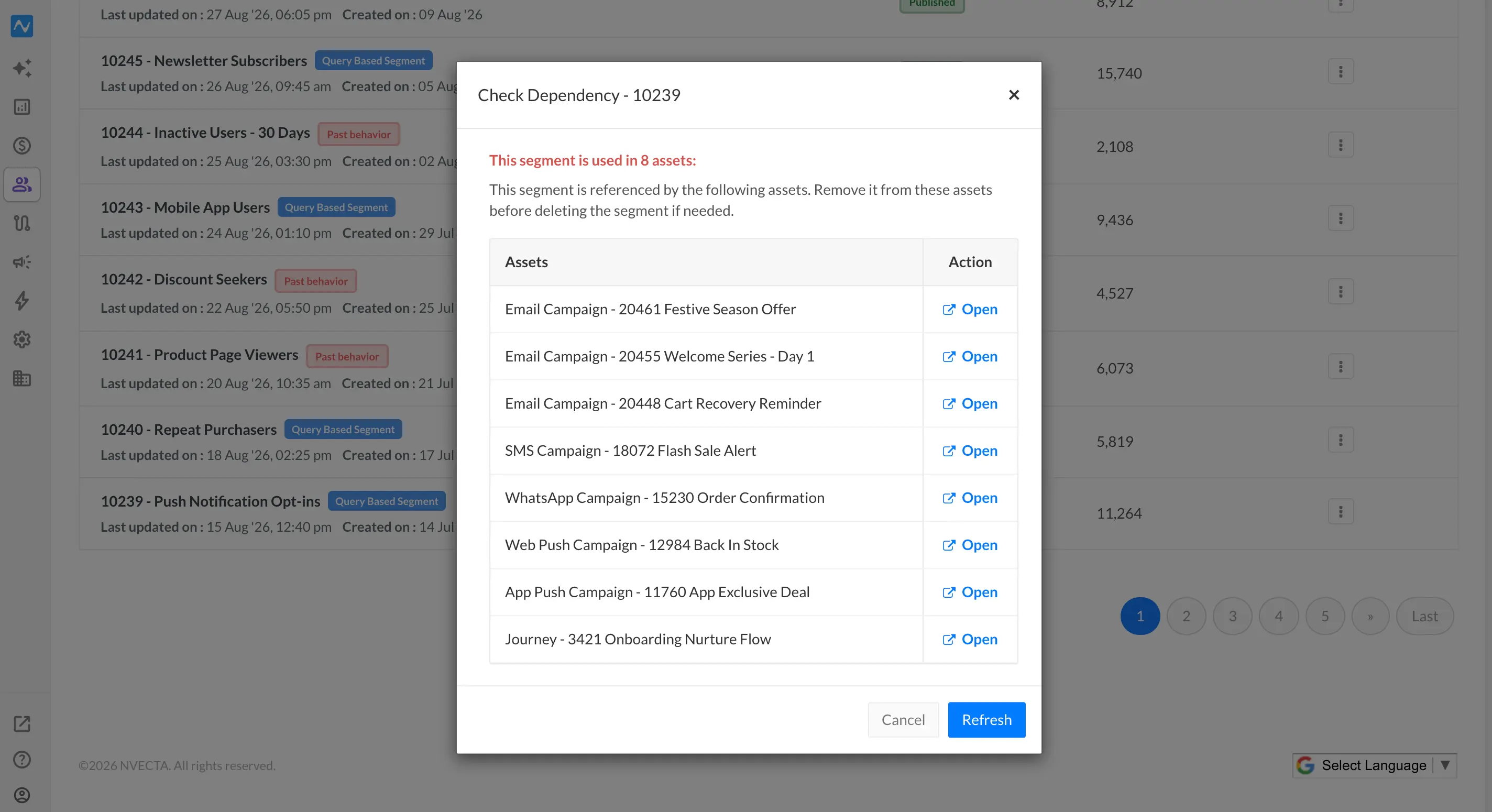
When the segment is in use, the dialog tells you how many assets it is used in and lists them in a table with Assets and Action columns. Each row names the asset by type, ID and name, and carries an Open link that opens that asset in a new browser tab, so you can go straight to the campaign or experience and point it at a different segment. Once you have removed the reference, Refresh re-runs the check without closing the dialog. Cancel closes the dialog and changes nothing.
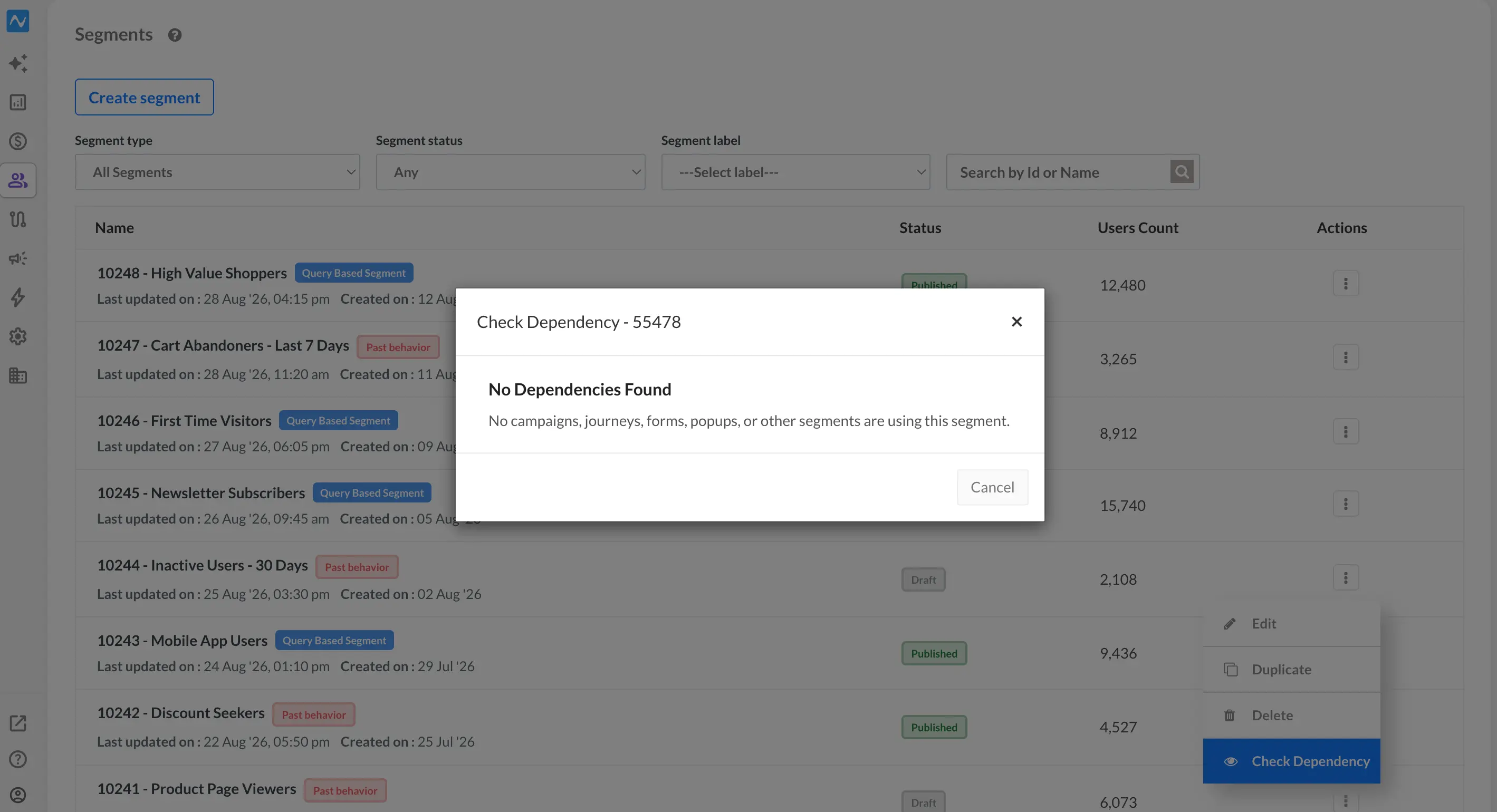
When nothing references the segment, the dialog returns No Dependencies Found with the line "No campaigns, journeys, forms, popups, or other segments are using this segment.", and a single Cancel button.
The same check at the moment you delete
You do not have to remember to run the check first. Choose Delete from the same menu and the Delete Segment - [segment ID] dialog warns you that the segment may be used in other assets, and that deleting it without removing its dependencies may impact active campaigns, journeys, forms or other experiences. Alongside Cancel and Delete you now get View Dependencies.
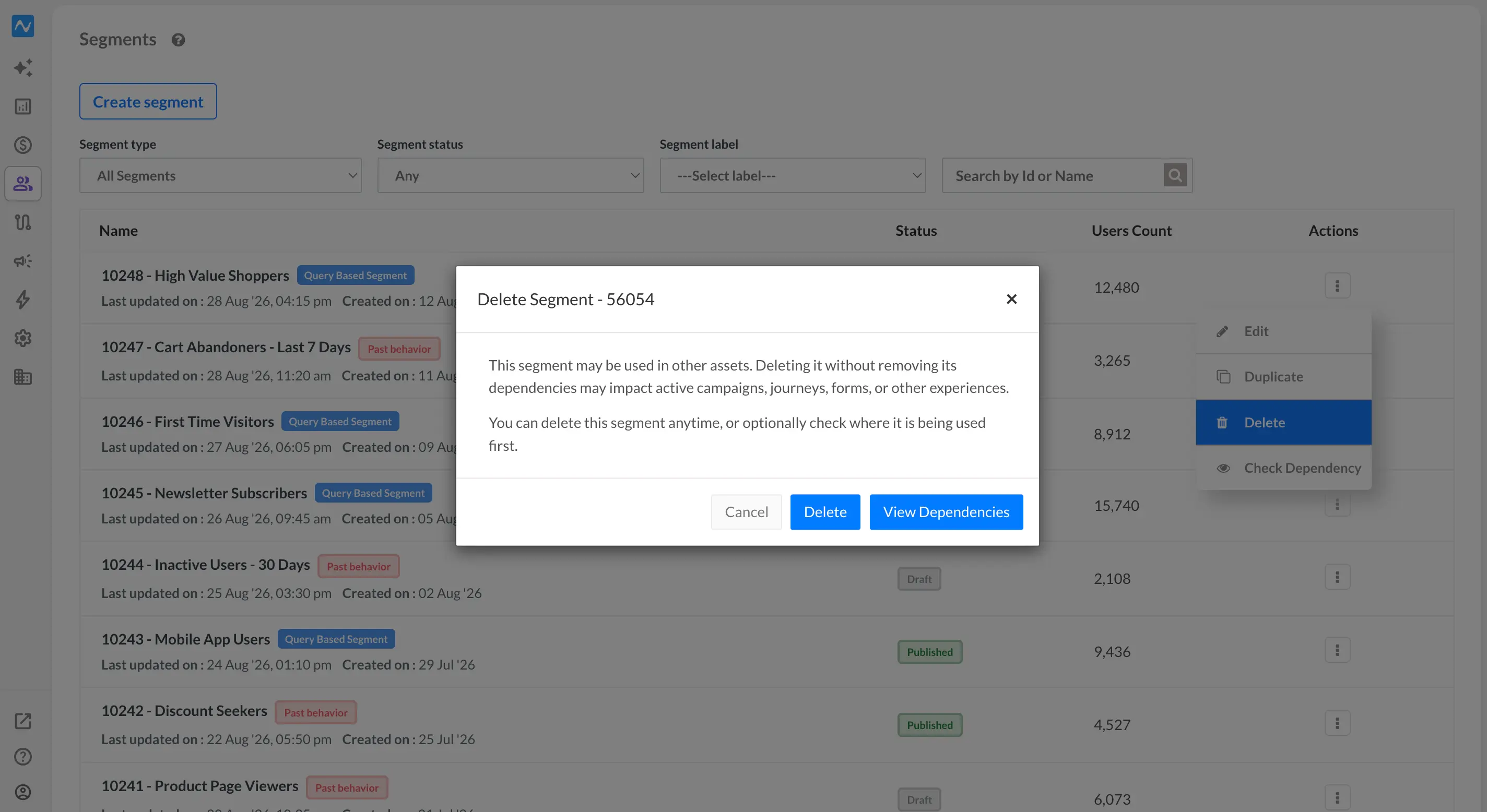
Click View Dependencies and the same asset list expands inside the delete dialog, with Cancel, Delete and Refresh. If nothing depends on the segment, you get No Dependencies Found and confirmation that the segment is safe to remove.
Problem it solves
Segment cleanup used to depend on memory. Anyone tidying an audience list had to recall, or ask around about, which campaigns and journeys were still pointed at a segment, and a wrong guess showed up later as a campaign that no longer targeted the audience it was built for. The dependency check turns that into a fact you can look up in one click, at the exact moment it matters.
Know what a segment is powering before you delete it, and clean up your audience list without disturbing anything that is still live.