When you run a website A/B test, some visitors may briefly see the original page before the variation appears. For example, your variation turns a red "Buy now" button blue, but for a split second the visitor still sees the red button before it switches to blue. This is called flicker, also known as a flash of original content (FOOC).
Flicker is not limited to button colours. It can happen with any change you make in a variation, such as a new headline, a different font, a replaced banner image or a section moved to a new position. Besides looking unpolished, flicker can affect your results, because visitors who notice the switch see both versions of the page and may behave differently.
This article explains why flicker happens, how to reduce it and how to design variations that load smoothly. If you have not created a test yet, see Create website A/B test campaign.
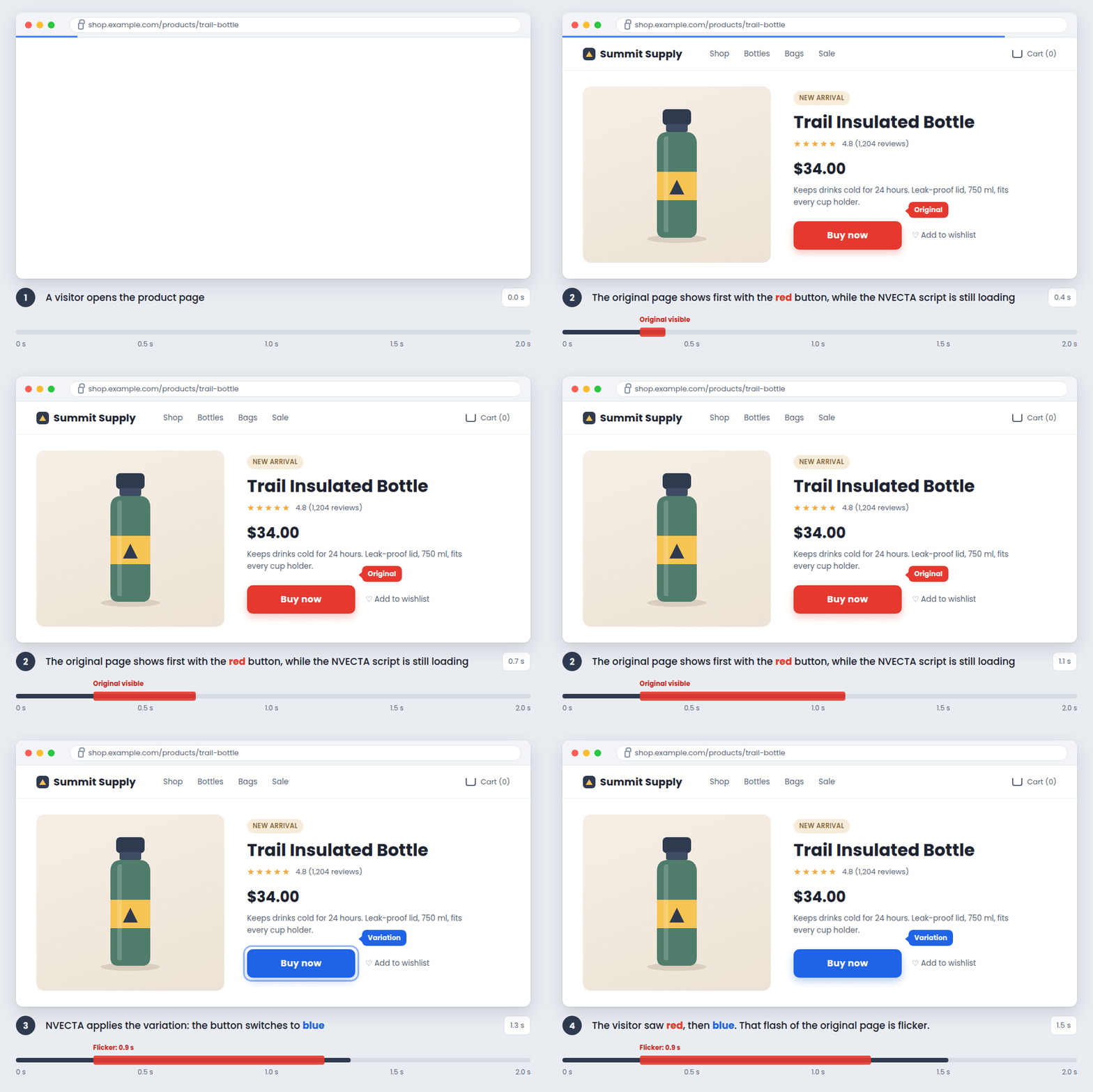
How NVECTA applies a variation
When a visitor opens a page that is part of an A/B test, three things happen in order:
- The browser downloads your page and starts showing it as soon as it can. At this point, the visitor sees the original page (the control).
- The NVECTA integration code loads. It loads asynchronously by default, so it does not stop your page from loading.
- NVECTA checks which version the visitor should see and applies the changes of that variation to the page.
Flicker is the gap between step 1 and step 3. The longer integration code takes to load and apply the changes, the longer the original page stays visible. Every fix in this article either shortens this gap or hides it from the visitor.
Common causes of flicker
| Cause | Why it creates flicker |
|---|---|
| Integration code placed at the bottom of the page | The browser shows the whole page before it reaches the NVECTA code, so the original page is fully visible before any change is applied. |
| Code added through a tag manager | The tag manager has to load first and then fire the NVECTA tag, which adds an extra delay. |
| on_load set to true | The NVECTA script waits until the complete page, including images and other scripts, has loaded. |
| Script delayed by a speed plugin | Caching and speed tools that defer or delay JavaScript can hold back the NVECTA code. |
| Heavy changes in the hero section | The top of the page is visible first, so any change there is the easiest to notice. |
| Many changes in one variation | Every extra change adds work before the variation is complete. |
| Elements that load late | Carousels, lazy-loaded images and content added by your site's own scripts can only be changed after they appear. |
| New fonts and large images | A font or image the page does not already use has to download before it can be shown. |
| Slow page or slow network | Heavy pages, many third-party scripts and slow mobile connections make every step take longer. |
How to reduce flicker
Work through these fixes in order. The first two usually make the biggest difference.
1. Place the integration code in the head section
The most effective fix is to load the NVECTA integration code as early as possible. Add it inside the <head> section of every page where you run A/B tests, as close to the opening <head> tag as you can and before other third-party scripts.
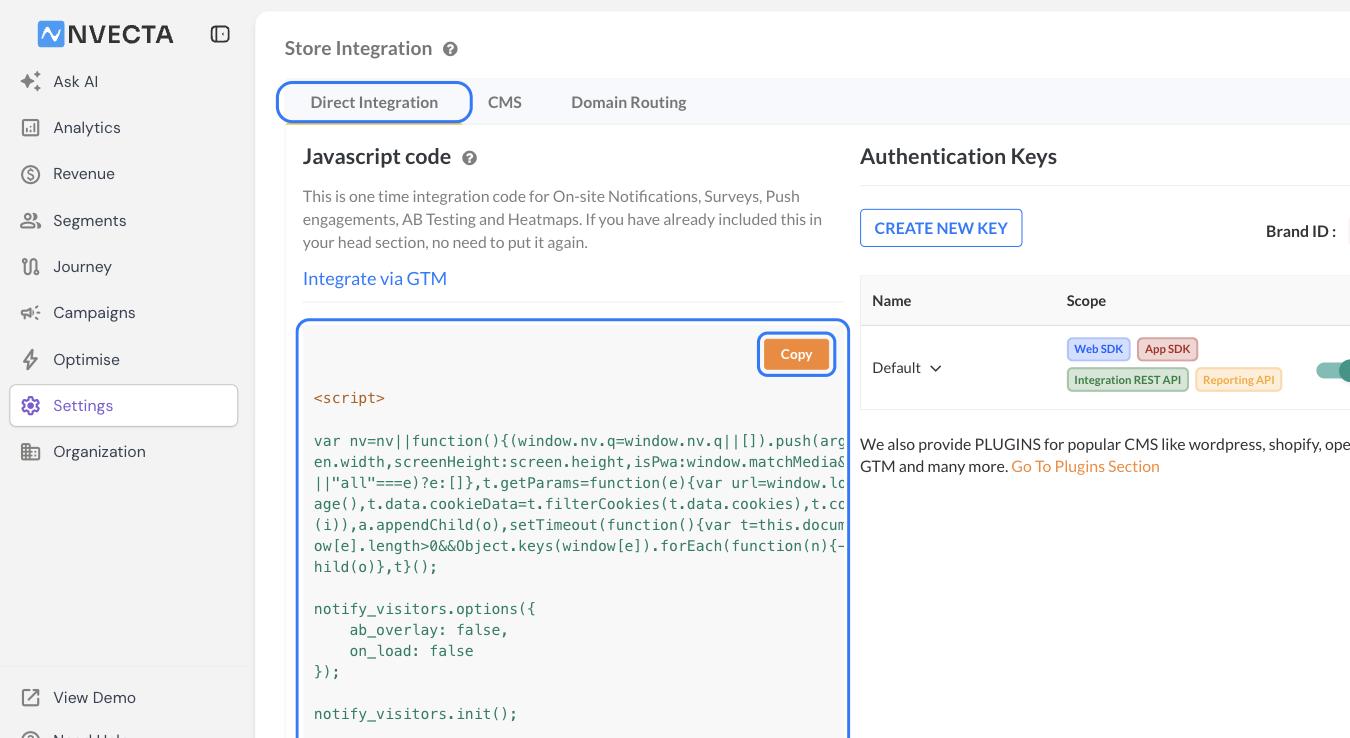
Where: Settings > Integrations > Store Integration > Direct Integration
- Click Settings in the left menu and, under Integrations, click Store Integration.
- On the Direct Integration tab, under Javascript code, click Copy.
- Paste the code inside the <head> section of your website.
- If the code is already on your site in the footer or at the end of the <body>, move it to the <head>. Do not add it a second time.
For full setup steps, see Web integration in the developer docs.
2. Keep on_load set to false
The integration code includes an options block that controls how the script loads:
ab_overlay: false,
on_load: false
});
The on_load option loads the NVECTA script only after the complete page has loaded. Keep it set to false on pages that run A/B tests, so NVECTA does not wait for every image and script on the page before it applies the variation.
3. Add the code directly instead of through a tag manager
When the NVECTA code is added through Google Tag Manager, the browser first loads the tag manager container and only then fires the NVECTA tag. This extra step adds delay and makes flicker more likely. For pages that run A/B tests, add the code directly to the <head> of your site.
If you have to use Google Tag Manager, fire the NVECTA tag on the earliest trigger available, such as Initialization - All Pages or All Pages, and not on DOM Ready or Window Loaded. See Integration via GTM for setup steps.
4. Exclude the NVECTA code from script optimisation
Many caching and speed tools, such as WordPress optimisation plugins and CDN script optimisers, can defer, delay, combine or move JavaScript. If they change how the NVECTA code loads, the variation is applied late, sometimes only after the visitor scrolls or clicks. Ask your developer to:
- Exclude the NVECTA code from delay JavaScript and defer JavaScript settings.
- Exclude it from JavaScript combining and minification.
- Check the live page after every change to confirm the code is still in the <head> and unchanged.
5. Improve your page speed
The faster your page loads, the shorter any flicker is. Ask your developer to:
- Compress and resize large images, especially in the hero section.
- Remove third-party scripts that the page does not need, or load them later.
- Use a CDN and browser caching for your site's own files.
- Find the domain the NVECTA script loads from in the browser's Network tab, and add a preconnect hint (<link rel="preconnect">) for it in the <head>.
6. Turn on the white overlay (not recommended)
Many brands use a white overlay to hide flicker. However, we at NVECTA do not recommend it. Visitors see a blank screen until the page appears, which increase chances of users dropping off, and it can hurt your page's Largest Contentful Paint (LCP) score, which can affect your SEO ranking. We recommend working through the other fixes in this article to minimise flicker. If you still want to use the white overlay, consult your client manager before you turn it on using the steps below.
To turn it on, use the ab_overlay option. It turns the white overlay on or off, and it is set to false in the integration code. Set it to true to show a white overlay while the variation is being applied, so visitors do not see the original content change into the variation.
ab_overlay: true,
on_load: false
});
Keep the options block before notify_visitors.init(), as described in the Web integration guide.
The overlay replaces flicker with a short blank screen, so it works best alongside the other fixes in this article. The faster your page and the NVECTA code load, the shorter the time the overlay is shown.
Design variations that flicker less
How you build a variation also affects flicker. Keep these practices in mind when you create variations:
- Avoid heavy changes in the hero section: The hero section is the first thing a visitor sees, so a late change there is the most noticeable. If you need to test it, keep the change small, such as new text or a new colour.
- Keep changes small and focused: Change a button colour, a headline or an image rather than rebuilding the layout. Testing one idea per variation also makes your results easier to read.
- Limit the number of changes per variation: Every change adds work before the variation is complete. If a variation has many edits, split the ideas into separate tests.
- Be careful with elements that load late: Carousels, sliders, lazy-loaded images and content added by your site's own scripts appear after the rest of the page, so changes to them can only be applied once they load. Check these variations carefully before you start the test.
- Use fonts your site already loads: A new font has to download before the text can switch to it, so visitors may see the old font first. Pick a font your site already uses, or ask your developer to preload the new font file.
- Optimise replacement images: Use compressed images with the same dimensions as the original, so the new image appears quickly and the layout does not jump.
- Use a split URL test for big redesigns: If the variation is a completely new page design, build it as a separate page and test it with Website Split URL under Optimise, instead of rebuilding the page inside an A/B test variation.
How to check for flicker
Check your test page the way a first-time visitor sees it, before you start the test and after every fix:
- Open the test page in a new incognito window. Repeat until you land in the variation.
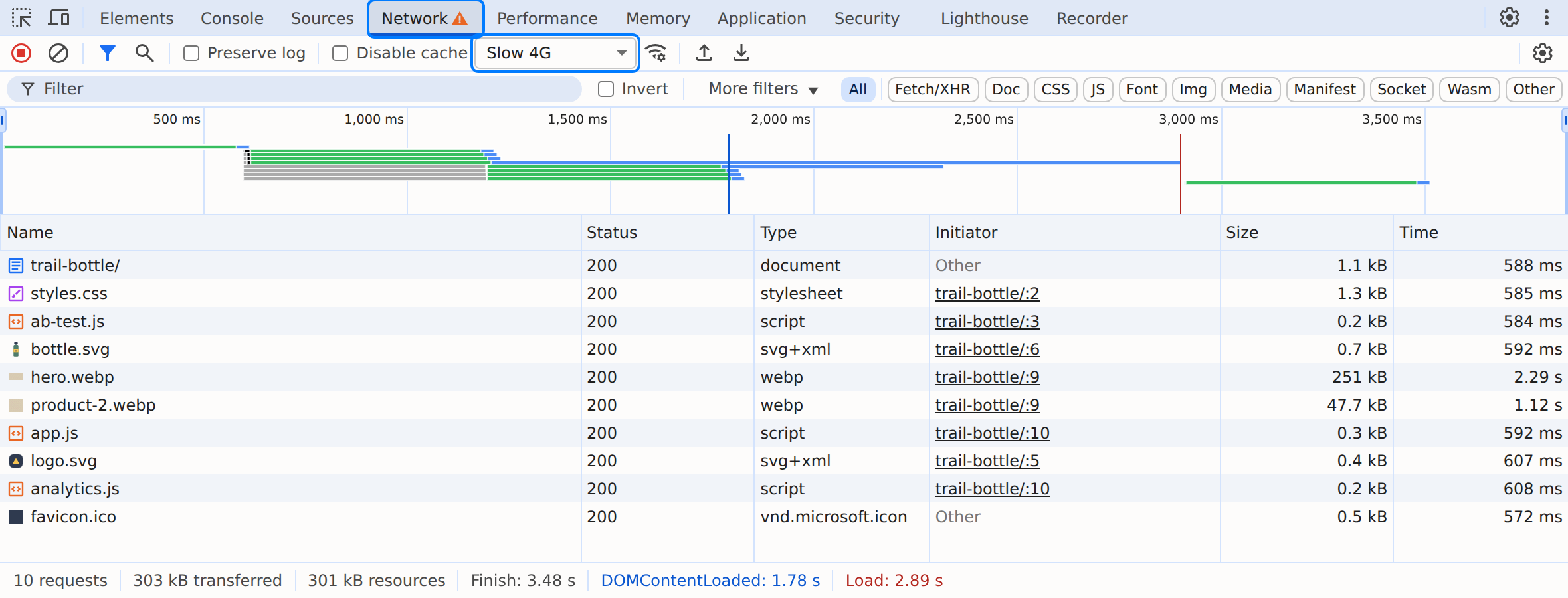
- Open Chrome DevTools, go to the Network tab and choose a slower throttling preset to simulate a mobile connection. Reload the page and watch whether the original version appears first.
- Right-click the page, click View page source, and search for notify_visitors to confirm that the code sits inside the <head> section, above other heavy scripts.
- Repeat the check on a real mobile device, where connections are usually slower.
Quick checklist
| Check | Recommended setup |
|---|---|
| Integration code location | Inside the <head>, as high as possible |
| How the code is added | Directly in the site code, not through a tag manager |
| on_load | false |
| Speed plugins and CDN optimisers | NVECTA code excluded from delay, defer and combine settings |
| Hero section changes | Small and minimal |
| Changes per variation | Few and focused |
| Fonts and images in the variation | Already used on the site, or preloaded and compressed |
| ab_overlay | false. Turning it on is not recommended, so consult your client manager first. |
Conclusion
Flicker happens when visitors see the original page before NVECTA applies the variation. Placing the integration code high in the <head>, keeping on_load set to false and keeping variations light removes most of it, so every visitor gets a smooth experience from the first second.
Was this article helpful?
That’s Great!
Thank you for your feedback
Sorry! We couldn't be helpful
Thank you for your feedback
Feedback sent
We appreciate your effort and will try to fix the article