NVECTA integrates with Microsoft Teams through the NVECTA AI Assistant, a Teams app that lets you and your team work with NVECTA directly from Teams. You upload the app package once, your Teams admin approves it, and from then on anyone in your organization can add the assistant and chat with it in Teams.
In this guide, we'll walk you through adding the app, getting it approved, adding it in Teams, and signing in to NVECTA. To learn more about connecting NVECTA to AI assistants, see Introduction to NVECTA MCP (Model Context Protocol).
Requirements
- A Microsoft Teams work account in your organization.
- The NVECTA AI Assistant app package (.zip). Download it here: NVECTA AI Assistant app package. Keep the file as it is, there's no need to unzip it.
- A Teams admin in your organization who can approve the app.
Step 1: Open Manage your apps
Where: Teams > Apps > Manage your apps
- In Teams, click Apps in the left rail.
- At the bottom of the Apps pane, click Manage your apps.
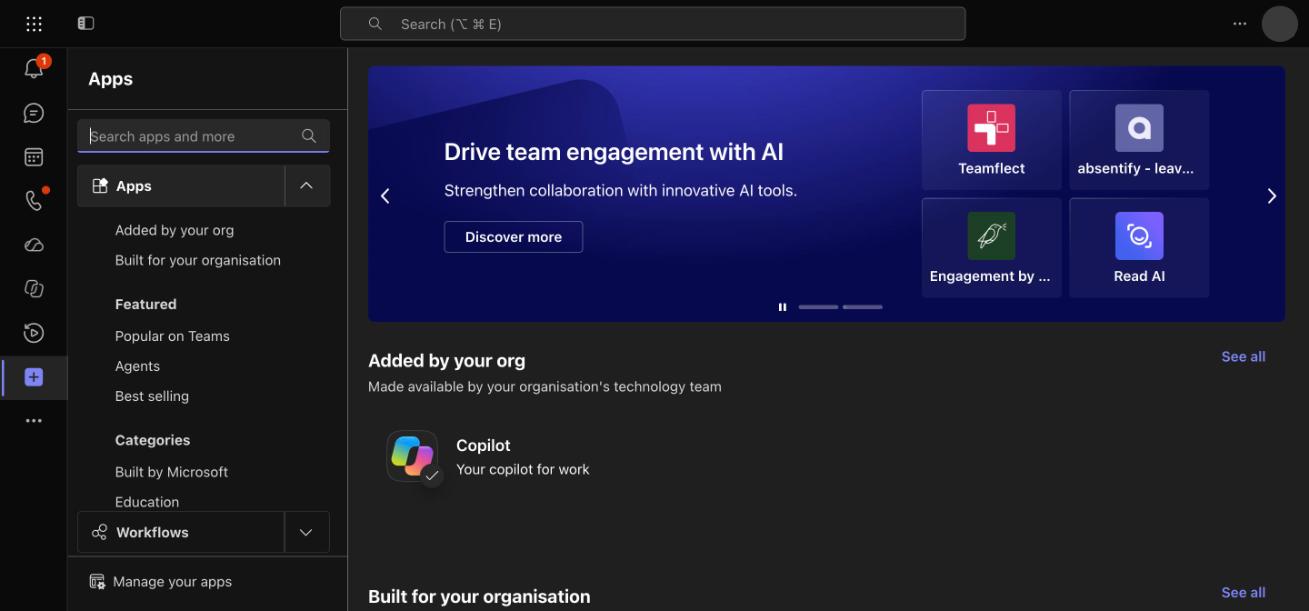
Step 2: Upload the NVECTA AI Assistant package
Where: Manage your apps > Upload an app > Submit an app to your org
- On the Manage your apps page, click Upload an app.
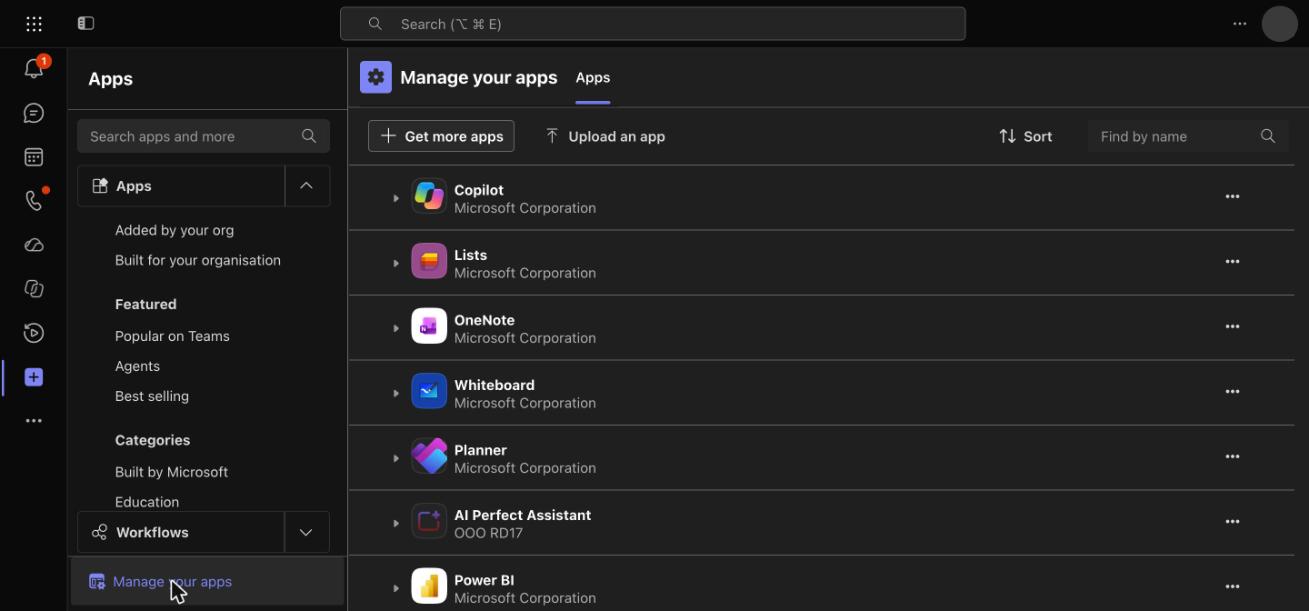
- In the Upload an app window, click Submit an app to your org.
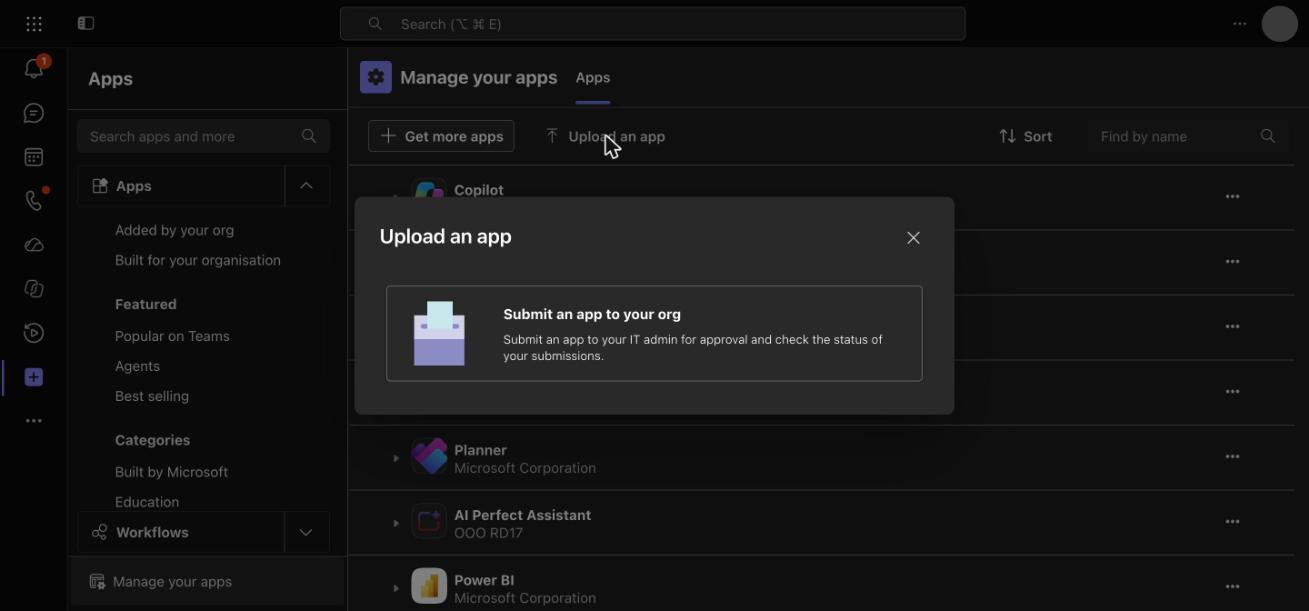
- Select the NVECTA AI Assistant .zip file you downloaded and upload it.
Once the file is uploaded, the app is sent to your IT admin for approval and shows as a pending request until it is approved.
Step 3: Get the app approved by your Teams admin
Only a Teams admin can approve the request. Ask your admin to review and publish NVECTA AI Assistant in the Teams admin center. Microsoft's guide Submit and approve your custom apps explains the admin side of this step.
After approval, NVECTA AI Assistant appears in your organization's app store under Built for your organisation.
Step 4: Add NVECTA AI Assistant in Teams
Where: Apps > Built for your organisation > NVECTA AI Assistant
- Click Apps (+ icon) in the left rail, then click Built for your organisation.
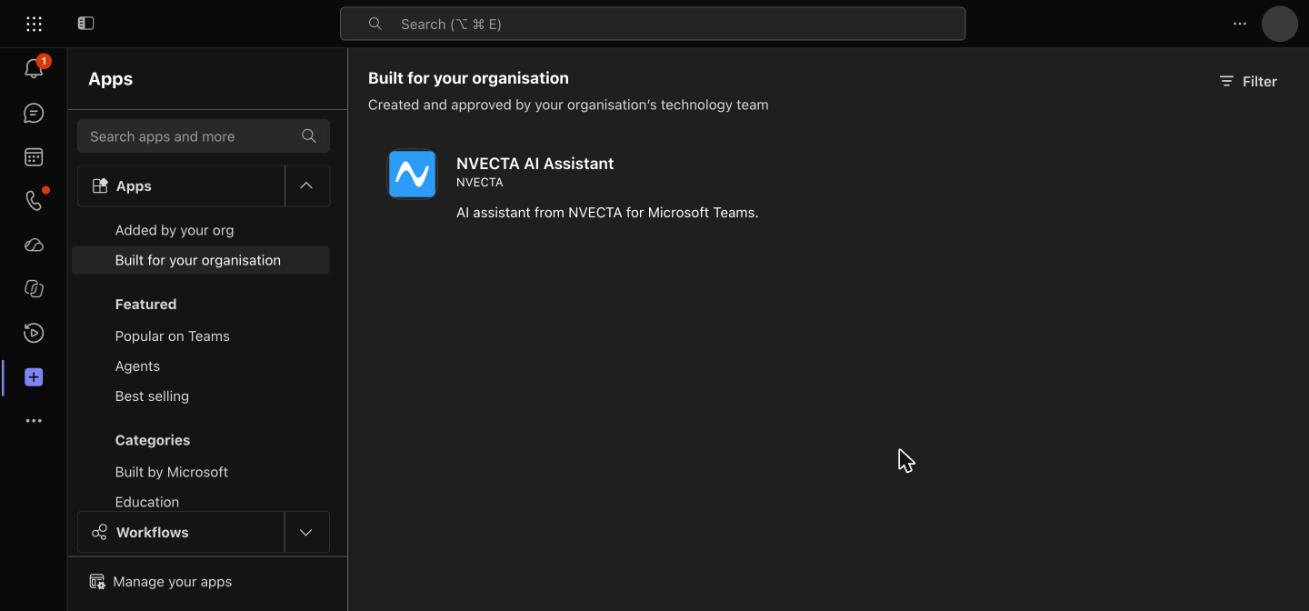
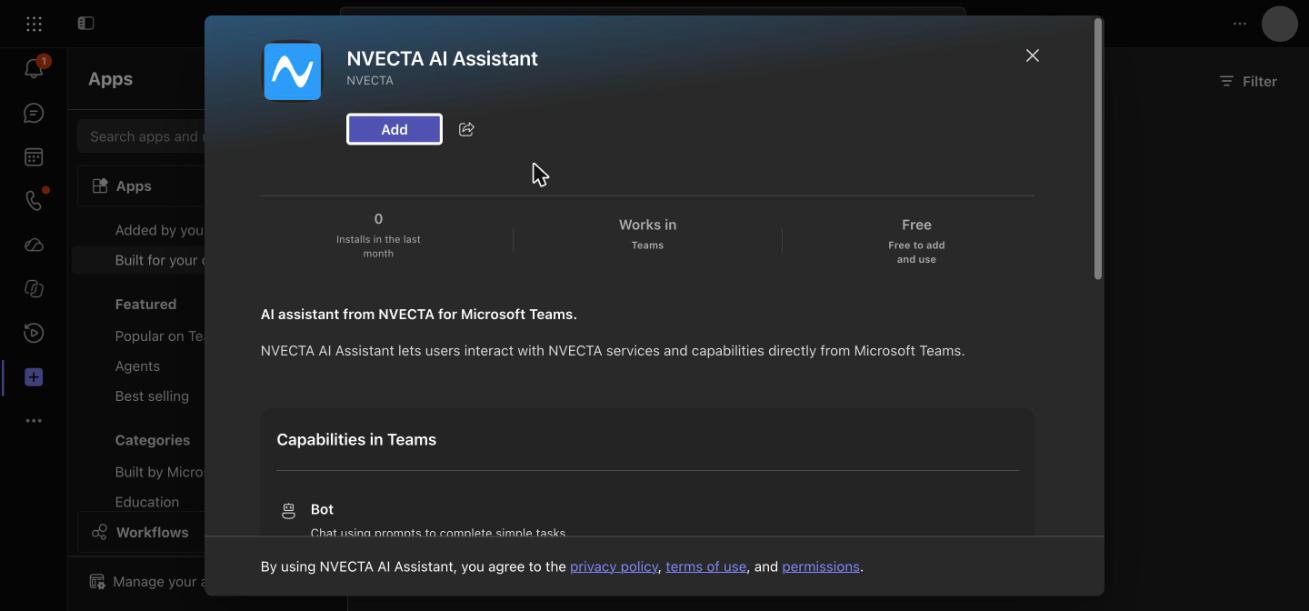
- Click NVECTA AI Assistant, then click Add.
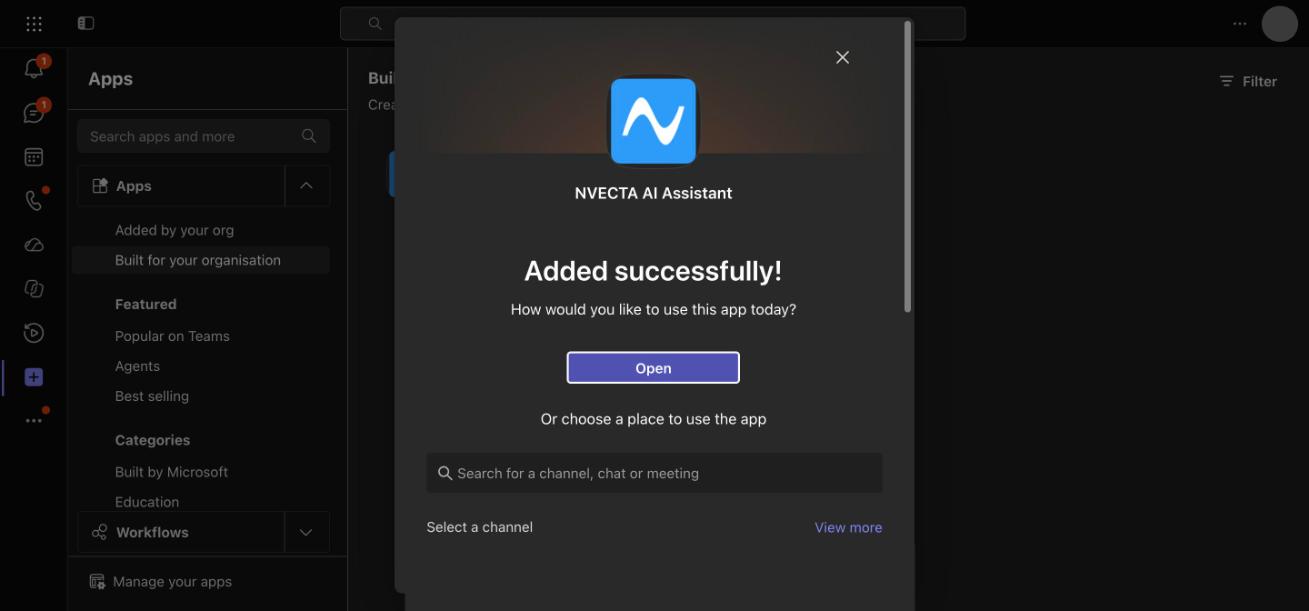
- In the Added successfully! window, click Open to start a chat with the assistant. To use it with your team instead, choose a channel, chat or meeting under Or choose a place to use the app.
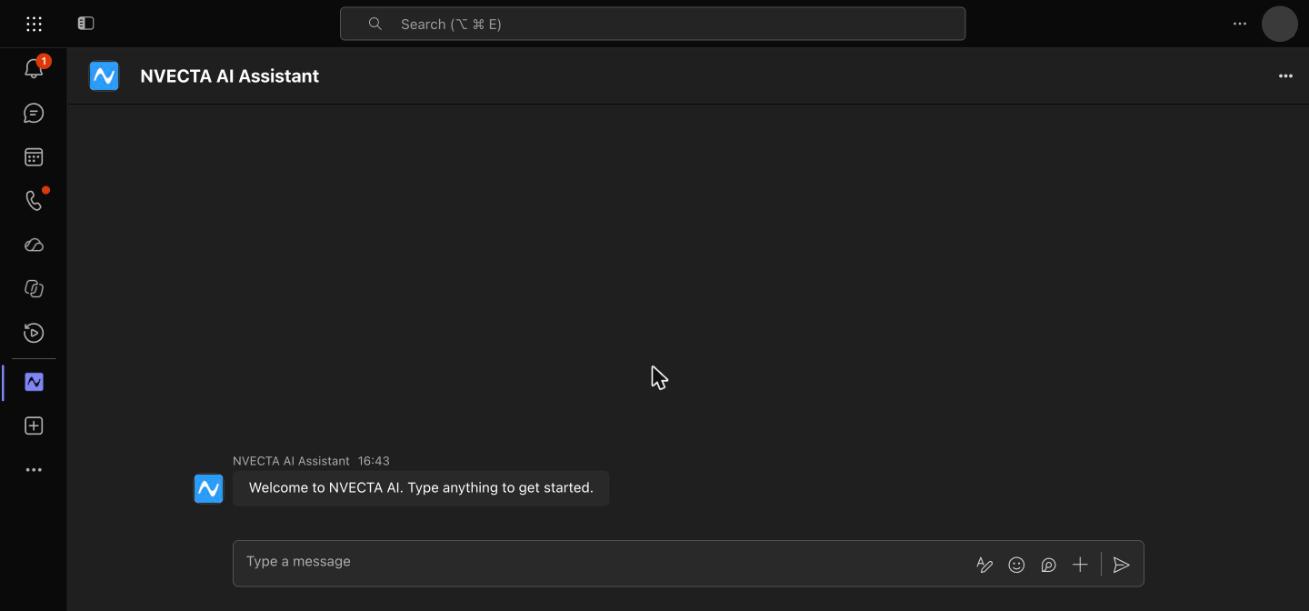
The assistant opens as a chat and is pinned to your left rail.
Step 5: Sign in to NVECTA
The first time you use the assistant, connect it to your NVECTA account.
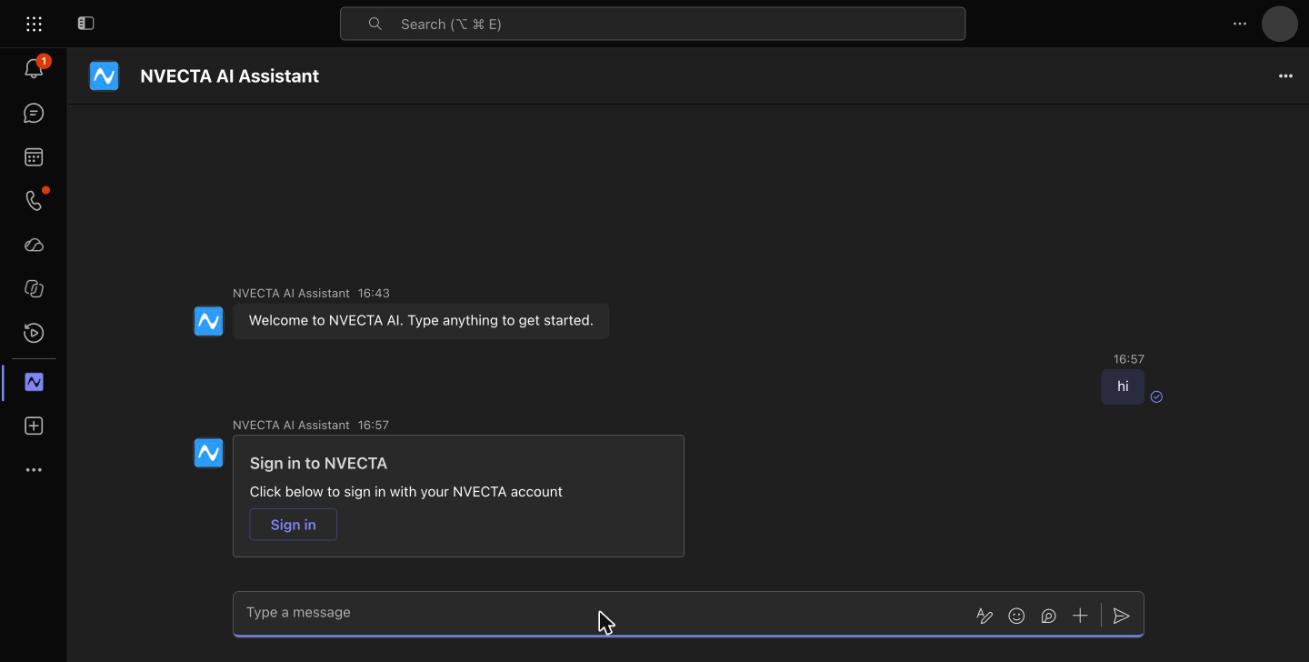
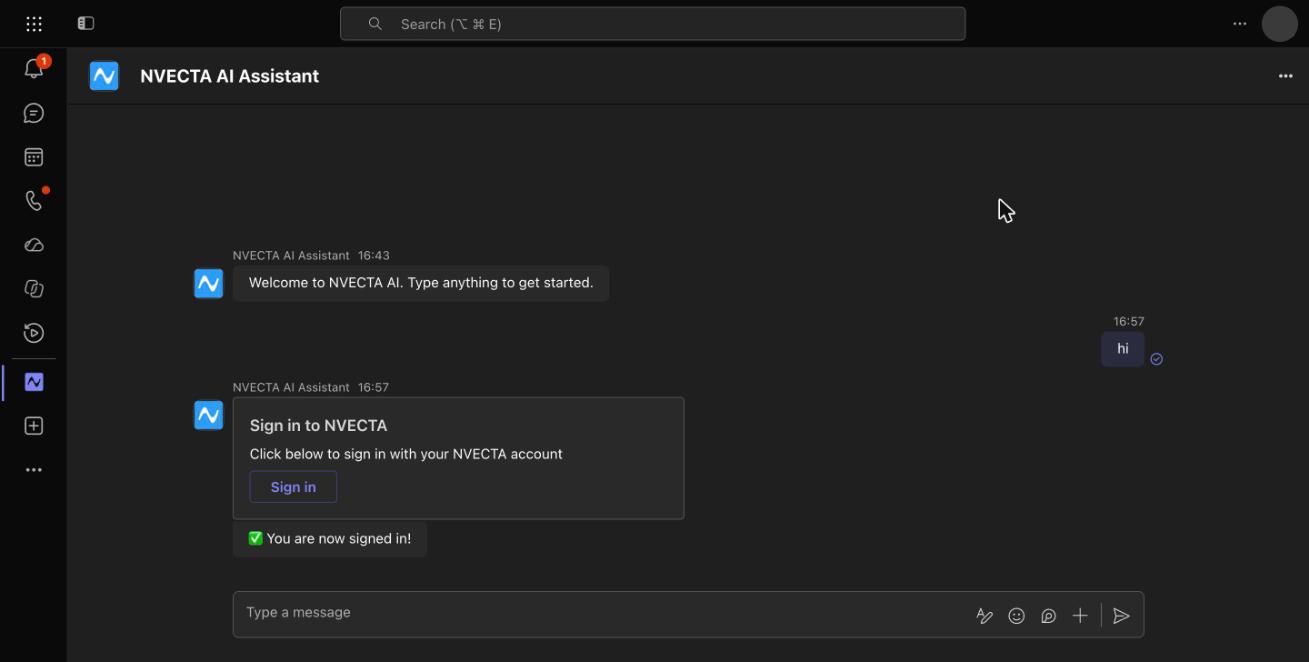
- In the NVECTA AI Assistant chat, type any message, such as hi, and send it.
- The assistant replies with a Sign in to NVECTA card. Click Sign in.
- A browser tab opens to NVECTA. If you aren't already logged in, sign in with your NVECTA credentials.
- Head back to Teams. The assistant confirms You are now signed in! and you're ready to start using it.
Sign out or switch accounts
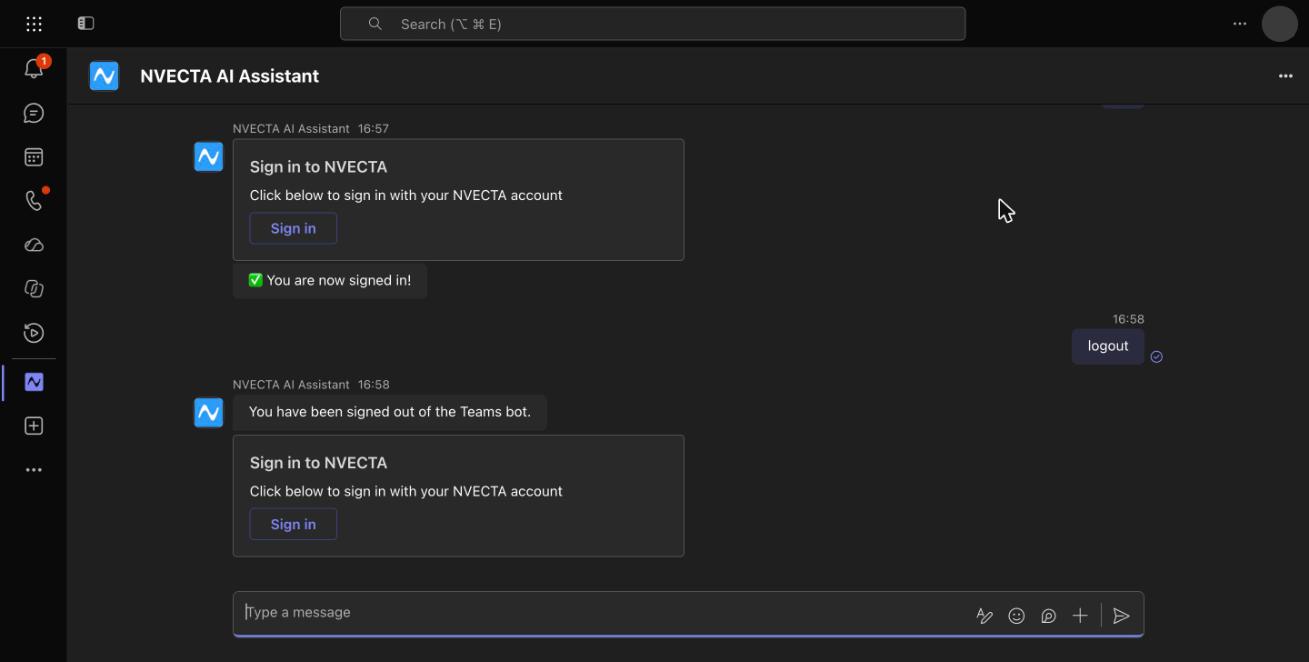
Need to sign out, or want to use a different NVECTA account? Just type logout in the chat and send it. The assistant replies You have been signed out of the Teams bot. and shows the Sign in to NVECTA card again, so you can sign back in with any account whenever you like.
How it works
Once you're signed in, open NVECTA AI Assistant from the left rail and type your request in the chat, just like you would message a colleague. The app works in personal chats, group chats and team channels, so you can also add it where your team already works and ask it questions together.
Example
Let's see how a lending team uses NVECTA AI Assistant to understand where applicants drop out of their personal loan journey.
The team asks a simple question in the chat: Where are users dropping off in our loan journey? You don't need to mention event names or build a funnel first. The assistant pulls the journey data from NVECTA and replies with a step-by-step funnel showing how many users reached each stage and where the biggest drop-off happens.
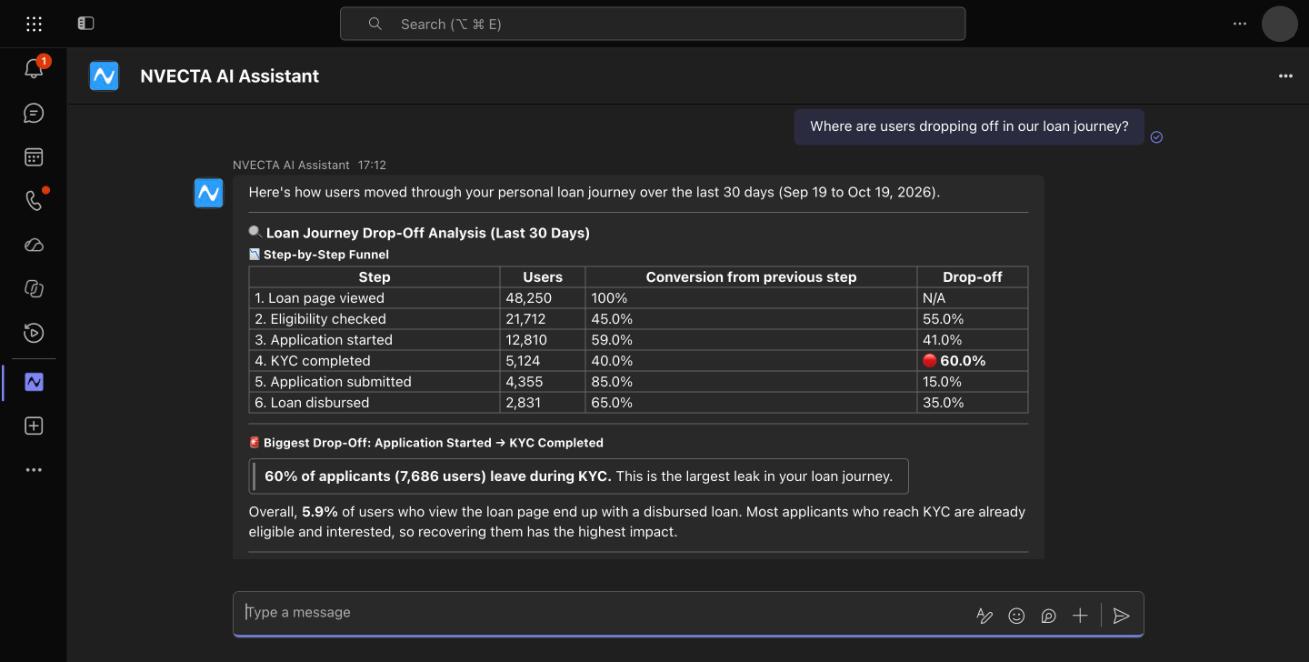
In this example, 60% of applicants leave during KYC, the single biggest leak between starting an application and getting a loan disbursed.
Turn insight into action
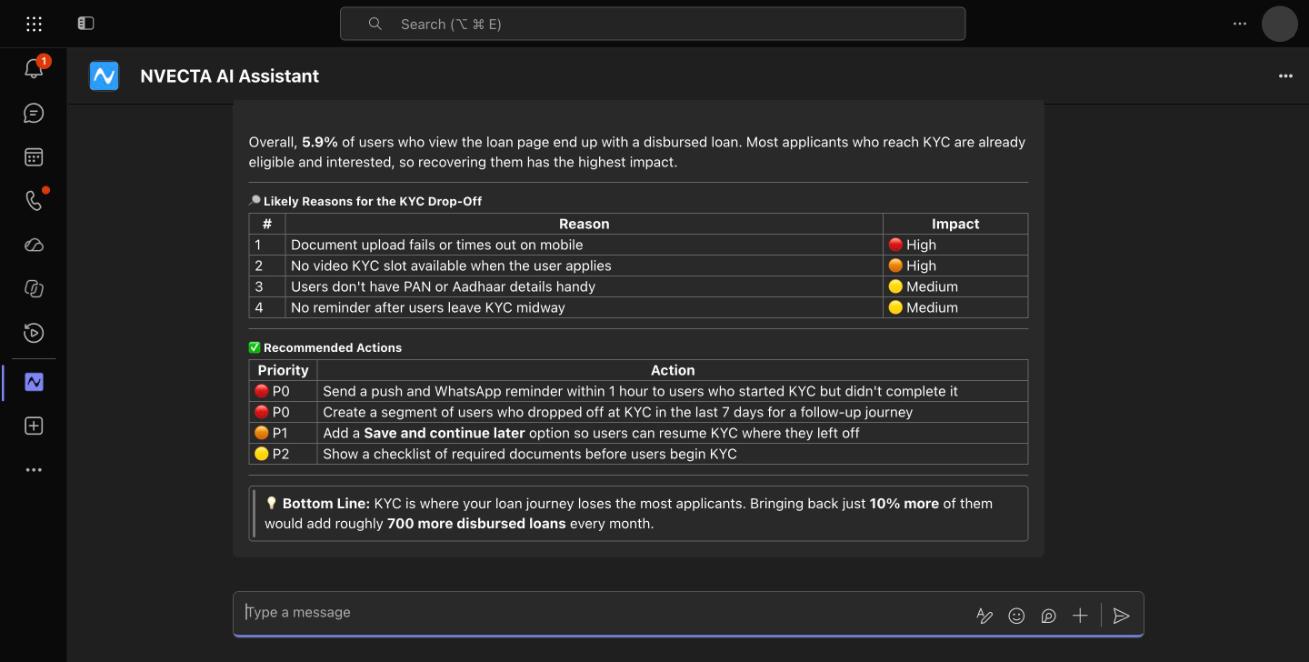
Along with the numbers, the assistant explains the likely reasons for the drop-off and suggests prioritised next steps, such as reminding users who left KYC midway and creating a segment of them for a follow-up journey. Your team can discuss the findings right in Teams and decide what to act on next.
Troubleshooting
- Upload an app is missing: Your organization may not allow users to upload custom apps. Ask your Teams admin to upload the NVECTA AI Assistant package for you, or to allow custom app uploads.
- NVECTA AI Assistant isn't in Built for your organisation: The request is still waiting for admin approval. Check with your Teams admin. If it was approved recently, refresh Teams in the browser, or sign out and back in on the desktop app.
- Can't find the app after adding it: Look for NVECTA AI Assistant in the left rail, or go to Apps > Manage your apps.
- The assistant keeps asking you to sign in: Click Sign in on the card and finish signing in to NVECTA in the browser tab that opens, then return to Teams.
- Signed in with the wrong account: Type logout, send it, and then sign in again with the right NVECTA account.
Conclusion
Once NVECTA AI Assistant is approved, added and signed in, your team can work with NVECTA from the place they already collaborate, without switching tools. Upload the package once, get it approved, and everyone in your organization can add it from Teams.
NVECTA also connects to other AI assistants. See Connect NVECTA to Claude using MCP and Connect NVECTA to ChatGPT using MCP.
Was this article helpful?
That’s Great!
Thank you for your feedback
Sorry! We couldn't be helpful
Thank you for your feedback
Feedback sent
We appreciate your effort and will try to fix the article
Articles In This Folder
- Introduction to NVECTA MCP (Model Context Protocol)
- Connect NVecta to ChatGPT using MCP (Model Context Protocol)
- Connect NVECTA to Claude using MCP (Model Context Protocol)
- Connect NVECTA to Microsoft Teams using the NVECTA AI Assistant app