
Push Notifications
Configure build.gradle
If have done FCM integration. These steps may exist in build.gradle files. So you can skip these steps.
Add the below code in build.gradle (module-level) at the bottom. If you don't have.
apply plugin: 'com.google.gms.google-services'
Add the below code in build.gradle (project-level). If you don't have.
buildscript {
  dependencies {
   	 // Add this line
    	classpath 'com.google.gms:google-services:4.0.1'
  }
}
Configure FCM's Sender ID and Private Key
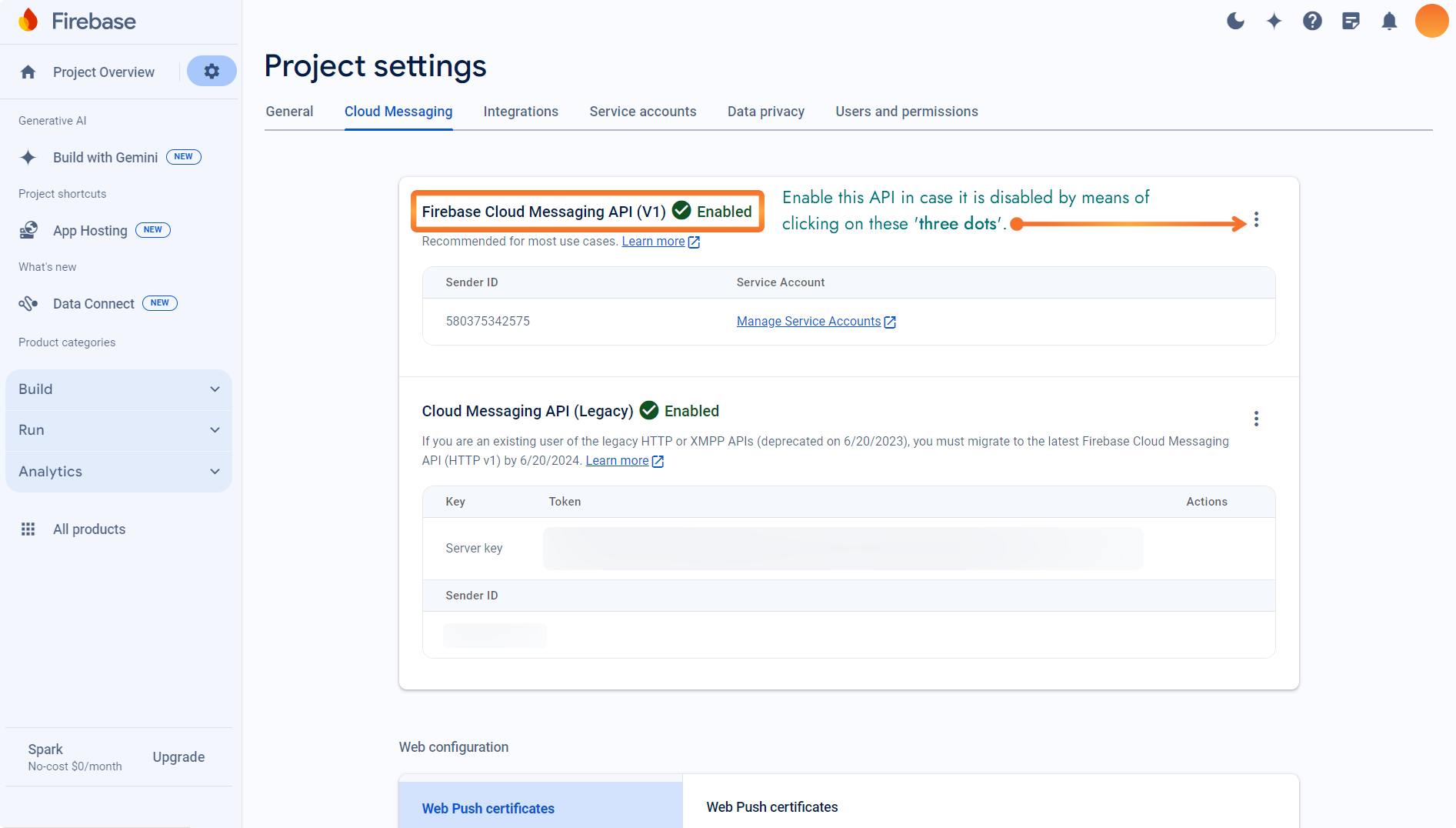
Select the 'Cloud Messaging' tab to find out the 'SENDER ID' for FCM.
Select the 'Service Accounts' tab to generate 'PRIVATE KEY' for FCM.
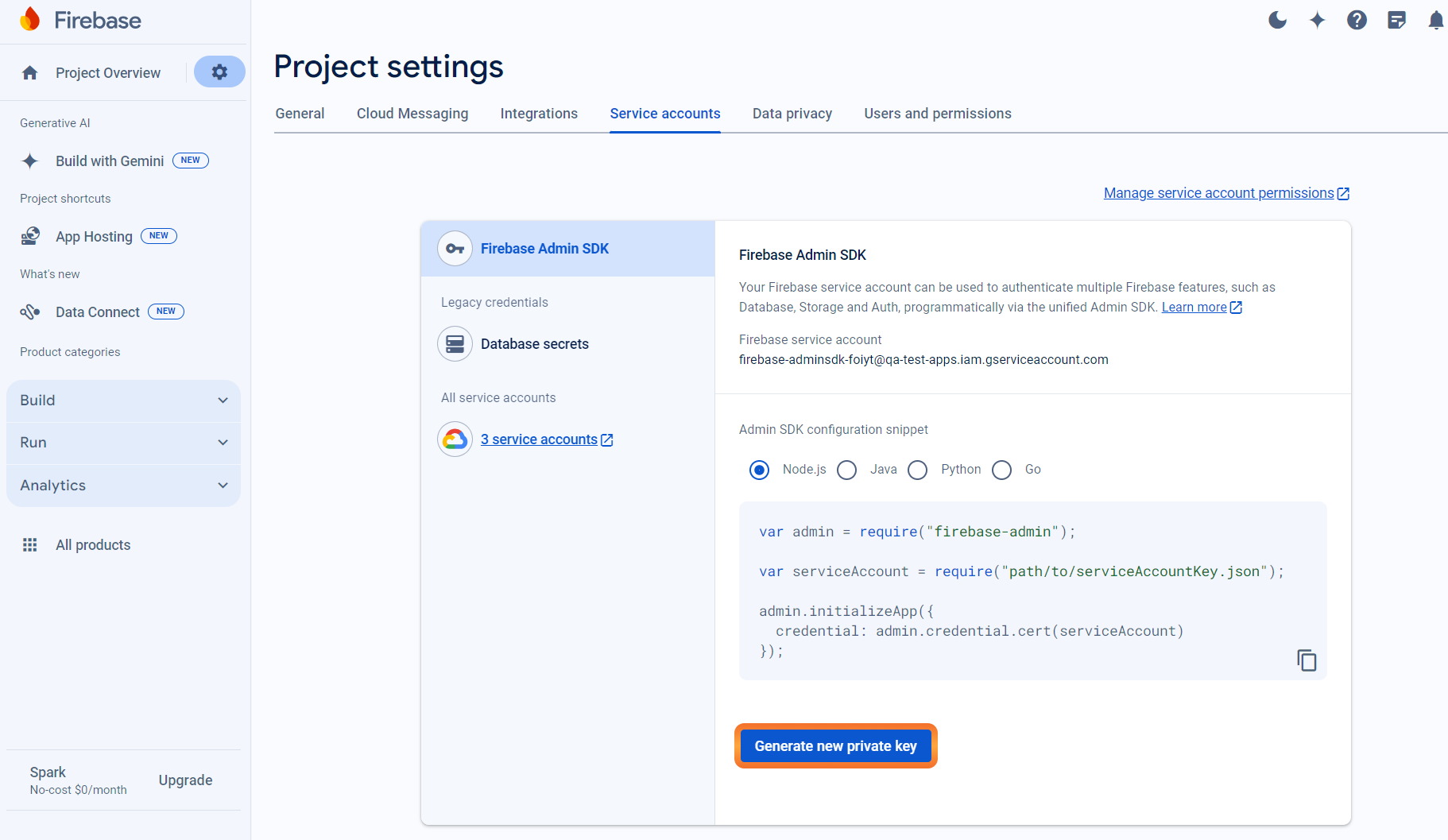
Click on the 'Generate new private key' button. This will download a JSON file. Refer below for sample JSON file format.
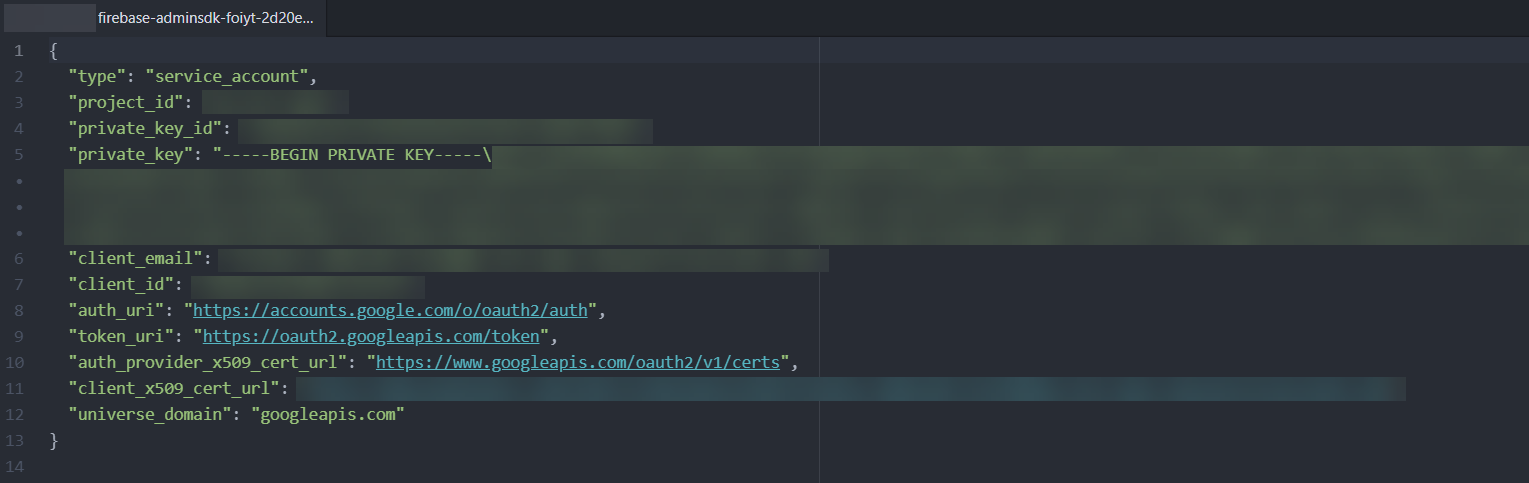
Store this JSON file on your system.
Login to your NotifyVisitors Account.
Navigate to Settings > App Push > Android tab.
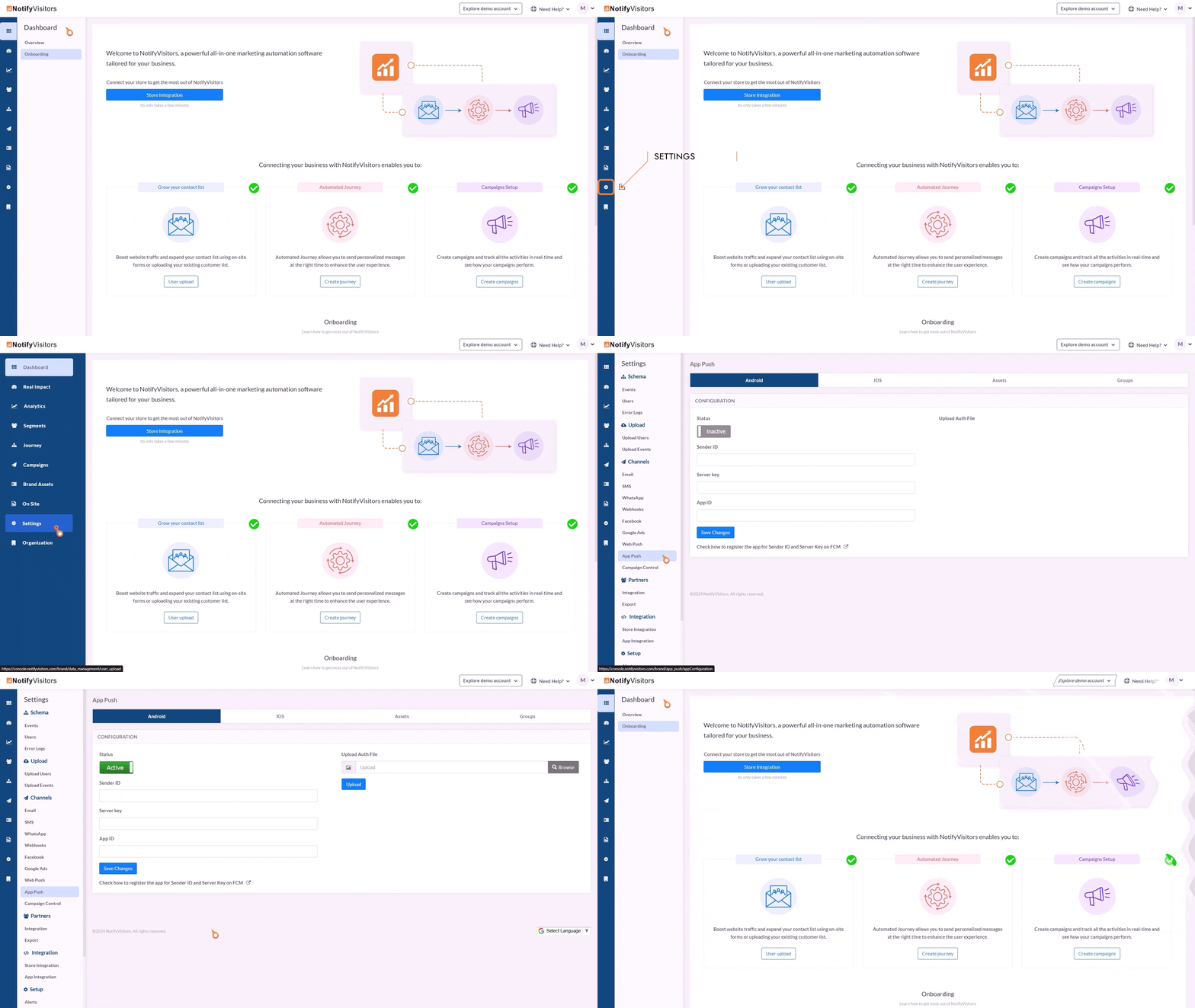
Upload your downloaded private key JSON file in the 'Upload Auth File' section.
Add 'Sender ID' from your 'Cloud Messaging' section.
Add 'App ID (project ID)' from your downloaded private key JSON file.
Save the changes i.e., click on the button titled 'Save Changes'.
Push Notification Icon
Create a monochrome png icon and the size must be 200×200. The name of the icon should be sm_push_logo.png Paste into your-project/android/app/src/main/res/drawable/.
Updated 5 months ago